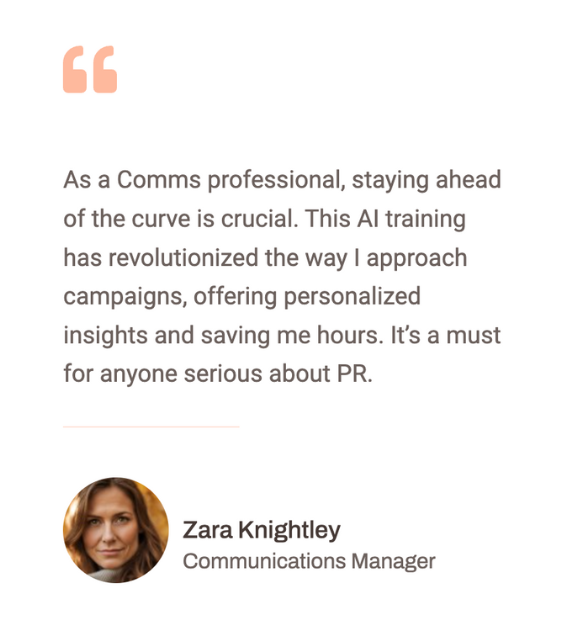
Build a No-Code AI App and Publish to the iOS App Store: Beginner (Video Course)
Go from idea to a shipped iOS app,without writing code. Learn vibe coding prompts, build a full AI scanner with OCR, signatures, and exports, then package and publish to the App Store. Clear steps, real assets, and zero guesswork from start to submit.
Related Certification: Certification in Building and Deploying No-Code AI iOS Apps to the App Store
Also includes Access to All:
What You Will Learn
- Use vibe coding to build a complete mobile UI and workflows with a no-code AI builder
- Integrate AI features: OCR text extraction, editable editor, signatures, and camera capture
- Package your web app into a native iOS build and submit it to the App Store
- Configure Apple credentials, Bundle IDs, App Groups, and extension targets (share, widget, App Clip)
- Create App Store assets, privacy disclosures, export options, and follow a QA checklist for launch
Study Guide
Introduction: Build Real Apps With AI (Even If You've Never Coded)
You don't need to be a developer to ship a real, useful app anymore. You need clarity, a few smart tools, and a way to talk to AI like a builder, not a spectator. That's what this course teaches you.
We'll create a complete AI-powered mobile app from scratch using a no-code, prompt-driven workflow. You'll speak your intentions in plain language,what I call vibe coding,and the AI will assemble the screens, logic, and features. Then we'll package that web app into a native iOS app and walk step-by-step through everything Apple requires to publish it to the App Store.
Our case study is a document scanner app that can upload photos, extract text with OCR, format documents, add digital signatures, access the camera, and export to PDF or JPEG. You'll learn the exact prompts, the checklist for App Store Connect, and the tiny details that usually derail beginners. By the end, you can go from idea to App Store submission without writing a single line of code.
What You'll Learn (and Why It Matters)
There are two paths in app building: tinker forever, or ship. This course is for shipping.
You'll learn to:
- Build a complete app interface and workflow using natural language prompts in an AI app builder (think Base 44).
- Add real AI functionality like OCR for reading text from images.
- Turn a web app into a native iOS app with a packaging tool (think Despia), then submit it to the App Store properly.
- Configure Apple Developer credentials, Bundle IDs, App Groups, and targets like Share, Widget, App Clip, and push notifications.
- Create a clean App Store listing with screenshots, privacy policy, data disclosures, pricing, and keywords.
Most people get stuck because they underestimate app store logistics. You won't. You'll have a roadmap that covers the business side and the build side with examples for every step.
The Vibe Coding Mindset (How To "Talk" Apps Into Existence)
Vibe coding is simple: you describe what you want the user to experience, the states of the interface, and the logic in between. The AI converts your intent into screens, components, and workflows. Your job is clarity.
Here's how to think when you prompt:
- Describe outcomes, not technologies: "When the user taps Scan Now, extract text from the previewed image and display it with formatting options."
- Define states: empty, loading, success, error. Ask the AI to show and hide elements accordingly.
- Specify constraints: image types allowed, file size limits, button behavior after actions.
- Use examples to anchor behavior: "Format toolbar like a minimalist Google Docs toolbar: bold, italics, alignment, bullets."
Example:
"Create a mobile-first screen with a bottom nav: Dashboard, History, Settings. Use a clean productivity theme (light background, deep blue accents). In Dashboard, add an image upload dropzone with a thumbnail preview area, a Scan Now button (disabled until an image is selected), and a note about supported formats (JPG, PNG, HEIC up to 10MB). Show a loading indicator during scanning."
Another Example:
"When OCR completes, render extracted text in an editable content area with a minimal toolbar: bold, italics, underline, H1, H2, paragraph, alignment left/center/right, and bullet list. Add Save as Document and Export buttons below. After Save, show a success toast and add the document to History with timestamp."
Key Concepts You'll Use
- No-Code Development: Building apps through visual tools and configuration rather than writing code.
- AI App Builder (e.g., Base 44): A platform that turns plain-English prompts into UI, logic, and data flows.
- App Packaging Tool (e.g., Despia): Wraps your web app into a native mobile app and connects to App Store submission pipelines.
- Front-End: The user-facing screens and interactions.
- OCR (Optical Character Recognition): Extracts text from images. Core tech for document scanning.
- Apple Developer Account: Required to publish to the App Store and configure identifiers/certificates.
- App Store Connect: Where you manage app listings, builds, pricing, and reviews.
- Bundle ID: The unique ID for your app (reverse-domain format, like com.company.app).
- API Key and .p8 file: Credentials that let a tool interact with App Store Connect on your behalf.
- App Group: A shared container that lets your app and extensions (widgets, notifications) share data.
Part 1 , Build the App With an AI Platform (The Document Scanner Pro Case Study)
We'll construct the app feature-by-feature using clear prompts. Each step builds on the last. You'll see how to think, what to say, and how to test the results.
Step 1: Front-End Foundation and Navigation
Objective: Establish structure and a clean UI before adding logic.
What to prompt the AI for:
- A bottom navigation bar with Dashboard, History, and Settings.
- A modern productivity theme (light background, clear contrast, large touch targets).
- Mobile-first layout with responsive behavior on larger screens.
Why this matters: UI is the skeleton. You want consistent components and spacing so new features slot in without chaos.
Example:
"Create a bottom nav with three tabs: Dashboard (home icon), History (clock icon), Settings (gear icon). Use standard iOS spacing. Default to Dashboard on launch."
Another Example:
"In the Dashboard, add a hero card with the title 'Document Scanner Pro' and a subtitle 'Upload or capture, extract text, sign, and export.' Below, place a large Upload Image button and a Take Photo button side-by-side."
Tips:
- Use consistent naming for components and pages so you can reference them easily in later prompts.
- Ask the AI to create reusable UI components (buttons, modals, toolbars) you can drop anywhere.
Step 2: Image Upload and Preview
Objective: Let users import a document image and see it before scanning.
What to prompt the AI for:
- An upload component that accepts JPG, PNG, and HEIC up to a size you define.
- A preview area that shows the selected image with filename and file size.
- A disabled Scan Now button that activates once an image is present.
Example:
"Add an image upload that accepts JPG, PNG, HEIC up to 10MB. After selection, show a thumbnail preview, filename, and size. Enable the Scan Now button only when a valid image is present. If the file is too large or the wrong type, show an inline error below the uploader."
Another Example:
"Store the uploaded image in a temporary state called currentImage. If a new image is uploaded, replace the preview and reset any previously extracted text."
Tips:
- Ask for empty, loading, and error states on every screen. It's the fastest way to a professional feel.
- Include a Clear button to reset the upload so users can switch images quickly.
Step 3: AI Integration , OCR (Text Recognition)
Objective: Extract text from the previewed image and display it cleanly.
What to prompt the AI for:
- Convert the Scan Now button into a function call that runs OCR on currentImage.
- Show a loading spinner and disable inputs while processing.
- When done, render extracted text in an editable area with a basic toolbar.
- Provide Save Scan and Copy Text actions.
Example:
"When the user clicks Scan Now, run OCR on currentImage. While processing, show 'Scanning…' and a spinner. On success, render the extracted text in an editor beneath the preview with basic formatting options (bold, italics, underline) and a character count. Provide Save Scan and Copy Text buttons."
Another Example:
"If OCR fails or returns low-confidence results, show an inline alert with 'Text may be incomplete' and provide a Retry Scan button and a Manually Edit option."
Practical uses:
- Scanning receipts to track expenses.
- Pulling text from printed forms for faster data entry.
Tips:
- Ask the AI to display an OCR confidence score and flag low confidence segments in yellow.
- Give users a toggle to auto-correct common OCR mistakes (like substituting 0 for O or 1 for l).
Step 4: Document Management and Formatting
Objective: Turn raw text into a document you can edit, save, and revisit.
What to prompt the AI for:
- A document preview modal that opens after a successful scan.
- Formatting tools: headings, alignment, bullets, basic styling.
- A Save as Document flow that pushes to the History tab with a timestamp and auto title (first line or date).
- A rename feature and search in History.
Example:
"After a successful scan, open a modal titled 'Edit Document.' Include formatting controls (H1, H2, Paragraph; bold/italics/underline; align left/center/right; bullet list). Add buttons: Save Document, Export, Add Signature. On Save Document, add to History with a generated title (first 40 chars of content) and timestamp."
Another Example:
"In History, show a list with document title, a small preview snippet, created date, and a menu with options (Open, Rename, Duplicate, Delete). Add a search bar that filters by title and content."
Tips:
- Ask the AI to implement autosave while editing to prevent lost work.
- Include a confirmation prompt before deleting documents to avoid accidental loss.
Step 5: Advanced Feature , Digital Signatures
Objective: Let users sign documents with a stylus or finger.
What to prompt the AI for:
- An Add Signature button that opens a signature pad modal.
- Clear and Apply buttons; allow black ink on white background and adjust stroke weight.
- Insert the signature image at the bottom of the document and lock its position relative to the page content.
- Save the signed version as a new document version (keep an unsigned original).
Example:
"Create a signature pad modal with a canvas area. Add Clear and Apply. When Apply is tapped, insert the signature at the bottom of the document, centered, with a timestamp below in small gray text. Save as a new version called 'Signed' and keep version history."
Another Example:
"Add a Signature Library in Settings to store up to three saved signatures (e.g., full name, initials, company stamp). Let users choose a default signature and apply it with one tap."
Tips:
- Offer dark mode contrasts so signatures remain crisp on PDFs.
- Add a guide line or 'Sign here' placeholder for clarity.
Step 6: Device Integration , Camera Access
Objective: Capture document images within the app, no external app hopping.
What to prompt the AI for:
- A Take Photo button that opens the native camera.
- After capture, route the photo into the same preview and OCR flow as uploads.
- Add a retake option and basic crop/rotate controls before scanning.
Example:
"Add a Take Photo button that opens the device camera. After capture, show a review screen with Rotate, Crop to A4, and Retake. On Confirm, set as currentImage and return to Dashboard with the preview visible and Scan Now enabled."
Another Example:
"Implement auto-edge detection and perspective correction for documents. If edge detection fails, prompt the user to adjust lighting or retake with a hint overlay."
Tips:
- Ask the AI for a low-light warning and a tip to place documents on a high-contrast background.
- Cache the last 3 captured photos for quick re-scan without retaking.
Step 7: Export and Saving Functionality
Objective: Let users export documents in multiple formats with the right metadata.
What to prompt the AI for:
- Export options: PDF (standard), JPEG (single page), and TXT (plain text).
- For PDF, include layout choices (margins, page size like A4/Letter) and whether to embed the signature.
- File naming defaults and a Save to Files or Share sheet integration on mobile.
Example:
"Add an Export button with options: PDF, JPEG, TXT. For PDF, include settings: page size (A4/Letter), margins (None/Narrow/Standard), include signature (toggle), and password protect (optional). Generate and download the file with a default name like 'Scan-YYYYMMDD-HHMM.pdf' and allow renaming."
Another Example:
"Implement a Share action that opens the native share sheet on mobile with options to AirDrop, email, or save to Files. After export, show a toast 'Exported successfully' with an Open in Files link."
Tips:
- Provide a quick-copy button for TXT exports to paste text anywhere.
- Add export presets in Settings to speed up repeat tasks.
Bonus: Data Storage Choices (Simple and Safe)
You'll likely start with the platform's built-in storage or a simple database table for documents. For privacy, store:
- Document content and metadata (title, timestamp, version).
- Signature images as secure blobs.
- Keep raw images only as long as needed to run OCR, then delete unless users explicitly save originals.
Ask the AI to implement data retention controls in Settings with a toggle: "Delete original photos after OCR."
Example:
"Create a Documents table with fields: id, title, content, signed (boolean), createdAt, updatedAt, versions (JSON), previewThumbnail (image)."
Another Example:
"In Settings, add a Data & Privacy section with toggles: Delete originals after OCR, Anonymize usage analytics, and Export my data (download a ZIP of all documents)."
Prompt Engineering for Builders (Make the AI Output Cleaner)
Work with structured prompts and constraints:
- Start with a vision prompt (what the app is) and a style prompt (how it should feel).
- Give the AI acceptance criteria for every feature (when is it done?).
- Reference existing components by name to avoid duplication.
Example:
"Implement a signature pad in an existing modal called 'Edit Document.' Use the existing PrimaryButton component for Apply and SecondaryButton for Clear. Disable Apply if the canvas is empty. Insert the signature image as a block element above the footer."
Another Example:
"Success criteria: 1) Signature pad renders on iPhone and iPad, 2) Clear works instantly, 3) Apply inserts the signature and closes the modal, 4) The signed document saves as a new version without overwriting the original, 5) A toast confirms 'Signature applied.'"
Quality Assurance: Test Like a User
Before you package anything, test end-to-end flows with real files and weird edge cases.
- Try blurry images, receipts with crumples, and handwritten notes.
- Test export on different devices. Open PDFs in different readers.
- Simulate poor connectivity and large files.
Example:
"Test Case: Upload a 9.5MB HEIC receipt, run OCR, format the result with headings and bullets, sign it, export to PDF with password protection, and share to Mail."
Another Example:
"Test Case: Take Photo in low light, auto-edge fails, user retakes with suggested angle, scan completes, Save as Document, find it in History using search."
Tip: Keep a running bug list and ask the AI to fix each item with precise prompts. Treat the AI like a junior developer who thrives on specifics.
Part 2 , Package and Publish to the App Store (The Complete Checklist)
Now you've got a working web app. Time to turn it into a native iOS app and submit it for review. This is where many projects stall. Follow the steps exactly and you'll be fine.
Step 1: Initial Setup in the Packaging Tool
Objective: Make your app public and load it into the packager (e.g., Despia).
Actions:
- In your AI builder (e.g., Base 44), disable "Require login to access." You need a public URL for the packaging tool to fetch your app.
- Create a new project in the packaging tool and paste your public URL.
- Upload branding assets: a 1024x1024 app icon and a splash image or GIF for launch.
Example:
"Set Web App URL to https://yourapp.example.com. Upload an icon with a bold 'DS' monogram on a blue gradient background. Splash screen: minimal logo centered on white with soft gray background pattern."
Another Example:
"Configure the app name as 'Document Scanner Pro' and set the bundle display name to the same. Ensure the icon has rounded corners in the preview."
Tips:
- Keep the splash screen simple; it displays for a second. Clean > busy.
- If your web app uses authentication later, you can add it back using native auth flows. For packaging, start public.
Step 2: Authenticate the Packaging Tool With Apple
Objective: Connect your Apple Developer account so the tool can create identifiers and submit builds on your behalf.
You'll need:
- API Key ID and .p8 key file (from App Store Connect, Users and Access → Keys).
- Issuer ID (on the same Keys page).
- Development Team ID (from your Apple Developer membership page).
Example:
"In Despia's Apple Connect settings, upload your .p8 key, enter the Key ID (like ABCD1234), Issuer ID (a long UUID), and Team ID (like 1A2B3C4D5E). Click Validate to confirm."
Another Example:
"If validation fails, verify the .p8 file matches the Key ID and that the key has App Store Connect API access. Regenerate if you lost the file; you can't re-download an existing .p8."
Tips:
- Store the .p8 securely in a password manager. Losing it means creating a new key.
- Limit the number of active keys in your account to keep things tidy.
Step 3: Configure App Identifiers (The Procedural Core)
Objective: Create unique IDs so Apple knows exactly what your app and its extensions are.
You'll create Bundle IDs for:
- Main App Bundle (the app itself).
- OneSignal Target (push notifications).
- App Clip Target (a lightweight experience users can access quickly).
- Share Target (to accept shared content from other apps).
- Smart Widget Target (for home screen widgets).
Process (repeat for each target):
1) Copy the Bundle ID string provided by the packaging tool.
2) In the Apple Developer portal, create a new App ID → App → paste the ID and name it clearly (e.g., "Document Scanner Pro , Widget").
3) Enable required capabilities: App Groups, Push Notifications, or others as instructed.
4) If an App Group is required, create a new App Group identifier (group.com.yourcompany.documents) and link it to all relevant App IDs.
Example:
"Create main bundle: com.yourcompany.docscanner. Enable Push Notifications and App Groups. Create App Group: group.com.yourcompany.docscanner and attach it to main and OneSignal target."
Another Example:
"Create Share Extension bundle: com.yourcompany.docscanner.share. Enable App Groups and 'Incoming Shared Content.' Name: 'Document Scanner Pro Share.' Attach the same App Group."
Tips:
- Keep a simple naming convention. You'll thank yourself later during troubleshooting.
- Double-check that every target that needs shared data is linked to the same App Group.
Step 4: Prepare App Store Connect and Publish the Build
Objective: Create the app listing, send a build, and complete all required fields.
Actions:
- In App Store Connect, create a New App record. Choose the main Bundle ID you just created.
- In the packaging tool, click Publish. This builds the .ipa and sends it to App Store Connect automatically.
- Generate a privacy policy and host it at a public URL. Add that URL to your listing.
- Complete metadata: app name, subtitle, description, keywords, support URL, marketing URL (optional), and version info.
- Upload screenshots for required devices. Include a short promo text that says exactly what your app does in plain language.
- Pricing: choose Free or set a price. If using subscriptions or in-app purchases, configure them now.
- Age rating questionnaire and content rights: answer honestly and precisely.
- Data collection disclosure: declare access to photos/images for scanning and any analytics you use.
Example:
"Description: Turn any paper into usable text. Scan receipts, contracts, or notes. Edit, sign, and export to PDF in seconds. No learning curve,just point, scan, and save."
Another Example:
"Privacy Policy URL: https://yourcompany.com/privacy. Disclosures: access to Photos for import, Camera for capture, optional analytics (anonymized). We do not sell personal data. Users can request deletion via in-app Settings."
Tips:
- Screenshots sell. Show the exact value: a before/after scan, the signature feature, and an export screen.
- Keep keywords relevant. Don't keyword-stuff; aim for terms users actually search (scanner, OCR, PDF, sign, document).
Submit for Review (What to Expect)
Once the build appears in App Store Connect and metadata is complete:
- Click Add for Review → Submit to App Review.
- You may receive feedback or questions. Respond directly in App Store Connect and resubmit quickly.
Common rejection reasons and fixes:
- Broken links or placeholders → Double-check all URLs and buttons.
- Vague privacy policy → Use clear, direct language; say exactly what you collect and why.
- Features requiring capabilities not enabled → Revisit Bundle ID capabilities and App Groups.
- Crashes on older devices → Test on simulators and lower-end devices; reduce heavy operations on launch.
Example:
"Rejection: 'App requires login to view core functionality.' Fix: ensure the public build shows the full scanning workflow without requiring an account at first launch."
Another Example:
"Rejection: 'Metadata mismatch,screenshots show features not present.' Fix: update screenshots to match current build or ship the features before resubmitting."
Push Notifications, Widgets, and App Clip (When You're Ready)
You don't need these to launch a scanner app, but the framework supports them. If you add them, configure targets properly.
- OneSignal Target (Push): For reminders like "Don't forget to export your signed contract." Requires Push capability and often an App Group for shared state.
- Smart Widget Target: Display recent documents on the home screen. Uses the same App Group to fetch document previews.
- App Clip Target: Offer a quick scan experience users can access without installing the full app (great for QR-code launched flows).
Example:
"Widget: Show the last 3 saved documents with titles and a quick 'Scan New' action. Tapping opens the app's Dashboard."
Another Example:
"App Clip: When a user scans a QR code on a printer or signage, open a minimal flow: capture photo → OCR → share result. Offer 'Open Full App' at the end."
Business Reality: Monetization and Distribution
Utility apps can be quietly profitable. One popular scanner reportedly generates multiple millions in monthly revenue. That doesn't guarantee your results, but it shows the demand is real if you build well and distribute smart.
Revenue options:
- Subscription: Unlimited scans, cloud backup, advanced export features, watermark removal.
- One-time purchase: Simple paywall after a trial period.
- Free with in-app purchases: Basic OCR free, premium features paid (batch scans, password-protected PDFs).
Example:
"Free tier: 10 scans per month, PDF export with watermark. Pro: unlimited scans, no watermark, signature library, password-protected PDFs."
Another Example:
"Intro offer: 7-day free trial for Pro, then monthly or annual. Educators and students get a discount via promo codes."
ASO (App Store Optimization):
- Title and subtitle should communicate value instantly: "Document Scanner Pro , OCR, PDF, Sign."
- Screenshots: lead with the strongest moment of transformation (photo → clean text).
- Keywords: scanner, OCR, PDF, sign, document, text, extract, camera.
Example:
"First screenshot: a messy photo on the left, the clean editable text on the right, captioned 'Turn paper into editable text.'"
Another Example:
"Subtitle: 'Scan, extract text, sign, export,done.'"
Security and Privacy (Don't Skip This)
Trust is a feature. Even if your app is simple, clarify how data is handled.
- Keep processing on-device when possible (especially OCR).
- If you send data to a server, encrypt in transit and at rest, and disclose it in your policy.
- Offer user controls: delete data, export a copy, opt out of analytics.
Example:
"In Settings → Privacy, add toggles: Delete originals after OCR, Don't collect analytics, and Export my data. Provide a 'Delete all my data' action with confirmation."
Another Example:
"Add a banner on first launch explaining: 'Your scans stay on your device unless you export or enable cloud backup.'"
Actionable Recommendations (Follow This Order)
1) Pick your tools: an AI app builder (e.g., Base 44) and a packaging tool (e.g., Despia). Activate an Apple Developer account.
2) Define features in a simple list: navigation, upload, preview, OCR, editor, signature, camera, export, history.
3) Build incrementally: UI first, then basic upload, then OCR, then editor, then signature, then export. Test each step.
4) Prepare assets early: icon, splash screen, screenshots, privacy policy.
5) Configure Apple identifiers carefully: Bundle IDs, App Groups, push, share, widget, app clip as needed.
6) Publish the build, complete metadata, and submit. Expect one or two feedback cycles,no drama.
Example:
"Your first milestone: a working web app with upload → OCR → save → export PDF. Only after this, move to packaging."
Another Example:
"Your second milestone: publish to TestFlight for friends to try. Gather feedback, fix friction, then submit to App Review."
Detailed Walkthrough: From Zero to App Store
Use this as your literal checklist.
1) Build the foundation:
- Create Dashboard, History, Settings.
- Add upload, preview, and disabled Scan Now button.
2) Add OCR:
- Enable Scan Now → OCR → editable text.
- Add Save Scan and Copy Text.
3) Document editor:
- Formatting controls, Save as Document → History entry.
- Rename and search in History.
4) Signature:
- Signature pad with Clear and Apply. Version history for signed docs.
- Optional Signature Library in Settings.
5) Camera:
- Take Photo → review (rotate, crop) → set as currentImage.
6) Export:
- PDF, JPEG, TXT with presets and filename defaults.
7) QA:
- Test edge cases; fix bugs promptly with targeted prompts.
8) Packaging setup:
- Make the app public; copy URL to Despia.
- Upload icon and splash.
9) Apple credentials:
- API Key ID + .p8, Issuer ID, Team ID → validate in Despia.
10) Identifiers:
- Create Bundle IDs for main app and each target. Enable capabilities. Create App Group and attach where needed.
11) Publish build:
- Press Publish in Despia. Wait for the build to appear in App Store Connect.
12) Listing:
- Fill in name, subtitle, description, keywords, privacy policy URL, screenshots, pricing, age rating, data disclosures.
13) Submit for review:
- Respond to feedback, adjust metadata or capabilities if asked, resubmit.
14) Post-approval:
- Monitor crash logs and reviews. Iterate fast on onboarding and export flows.
Troubleshooting: Common Pitfalls and Fixes
- Build not appearing in App Store Connect: Ensure Despia is linked with correct API credentials and that the bundle IDs match exactly.
- Push notifications not working: Confirm Push capability is enabled on the main app and the OneSignal target, and both are using the same App Group if needed.
- Widget not showing content: Widgets can't launch network calls freely. Store minimal data locally via App Groups for instant display.
- App rejected for vague privacy: Be explicit in your policy and disclosures. If in doubt, over-communicate with simple language.
Example:
"Fix for widget data: On document save, write a tiny JSON summary (title, timestamp, thumbnail path) to the shared App Group container so the widget can read it instantly."
Another Example:
"Fix for missing capabilities: If your share extension crashes, revisit the Share target's identifier, ensure App Groups is enabled, and confirm the entitlement is present in the provisioning profile."
Professional Polish: Little Things That Feel Big
- Onboarding: A 2-step intro with permission prompts (Camera, Photos) explaining why you need them.
- Empty states: "No documents yet. Scan your first one from Dashboard." with a button that deep-links to the camera.
- Undo actions: "Document deleted. Undo?" within 5 seconds.
- Haptics on key actions (where supported).
Example:
"Add a one-time modal: 'To scan documents, we need camera access.' Provide Allow and Not Now with a link to Settings if denied."
Another Example:
"Use subtle haptic feedback on successful scan and export to reinforce progress."
Who This Framework Helps (Beyond Solo Builders)
- Entrepreneurs: Validate ideas quickly without hiring a dev team. Build an MVP in days, not months.
- Educators and students: Teach and learn app architecture through visual, hands-on projects.
- Enterprise teams: Prototype internal tools or customer apps without waiting on IT backlogs.
Example:
"A sales team creates a contract signer app with templates, OCR, and export in a week to cut cycle time."
Another Example:
"A teacher builds a homework capture app where students photograph notes, run OCR, and organize summaries."
Ethics and User Respect
Make features useful, not manipulative. Ask for permissions when there's clear benefit, provide off ramps, and don't hoard data.
Example:
"Offer local-only processing by default and a clear toggle to enable cloud backup with an explanation of benefits and trade-offs."
Another Example:
"Include a 'Delete everything and remove my account' action that actually works, with a confirmation explaining what will happen."
Practice: Questions To Cement the Knowledge
Multiple Choice
1) What's the primary function of an AI development platform like Base 44 in this workflow?
A. Package the app for the App Store
B. Generate app code and functionality from natural language prompts
C. Manage privacy policies
D. Create API keys for Apple accounts
Correct: B
2) What is a Bundle ID?
A. A package of image assets
B. The app's version number
C. A unique string that identifies an app in Apple's ecosystem
D. The price of the app
Correct: C
3) Why disable "Require login" before packaging?
A. To make the app run faster
B. To let the packaging tool access the app via a public URL
C. To reduce the final app size
D. To pass an Apple security check
Correct: B
Short Answer
1) List three advanced features added after core OCR: Digital signatures, camera capture with review/crop, export to PDF/JPEG/TXT (with presets), version history, signature library.
2) Difference between API Key ID and Issuer ID: The API Key ID identifies the specific key you created; the Issuer ID identifies your App Store Connect account (organization) that issues keys.
3) Purpose of App Groups: Provide a shared container so the main app and extensions (widgets, share sheet, push) can read and write common data.
Discussion
1) Advantages and disadvantages of no-code AI development vs. traditional coding: speed and accessibility vs. less granular control and potential platform limits. Consider long-term scalability and vendor lock-in.
2) Why does Apple have a rigorous submission process? To maintain user trust, ensure security, consistency, and quality. It reduces malware and broken experiences across the ecosystem.
3) What other apps fit this workflow? Receipt managers, note-to-text apps, meeting minute extractors, form digitizers, expense trackers, translation overlays, simple CRMs, internal field tools.
Two Real-World Prompt Templates You Can Reuse
Template 1: Feature Implementation
"Add [feature] to the [screen/component]. Requirements: [list behaviors and states]. Use existing components: [names]. Disable actions during loading. Show [success/error] toasts. Save results to [data store/table] with fields [list]. Provide a test button to simulate [edge case]."
Template 2: App Store Prep
"Generate an App Store-ready build. Ensure the bundle display name is '[Name].' Verify icons and splash screen render correctly. Confirm public URL is reachable. Provide a preflight checklist summary: URLs valid, permissions prompts present, data disclosures accurate, capabilities enabled for [targets]."
Common Questions (Answered Quickly)
- Do I need a backend? Not for a basic scanner. Start with on-device OCR and local storage. Add cloud sync later if users ask for it.
- Will the app feel "real" if it's no-code? Yes,if your states, permissions, and polish are handled. Users care about outcomes, not your tech stack.
- How long does review take? It varies. Plan for feedback, respond fast, and keep your changes tight.
Every Point Covered: A Final Recap of the Framework
- You built a scanner app with upload, preview, OCR, formatting, signatures, camera access, export, and history.
- You practiced vibe coding: clear prompts that describe outcomes, states, and constraints.
- You packaged the app with a tool that connects to Apple via API Key ID, .p8 file, Issuer ID, and Team ID.
- You created identifiers: main app bundle, OneSignal target, App Clip, Share, Smart Widget, and App Groups as needed.
- You set up an App Store listing with a privacy policy URL, screenshots, metadata, keywords, pricing, age rating, availability, and accurate data disclosures.
- You submitted for review with a plan for common rejections and fixes.
- You learned the business options and ASO basics to get real users, not just a shipped app.
Conclusion: You're Ready To Ship
App building isn't gatekept by code anymore. It's guided by clarity. When you can describe what the user should experience in detail, the AI can assemble the moving parts, and a packaging tool can handle the heavy lifting with Apple.
Start simple. Build the core loop: upload → OCR → edit → export. Then layer in signatures, camera capture, versioning, and widgets if your users need them. Respect privacy, obsess over polish, and keep prompts specific.
The difference between an idea and an app is process. Now you have one. Go build, iterate fast, and put your work in people's hands.
Frequently Asked Questions
This FAQ is a practical reference for building and publishing an AI-powered mobile app with a no-code workflow. It answers common questions from idea to App Store submission, explains tools like Base 44 and Despia, and highlights real examples, pitfalls to avoid, and business-focused decisions. Use it to move fast, reduce guesswork, and ship.
What is the no-code approach to app development?
In no-code, you create apps through visual interfaces and natural language prompts instead of writing code.
You combine drag-and-drop components, configuration, and AI to build real products without touching Swift, Kotlin, or Python. Platforms interpret your intent and generate UI, logic, and data connections for you. The upside is speed, lower cost, and fewer technical bottlenecks
so business owners and operators can ship working software. The trade-off is accepting the platform's conventions and capabilities. For many productivity and AI-assisted workflows,like document scanners, note apps, and assistants,this is more than enough. Real-world example: a solo founder builds a scanner app with OCR and PDF export in days, then iterates based on user feedback instead of managing a dev team.
What are the primary tools used in this no-code AI app development process?
Two tools do the heavy lifting: Base 44 for building, Despia for packaging and submission.
- Base 44: an AI-powered builder where you describe features and flows, and it generates the front end, back end, and logic. You iterate by prompting and testing.
- Despia: a packaging and submission service that converts your web app into a native iOS build, configures required identifiers, and sends builds to App Store Connect.
Think: "Create → Package → Submit."
This split keeps you focused on product value while outsourcing the complex steps of native builds, signing, and app store delivery.
What kind of app can be built with this method?
The workflow is demonstrated with a "Document Scanner Pro" app.
It includes: scanning with camera or upload, AI OCR to extract text, formatting into documents, adding a digital signature, and exporting as PDF/JPEG. These features map to common business use cases
like scanning receipts for expense records, digitizing contracts, or extracting data from forms. The same approach works for note takers, habit trackers, calculators, chat assistants, simple CRMs, and report generators,any app with clear UI, predictable flows, and server-side AI tasks.
How do you start building an app in Base 44?
Start with a high-clarity prompt that defines structure and navigation.
Create the main screens (Dashboard, History, Settings), set a modern theme, and make it mobile-first. Then preview and refine spacing, hierarchy, and copy. Front-load clarity on layout before adding complex logic.
Example prompt:
"Create a new application called Document Scanner Pro. Build the foundational front end first. Add a mobile navigation bar with sections for Dashboard, History, and Settings. Use a modern color scheme for a productivity app and ensure it's mobile optimized."
How is image upload functionality implemented?
Ask Base 44 to add a file input, image preview, and a "Scan Now" button.
Keep states clear: "No image," "Preview," and "Ready to Scan." Surface error states when files are unsupported. Make the interaction obvious,fewer taps, clear labels, instant feedback.
Example prompt:
"Create upload functionality that accepts image files. When an image is uploaded, show it in a preview area. Add a 'Scan Now' button. Don't build the scanning logic yet."
How does the AI-powered scanning (text recognition) work?
Base 44 connects the uploaded image to its built-in OCR to extract text.
You specify: process the preview image, extract all visible text, and display results with a save action. Provide loading states and a retry option. For business-grade reliability, include a confidence note and a quick "copy to clipboard."
Example prompt:
"Build the scanning functionality. Use built-in AI to scan the image and convert it to text. After scanning, show the results and a button to confirm saving."
How can users edit and format the extracted text?
Convert the scan into a document with a preview modal and formatting tools.
Include alignment, font size, bulleting, and spacing. Save documents to a History tab with timestamps and titles. A familiar editor reduces friction and support requests.
Example prompt:
"Make the scanned text a document. After parsing, add an option to save it. Create a modal with a preview and formatting controls like word processors. Save final documents in History."
How is a digital signature feature added?
Add a signature pad with draw, clear, and apply actions.
Let users place the signature at the bottom or a selected position. Save signature overlays with the document so exports include it. Make it reversible,users should reapply or remove it before export.
Example prompt:
"Create an 'Add Signature' button in the document modal. Include draw, clear, and apply buttons. When applied, place the signature at the bottom of the document."
How do you integrate the device's camera for direct scanning?
Add a "Take Photo" button that opens the camera and feeds the image into the existing scan flow.
Handle permissions gracefully and fallback to upload if denied. Keep parity between camera captures and uploads so the OCR flow is identical.
Example prompt:
"Add a take photo/camera feature. Use the device camera and push the captured image into the current scanning workflow."
How can documents be exported in different file formats?
Provide export options like PDF and JPEG with clear buttons.
Generate the file, trigger download, and log the event in History. Offer filename editing and page size options (e.g., Letter, A4). Keep exports lightweight and consistent to avoid support issues.
Example prompt:
"Add save and export functionality with multiple format options. Include 'Save as PDF' and other file types. Generate the file and save it to download. Apply this to saved documents."
What is the first step before moving the app from Base 44 to Despia?
Make your Base 44 app publicly accessible.
Disable "Public access login required" in Publish settings so Despia can fetch your app resources. Publish the change and copy the public URL. Without a public URL, Despia can't package your app.
This doesn't mean your app has no authentication; it means the packaging tool can reach the hosted app when building. After submission, you can re-enable access controls inside your app's logic as needed.
How do you set up a new project in Despia?
Create a new app project and supply your Base 44 public URL.
Set the project name, paste the web app URL, upload a 1024x1024 icon, and a splash screen image/GIF. Verify the URL loads quickly and uses HTTPS. Brand assets should be crisp, readable, and consistent with your app's look.
Despia will use these details to build the native package and present your app correctly during launch and in the App Store listing.
How do you connect your Apple Developer Account to Despia?
Provide four credentials so Despia can submit on your behalf:
1) API Key ID, 2) .p8 Key File, 3) Issuer ID, and 4) Development Team ID. These come from App Store Connect and the Apple Developer portal. Store the .p8 file securely and limit access to admin-only.
Enter them in Despia's deployment settings to establish a secure link. This one-time setup lets Despia create builds, upload to TestFlight, and prepare submissions without manual Xcode work.
What are "Identifier Targets" and why are they necessary?
Identifiers tell Apple which parts of your app exist and what they can do.
You'll configure the main App Bundle plus targets like OneSignal (push), App Clip, Share extension, and Smart Widget. Each may require capabilities (e.g., App Groups, Push Notifications). App Groups allow your app and its extensions to share data securely.
Despia provides a checklist of required identifiers. Create them in the Apple Developer portal, enable capabilities, and link them back in Despia. Missing identifiers are a common cause of build or submission failures.
How do you finalize the setup in App Store Connect and Despia before building?
Create the app record in App Store Connect, link the Bundle ID, and copy the assigned Apple ID.
Paste the Apple ID into Despia's "App Store App ID" field. Confirm all identifiers and capabilities are set. Then click "Publish Project" in Despia to generate and upload the build (.ipa). Accurate linkage prevents build rejections and saves days.
Once the build appears in App Store Connect, you can finish metadata and submit for review.
Certification
About the Certification
Get certified in No-Code AI iOS App Development. Prove you can design prompts, build an AI scanner with OCR, signatures, and exports, assemble a production-ready app, and package, test, and publish to the App Store.
Official Certification
Upon successful completion of the "Certification in Building and Deploying No-Code AI iOS Apps to the App Store", you will receive a verifiable digital certificate. This certificate demonstrates your expertise in the subject matter covered in this course.
Benefits of Certification
- Enhance your professional credibility and stand out in the job market.
- Validate your skills and knowledge in cutting-edge AI technologies.
- Unlock new career opportunities in the rapidly growing AI field.
- Share your achievement on your resume, LinkedIn, and other professional platforms.
How to complete your certification successfully?
To earn your certification, you’ll need to complete all video lessons, study the guide carefully, and review the FAQ. After that, you’ll be prepared to pass the certification requirements.
Other AI Video Courses
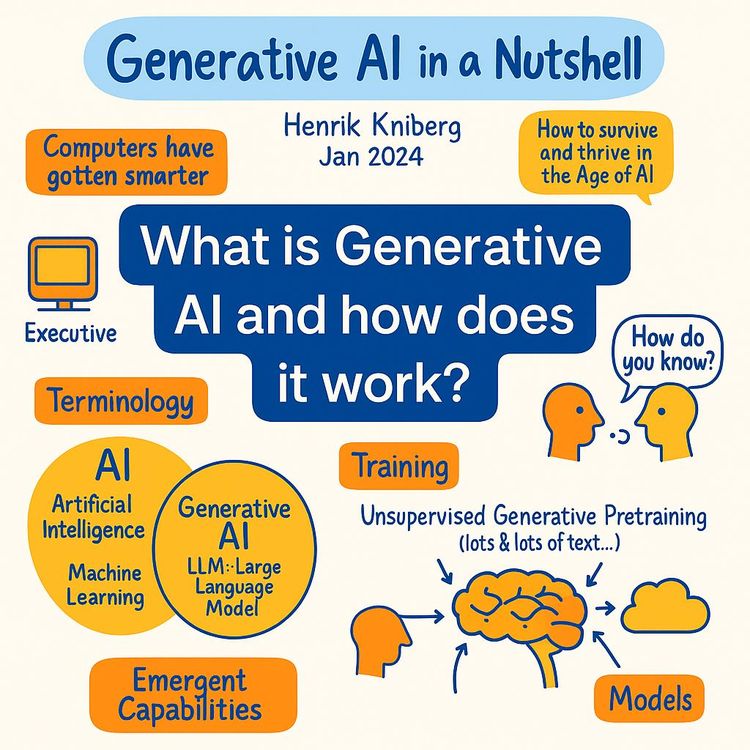
Video Course: What is Generative AI and how does it work?
Video Course: How to Use ChatGPT from Beginner to Professional
Video Course: How to Use Google Gemini for Google Workspace to Boost Productivity
Video Course: How to Use Claude 3.7 AI - Tips for Beginners!

Video Course: ChatGPT for Data Analytics: Full Course - from Beginners to Professional
Video Course: Generating Images and photos With ChatGPT?

Video Course: Generating Images & Photo's with MidJourney
Video Course: Generating Design's with Microsoft Designer and AI

Video Course: Generating Design's with Canva.com and AI
Join 20,000+ Professionals, Using AI to transform their Careers
Join professionals who didn’t just adapt, they thrived. You can too, with AI training designed for your job.