QuickBooks Online Beginner Course: 5 Hours, AI & Updates (Video Course)
Get your books clean and your time back in one focused 5-hour course. Set up QuickBooks Online the right way, connect bank feeds, lean on AI agents to cut data entry, and turn invoices, expenses, and reports into clear, confident decisions.
Related Certification: Certification in QuickBooks Online Bookkeeping, Automation & Reporting with AI
Also includes Access to All:
What You Will Learn
- Set up company settings, Chart of Accounts, users, and permissions
- Connect bank and card feeds, create bank rules, and reconcile to $0.00
- Automate data entry with AI/OCR, Receipt Snap, and recurring rules
- Manage the sales and expense cycles: estimates, invoices, bills, payments, and credits
- Generate reports, handle payroll and taxes, and integrate e-commerce and time tracking apps
Study Guide
Introduction: Why This Course Matters
Most people don't start a business because they love accounting. They want clarity, not spreadsheets. They want cash flow, not guesswork. QuickBooks Online gives you that clarity without turning you into a full-time bookkeeper. This course walks you from zero to confident, step by step, using the newest workflows, AI agents, and automation that simplify the admin grind. You'll set up your company correctly, connect your bank accounts, automate the boring work, and turn your numbers into decisions. You'll learn the sales cycle (invoices, payments, follow-ups), the expense cycle (bills, vendors, reimbursements), reconciliation, reporting, payroll, taxes, and how to extend QuickBooks Online into a true business operating system with integrations.
We'll keep it practical, real, and immediately useful. Expect guided walkthroughs, realistic examples, smart defaults, and time-saving templates. You'll walk away with a system you trust,plus the skill to adapt as your business grows.
Orientation: How QuickBooks Online Works In Real Life
QuickBooks Online (QBO) is cloud-based, which means your books live on secure servers and sync across devices. You get real-time access, real-time collaboration, and a single source of truth for every dollar flowing in or out.
Here's what that means day to day:
Example 1:
A field service business creates an invoice on-site from the mobile app, the customer pays online, and the payment auto-matches in banking,no manual entry.
Example 2:
An online store connects bank feeds and Shopify. Sales sync into QBO, fees are tracked, and the owner reviews profit by product each week without spreadsheets.
One more thing. QuickBooks has built-in AI to read receipts, suggest categories, and draft emails. It's like adding a junior bookkeeper who never sleeps.
Key Concepts You'll Use Constantly
Let's define the language so nothing feels abstract later.
Chart of Accounts: The master list of categories your transactions live in: assets, liabilities, equity, income, expenses. It's the framework for clean books.
Invoice: What you send to a customer to request payment.
Bill: What a vendor sends you,you owe them.
Expense: A cost you paid immediately (card, cash, ACH) without a bill.
Reconciliation: The monthly process of matching QBO transactions to bank statements to ensure accuracy. The goal: difference equals $0.00.
Credit Memo: A credit you issue to a customer for use now or later.
Vendor Credit: A credit you receive from a vendor to reduce a bill.
Recurring Transaction: An auto-scheduled invoice, bill, or expense.
Accounts Receivable (A/R): What customers owe you.
Accounts Payable (A/P): What you owe vendors.
AI Agent: Built-in assistance for categorizing, extracting data (OCR), and drafting communications.
Memorize this: "A well-organized chart of accounts is the backbone of your financial data, serving as the framework for organizing all financial transactions." When this is right, everything else is easier.
QuickBooks Online Interface: The Tour
First stop: the layout. Know your way around and you'll move fast.
Dashboard: Your command center. Customize widgets for Sales Funnel, Profit & Loss, Expenses by category, Bank Accounts, and Cash Flow trends. Star your favorite quick actions (like Create Invoice or Enter Expense) to save clicks.
Left Navigation Menu: Your daily toolkit.
- Create (+): New invoice, bill, expense, bank deposit, sales receipt, estimate, etc.
- Business Feed: AI insights, reminders, and access to AI agents to help prioritize tasks.
- Reports: Standard and custom reports for decisions and compliance.
- My Apps (Core Modules): Accounting, Expenses & Bills, Sales & Get Paid, Customer Hub, Team, Time, Taxes.
Top-Right Toolbar: Search bar (find any transaction), Gear icon (Account & Settings, Chart of Accounts, Reconcile, Custom form styles), and Notifications (alerts and to-dos).
Example 1:
If cash is tight, open the dashboard, check Cash Flow, then click into Sales to view unpaid invoices. Use the Create (+) button to send reminders on the spot.
Example 2:
Need to find a random charge? Hit Search, type the vendor or amount, and jump directly to the transaction without browsing menus.
Tip: Move your most-used modules to muscle memory. If you spend time in Accounting > Bank Transactions, open it in a new tab and leave it pinned.
Set Up Like a Pro: Account and Settings
This is where you define the rules of your financial universe. Access via Gear Icon > Account and Settings.
Company: Add your logo, legal address, company name, and contact info. Your logo and contact details appear on invoices, estimates, and receipts.
Usage Limits: See the number of billable users and accounts you can create based on your plan. If you hit limits, you'll know before something breaks.
Payments: Turn on QuickBooks Payments so customers can pay online. Faster payment equals better cash flow. You'll also get options for payment links and saved cards (with permission).
Sales: Set default invoice terms (like Net 30), customize sales form templates, and set automated payment reminders. You can also enable customer financing through Credit Karma to help clients pay larger invoices.
Expenses: Enable tags to group expenses (great for campaign tracking or job cost breakdowns), turn on purchase orders, and activate Bill Pay for better vendor management.
Advanced: Choose cash or accrual accounting, set your fiscal year, and configure automation rules (like automatically applying credits or invoicing unbilled time and expenses).
Example 1:
A design studio sets default Net 15 terms, switches on online payments, and enables reminders at 3, 7, and 14 days overdue. Result: faster collections.
Example 2:
A trades business enables purchase orders and tags to label expenses by job site. At month-end, they filter by tag to see which site burned cash.
Best Practice: Set your accounting method with your accountant. Cash shows money when it moves; accrual shows revenue/expenses when earned/incurred. Pick one and stick with it.
Chart of Accounts: Build Your Financial Backbone
QBO suggests a default chart based on your industry. Improve it so reports are meaningful.
Account Types: Assets (bank accounts, inventory), Liabilities (credit cards, loans), Equity (owner's investment), Income (sales), Expenses (rent, software, marketing).
How to customize: My Apps > Accounting > Chart of Accounts > New. Choose the account type, detail type, and name. Use sub-accounts to add clarity.
Example 1:
Create a parent Utilities account with sub-accounts: Electricity, Water, Gas, Internet. Now your Expenses report tells a better story.
Example 2:
For a service agency, split Income into Services, Retainers, and Training. You'll instantly see which line drives profit.
Quote to remember: "A well-organized chart of accounts is the backbone of your financial data." Invest time here. It pays dividends every month.
Tip: Don't overbuild. Start simple, add sub-accounts as patterns emerge.
Users, Roles, and the Audit Log
Control who sees what. Create accountability. Sleep better.
User Management: Add Company Admins, Standard Users, Reports Only, and your Accountant. Limit access to safeguard payroll, bank accounts, and sensitive data.
Audit Log: Tracks every significant change: who did what, when, and where. Use it to resolve errors or investigate anomalies.
Example 1:
Give your sales coordinator access to create invoices but not to reconcile bank accounts.
Example 2:
After a miscategorized transaction changes your P&L, the Audit Log shows who edited it. You fix the root cause with training.
Best Practice: Use least-privilege access. If someone doesn't need it, don't grant it.
Products and Services: What You Sell (and Track)
Define the catalog to streamline invoices and COGS (Cost of Goods Sold) tracking.
Types: Inventory (tracked quantity), Non-inventory (no quantity tracking), Services (time/labor), Bundles (grouped items sold together).
Reorder Points: For inventory items, add minimum stock levels to trigger alerts.
Example 1:
A cafe sets Coffee Beans (inventory), Milk (inventory), and Delivery Fee (service). Bundles a "Catering Package" for events. Reorder point on beans ensures they never run dry.
Example 2:
A marketing firm creates Services like "Strategy Session" and "Monthly Retainer." Bundles "Launch Package" to sell a set of services at a fixed price.
Best Practice: Map each item to the right income or expense account. That's how item-level detail rolls up to clean financials.
Banking: Connect, Categorize, Reconcile
Bank feeds are the heartbeat of QBO. Connect your accounts and transactions flow in automatically.
Connect Accounts: My Apps > Accounting > Bank Transactions > Link Account. Sign in to your bank. If your bank doesn't sync, upload CSV/OFX files.
For Review Tab: Categorize transactions. Accept AI category suggestions or choose your own. Create rules for recurring merchants or amounts.
Match & Split: QBO matches bank entries to existing invoices or bills. Split a single transaction across multiple categories if needed.
Reconcile Monthly: Gear Icon > Reconcile. Enter the ending balance, check off matching transactions, and bring the difference to $0.00.
Example 1:
Rule: Any charge with "FreshBake" in the description categorizes to Cost of Goods Sold. You review and batch-add in seconds.
Example 2:
A $500 office store charge included $300 marketing flyers and $200 supplies. You split it between Marketing Expense and Office Supplies for accurate reporting.
Quote to recall: "Reconciliation is the process of matching your QuickBooks transactions with your bank statements to ensure accuracy." Do it every month. No exceptions.
Tip: If you use Undeposited Funds, always record bank deposits in QBO to match grouped payments. That keeps reconciliation clean.
The Sales Cycle: From Quote to Paid
Sales flow should be smooth: estimate, invoice, payment, follow-up, and,if necessary,refund or credit.
Customer Hub: Store contact details, terms, notes, and transaction history. Import customers in bulk or add as you go.
Estimates: Send quotes and convert to invoices with one click when approved.
Invoices & Sales Receipts: Invoices request payment later; sales receipts are for immediate payment. Use AI Assist to draft an invoice from meeting notes or a file.
Receiving Payments: Receive full or partial payments and apply them to invoices. Track statuses: Paid, Partially Paid, Unpaid, Overdue.
Automated Reminders: Turn on reminders and let AI draft a polite nudge. You maintain the relationship without the awkward chase.
Refunds & Credits: Use Credit Memo for future use credits and Refund Receipt to return money now.
Example 1:
A contractor sends an estimate for a kitchen remodel. When accepted, they convert it to an invoice, request a deposit, and set a recurring invoice for progress payments.
Example 2:
A tutoring business bills recurring clients monthly. They set up a recurring invoice template, turn on online payments, and let QBO remind late payers automatically.
Best Practice: Keep invoice terms and late policies clear on your forms. Consistency prevents collection headaches.
The Expense Cycle: Vendors, Bills, and Payments
Track every obligation to avoid late fees and keep relationships strong.
Vendor Management: Store vendor details, terms, and tax info (like 1099 settings for contractors).
Creating Bills: Record what you owe. Manually enter bills or email PDFs to your QBO inbox to auto-create them with OCR.
Paying Bills: Use Pay Bills to schedule and pay on time. Batch payments, choose payment accounts, and keep cash flow predictable.
Immediate Expenses: For same-day purchases, use Expense and attach receipt images. Receipt Snap with OCR extracts vendor, date, and amount automatically.
Vendor Credits: Record and apply to future bills to reduce what you owe.
Example 1:
A restaurant emails vendor bills directly into QBO. OCR reads line items, and the bookkeeper just reviews and saves.
Example 2:
A consultant uses the mobile app after a client lunch. Snap, categorize as Meals (with a tag for the client), and it's in your books in under a minute.
Best Practice: Attach documents to every bill and expense. Documentation saves you in audits and makes team collaboration simple.
AI, Automation, and the Business Feed
Here's where QBO feels like it hired you help.
OCR (Optical Character Recognition): Upload receipts and bills; QBO reads the PDF/JPEG and pre-fills transaction forms. "AI features, including optical character recognition (OCR), can autofill fields with the data present in a file, be it a PDF or a JPEG, streamlining the entry of expenses and bills."
AI-Powered Categorization: QBO suggests categories based on your patterns. It learns. You review and approve.
AI Drafts: Turn messy notes into draft invoices or client reminders. Adjust tone and send.
Business Feed: An AI-driven hub for insights, reminders, and quick actions. It flags what needs attention and suggests next steps.
Automation Rules: Create rules for recurring vendors, amounts, or keywords. Set split rules for recurring mixed purchases (like fuel plus snacks at the same station).
Example 1 (Prompt to AI Agent):
"Create an invoice for Acme Co. from these call notes: strategy session, 2 hours at $150/hour, travel charge $50, due in 15 days."
Example 2 (Automation):
Any transaction containing "Meta Ads" splits 90% to Advertising and 10% to Creative Fees. Review monthly.
Best Practice: Trust but verify. AI is fast, but you own accuracy. Review exceptions and spot-check categories weekly.
Integrations: Build Your Financial Hub
Extend QBO by connecting third-party apps to create a streamlined system. Browse My Apps or the marketplace, then connect with a few clicks.
Popular Categories: E-commerce (Shopify, Amazon), CRM (Salesforce), Email Marketing (Mailchimp), Inventory (Katana, Stockpit), Time Tracking, Project Management, and Payroll systems.
Example 1:
Shopify integration syncs orders, fees, refunds, and payouts. You reconcile deposits with a couple of clicks and see product-level profitability.
Example 2:
Mailchimp integration ties campaigns to revenue. Tag expenses by campaign in QBO to calculate ROI without spreadsheets.
Tip: Start with one high-impact integration. Nail the workflow, then add more.
Payroll: Paying People Right
When payroll is integrated, books stay accurate and taxes don't become a nightmare.
Setup: Add company details, employee info (rates, withholdings), and your bank for direct deposits.
Run Payroll: Choose a period, enter hours for hourly staff (salaries are automatic), preview, then submit. QBO calculates gross pay, taxes, and deductions,and can file payroll taxes.
Timesheets: Use the Time module to track hours and projects. Approve time and flow it into payroll and job cost reports.
Example 1:
A landscaping company tracks crew time in the Time module. Those hours import straight into payroll and job costing, so they know profitability by client.
Example 2:
A digital agency pays contractors and marks them as 1099 vendors. Vendor payments stay separate from payroll but still stay organized for year-end filing.
Best Practice: Lock payroll periods after processing. It prevents accidental edits that throw off reports.
Taxes: Sales, Payroll, and Business
QBO helps you stay on top of tax obligations without drowning in forms.
Sales Tax: Turn it on in Taxes. Add tax agencies and let QBO calculate rates based on customer location and item type. The module tracks your liability and guides filings.
Business Tax: Map your Chart of Accounts to tax categories. Get estimates and prepare data for your accountant. AI suggestions help you map accounts correctly.
Payroll Taxes: If you use QBO Payroll, withholdings, filings, and payments can be automated. Always review liabilities before submission.
Example 1:
An e-commerce store ships to multiple states. Sales tax calculates by destination and product. Reports summarize how much to remit to each agency.
Example 2:
A consultant collects no sales tax on services but charges for physical workbooks. Sales tax applies to the book line item automatically.
Best Practice: Keep product/service taxability settings accurate. Wrong settings lead to under-collection or over-collection,both painful.
Reports and Decision-Making
Don't just record data. Turn it into decisions. Your core reports:
Profit & Loss: What you earned and what you spent. Compare periods, check margins, and spot trend lines.
Balance Sheet: Assets, liabilities, equity. Shows what you own and owe.
Cash Flow: How money moves in and out. Plan ahead, not react.
A/R Aging: Who owes you and how long they've owed it.
A/P Aging: Who you owe and when it's due.
Sales by Customer/Product: Identify top customers and best-selling items.
Example 1:
If your P&L shows high revenue but low cash, check A/R Aging. Late payments might be holding cash hostage.
Example 2:
If margins are shrinking, run Expenses by Vendor. A specific supplier's prices may have crept up. Time to renegotiate or switch.
Best Practice: Schedule your favorite reports to email you weekly. You manage what you measure.
Cloud Access and the Mobile App
"A great advantage of QBO is its cloud-based platform, which allows you to access your business's financial data from anywhere with an internet connection." Use that to move faster than your problems.
Web Access: Use any modern browser for full features.
Mobile App: Create invoices, snap receipts, track mileage automatically, and check cash flow on the go.
Example 1:
Consultant leaves a client meeting, creates and sends the invoice from the parking lot, and the client pays before they get home.
Example 2:
Delivery driver's mileage logs automatically. At month-end, mileage reimbursement posts cleanly without manual entry.
Best Practice: Turn on mobile notifications for overdue invoices and bank feed alerts. Action is easier when prompts are timely.
Security: Protect What You're Building
Security is built-in and should be respected.
Encryption: Industry-standard protection for data in transit and at rest.
MFA: Use multi-factor authentication. It blocks the easy hacks.
Backups: Cloud backups protect against device loss. Consider periodic data exports for your own archives as well.
Example 1:
A team member loses a laptop. Because nothing is stored locally and MFA is on, your books are safe.
Example 2:
You export a backup before a big restructuring of accounts. If something goes sideways, you can recover quickly.
Best Practice: Change passwords regularly and remove user access immediately when roles change.
Hands-On: Your First Week of Transactions
Let's simulate a clean start so you see how pieces click together.
Step 1: Configure Account & Settings. Add logo, set terms, enable online payments, and choose accounting method.
Step 2: Build a lean Chart of Accounts. Add sub-accounts for visibility where you need it.
Step 3: Create products/services and map accounts. Add reorder points for any inventory.
Step 4: Add customers and vendors. Set default terms and tax info.
Step 5: Connect bank and card accounts. Start reviewing the For Review tab daily.
Step 6: Create your first invoice and send it with online payment enabled.
Step 7: Record an expense with a snapped receipt. Let OCR fill the details, then confirm.
Step 8: Reconcile at month-end. Aim for $0.00 difference. If it's not zero, you find the mismatch before it multiplies.
Advanced Workflows That Save Hours
Once the basics are humming, stack on leverage.
Recurring Invoices and Bills: Automate retainer invoices and fixed vendor bills. Add automatic credit card charges where appropriate.
Bank Rules: Build rules for frequent vendors and split rules for mixed purchases. Your review-time drops drastically.
Custom Form Styles: Branded invoice templates, clear policies in the footer, and custom fields (like project name or service date).
Tags: Track campaigns, locations, or initiatives across transactions without bloating your Chart of Accounts.
Example 1:
Create a recurring invoice for a monthly subscription and set it to auto-send. Enable reminders so customers never "forget."
Example 2:
Use tags for "North Region" and "South Region." Run a P&L by tag to see which region needs love.
Pro Tip: If you're job costing, tag every bill, expense, and time entry to the job. Your profitability by job becomes crystal clear.
Sales Forms That Get You Paid Faster
Design matters. Clarity converts.
Custom Form Styles: Gear Icon > Custom Form Styles. Upload your logo, choose brand colors, and edit the content sections. Add custom fields like "Event Date" or "PO Number."
Email Templates: Use friendly, direct language. Keep it short. Include payment links and a thank-you line.
Example 1:
A consulting invoice includes a clear deliverables section and a link to book the next session. Payments come in faster because there's zero confusion.
Example 2:
An event company adds the "Event Date" custom field and a "Due on Receipt" policy. Fewer excuses. Faster cash.
Best Practice: Include late fee policies on the invoice itself. QBO can calculate it; the form sets the expectation.
Receipts, Documents, and Audit-Ready Books
Documentation is a habit. Once you build it, audits stop being scary.
Attach Everything: Bills, expenses, and even customer records can hold documents. Keep vendor contracts and W-9s handy.
Receipt Snap: Store the image with the transaction so you never hunt for proof.
Example 1:
During a review, your CPA asks for proof of a large software purchase. You open the expense and the invoice PDF is already attached.
Example 2:
A vendor disputes a payment. You pull up the bill, payment record, and email thread within the vendor profile and resolve it quickly.
Best Practice: Use consistent file naming: VendorName_Amount_Description. Scalable and searchable.
E-commerce + QBO: A Clean Flow
Online sales can get messy fast. Integrate and standardize.
With Shopify: Sync orders, fees, and payouts. Map product categories to QBO items. Reconcile payout deposits to your bank feed.
With Amazon or Marketplaces: Capture sales, fees, returns, and withheld amounts. Reports show gross sales vs. net deposits. No more guessing.
Example 1:
After syncing Shopify, you run "Sales by Product" and see T-shirts sell well but margins are thin after fees. You raise prices a bit,profits jump.
Example 2:
You connect Mailchimp and tag expenses per campaign in QBO. Campaign A costs less but drives more revenue. You double down on A.
Cash Flow Mastery
Revenue is vanity. Cash flow is sanity.
Cash Flow Widget: Monitor trends: money in, money out, current balance. Use projections to spot crunches early.
Collections: Use A/R Aging to target follow-ups. Send payment links and offer financing for large invoices through Credit Karma if needed.
Payables: Use A/P Aging to plan payments. Batch payments around cash-in cycles. Keep vendor trust and avoid fees.
Example 1:
You spot a cash crunch. You schedule vendor payments for later in the week and push out recurring expenses. Crisis averted.
Example 2:
You shorten invoice terms for habitually late customers and switch to deposit-first for new projects. Suddenly, cash balances stabilize.
Common Mistakes to Avoid
Mixing personal and business: Keep accounts separate. If you slip, categorize as Owner's Draw or Owner's Contribution appropriately.
Skipping reconciliation: That's how errors stack. Reconcile every month.
Overcomplicating the chart: Start simple and add detail only when it drives decisions.
Not using Undeposited Funds correctly: If you batch deposits at the bank, mirror that in QBO or reconciliation breaks.
Example 1:
Depositing three customer checks separately in QBO when the bank shows a single grouped deposit creates mismatches. Use Bank Deposit to group them.
Example 2:
Categorizing Stripe deposits as income without accounting for fees overstates revenue. Use the clearing account or the integration to record fees correctly.
End-to-End Example: A Week in a Service Business
Day 1: Sales meeting. You draft an estimate from your notes with AI Assist and email it. The client accepts online. You convert it to an invoice and request a deposit.
Day 2: Purchase materials. You snap the receipt. OCR fills vendor, date, and amount. You tag it to the client's project.
Day 3: Work gets done. You use Time to track hours tied to the project.
Day 4: You send a progress invoice and the client pays online. It lands in Undeposited Funds; you record a Bank Deposit to match the grouped bank feed entry.
Day 5: You reconcile the week's transactions. Bank Rules handled most of the grunt work. Reports show profit on this job is healthy.
End-to-End Example: A Retail/E-commerce Hybrid
Inventory: Products have reorder points. Stock alerts keep you ahead of demand.
Sales: Shopify sync pushes daily sales, fees, and refunds. You reconcile payouts with a few clicks.
Expenses: Delivery and warehouse expenses are tagged by location. You see which store is performing best.
Outcome: P&L by location shows one store lagging. You cut low-performing SKUs and negotiate better vendor pricing. Margins improve.
Practical Prompts and Templates
AI Prompt: Invoice Draft
"Generate an invoice for Client X. Services: audit (4 hours at $120), implementation (5 hours at $140), flat travel fee $60, due in 15 days. Add note: 'Includes post-implementation check-in.'"
AI Prompt: Reminder Email
"Draft a friendly overdue reminder for Invoice 1024. Keep it professional and concise. Offer online payment link and ask if they need more info."
Automation Template: Bank Rule
Condition: Description contains "Fuel Station." Action: Split 90% to Vehicle Fuel and 10% to Snacks (Meals). Apply to bank card ending 1234.
Monthly Close Ritual
Keep it boring and you'll keep it profitable.
Checklist:
- Categorize all bank feed transactions and review AI suggestions.
- Reconcile every bank, credit card, and loan account.
- Review A/R and A/P aging; send reminders and schedule payments.
- Run P&L and Balance Sheet; compare to prior periods.
- Attach missing receipts and documents.
- Export/save a snapshot of reports for your records.
Example 1:
You catch a recurring software fee that jumped. One phone call and you're back to the original rate.
Example 2:
A small mismatch appears in reconciliation. The Audit Log shows a duplicate entry. You fix it in minutes.
Implications: Who Benefits and How
Business Owners: Real-time cash flow and profitability. Faster decisions, fewer surprises, simpler tax time.
Accountants/Bookkeepers: Less manual entry, more advisory work. Real-time collaboration across multiple clients.
Students and Trainees: Learn modern accounting with hands-on software skills that translate into real job performance.
Actionable Recommendations
1. Prioritize Setup: Nail Account & Settings, Chart of Accounts, users, and permissions before entering transactions.
2. Connect All Accounts: Bank and credit cards. Let bank feeds do the heavy lifting.
3. Build Bank Rules: Automate recurring categorization and splits.
4. Brand Sales Forms: Logo, colors, terms, and clear policies make you look legit and get you paid faster.
5. Reconcile Monthly: Non-negotiable. Zero difference is the standard.
6. Add One Integration: Pick the app that will remove the most manual work first (time tracking, e-commerce, CRM).
7. Use the Mobile App: Snap receipts, track mileage, and invoice on the go.
Quick Scenarios and How You'd Handle Them
Scenario: A customer returns a product.
Create a Credit Memo to reduce their balance or a Refund Receipt if you're giving money back now.
Scenario: You need to accept deposits for projects.
Create an estimate, convert to an invoice, and add a deposit line item. Record the payment against that invoice.
Scenario: Vendor issues a credit.
Enter a Vendor Credit and apply it when you pay the next bill.
Scenario: Mixed expense on one receipt.
Split between categories (e.g., Marketing and Office Supplies) for accurate reporting.
Best Practices That Compound Over Time
Document Everything: Attach receipts, bills, and contracts. Future-you will thank you.
Keep Personal Separate: If you cross wires, fix it with Owner's Draw/Contribution.
Review Alerts: Use the Business Feed and Notifications to catch issues early.
Train Your Team: Use roles and permissions; share how-to videos or short SOPs for repetitive tasks.
Iterate: Refine your Chart of Accounts and rules as your business evolves.
Two Deep Dives: Sales and Expenses With AI
Sales with AI: Paste meeting notes into AI Assist to draft invoices, add line items, and set terms. Set reminder schedules. Use customer financing for larger invoices when needed.
Example 1:
Coaching package: AI creates an invoice with a deposit now and two future installments. You set recurring invoices for the installments.
Example 2:
Maintenance service: AI sets a monthly recurring invoice, emails it, and schedules reminders. Collections go on autopilot.
Expenses with AI: Email bills to QBO. OCR fills vendor, amount, and date. You verify and save. Rules auto-categorize recurring charges.
Example 1:
Internet bill lands in QBO inbox, pre-filled. You approve and add a "Home Office" tag.
Example 2:
Fuel charges auto-split via a rule. You review the totals weekly,not each line daily.
Your Phased Implementation Plan
Phase 1: Foundation
Account & Settings, Chart of Accounts, products/services, customers/vendors, connect bank feeds, and basic rules.
Phase 2: Sales and Expenses Flow
Invoices, sales receipts, online payments, automated reminders, bills, bill pay, receipt capture, and vendor credits.
Phase 3: Intelligence and Scale
Advanced reporting, tags for profitability analysis, payroll setup, sales tax, one or two strategic integrations, and monthly close cadence.
Frequently Asked "What Should I Do?" Questions
Cash or Accrual?
Ask your accountant based on taxes and reporting needs. QBO can switch report views, but pick a method for bookkeeping consistency.
Do I need classes or projects?
Use tags for lightweight tracking. If you need structured job costing, consider classes or projects depending on your plan and workflows.
How often should I check bank feeds?
Daily takes minutes. Weekly is fine if volume is low. Monthly is only okay if you love detective work (you won't).
What We Covered (Checklist Against the Brief)
- Initial setup: Company info, usage limits, payments, sales terms, customer financing, expense settings, advanced accounting method/fiscal year/automation rules.
- Chart of Accounts: Customization and sub-accounts with examples.
- User management: Roles, permissions, and Audit Log.
- Products & Services: Inventory, non-inventory, services, bundles, reorder points.
- Interface navigation: Dashboard widgets, Business Feed, Create (+), My Apps modules, search, settings, notifications.
- Banking: Connect accounts, CSV/OFX upload, For Review, AI suggestions, rules, matching, splitting, reconciliation to $0.00.
- Sales cycle: Customer Hub, estimates to invoices, AI Assist, receiving payments, statuses, automated reminders, refunds and credits.
- Expense cycle: Vendors, creating bills (including email-to-QBO OCR), paying bills, expenses with Receipt Snap, vendor credits.
- Advanced features: AI automation (OCR, suggestions, drafts), integrations (Shopify, Mailchimp, CRM, time, inventory), payroll, tax modules for sales and business tax.
- Accessibility & security: Cloud access, mobile app (invoices, receipts, mileage, cash flow), encryption, MFA, backups.
- Key insights: Setup, automation, bank feeds, reconciliation, customization, mobile, integrations; plus quotes and applications for owners, accountants, and learners.
- Action steps: Practical recommendations to implement now.
Conclusion: Make Your Numbers Work For You
You don't need to love bookkeeping to run clean books. You need a system that reduces friction and a habit of closing the loop. QuickBooks Online gives you both. When you invest in setup, connect your financial accounts, and let automation handle the repetitive stuff, your time shifts to decisions: what to sell more of, where to cut, and when to hire. Bank feeds and rules tame the daily noise. Monthly reconciliation keeps your data honest. AI agents handle the drudgery of data entry and drafting communications. Integrations turn QBO into a centralized hub for sales, expenses, payroll, taxes, and reporting.
Here's the mindset to adopt: small, consistent actions compound. Snap receipts. Reconcile every month. Run the same core reports. Refine your rules. Teach your team. Over a few cycles, your books become not just accurate, but insightful,your unfair advantage.
Implement one change today: connect a bank account, set a rule, or send an online invoice. Keep stacking those improvements. The result is not just clean accounting. It's a clear business,one you can scale with confidence.
Frequently Asked Questions
This FAQ is built to answer the real questions you'll have before, during, and after taking the 5-hour beginner's course on QuickBooks Online with AI agents and recent feature updates. It prioritizes clarity, practical steps, and real-world use cases so you can implement fast and make fewer mistakes. You'll find basics first, then progressively more advanced topics, including automation, reporting, payroll, and integrations,plus fixes for common pitfalls business owners run into.
I. Getting Started and Company Setup
How do I perform the initial customization of my company settings in QuickBooks Online?
Go to Gear > Account and Settings to configure the foundation.
Use the Company, Sales, Expenses, Time, and Advanced tabs to set business identity, form defaults, terms, time tracking, fiscal year, and accounting method (cash or accrual). Add your logo and customer-facing details so invoices look professional and consistent. In Sales, choose default terms (like Net 30), enable online payments, and set late fee rules if used. In Expenses, turn on purchase orders and tags for granular tracking. In Advanced, set your close date and lock prior periods to prevent accidental edits.
Example:
A consulting firm enables time tracking, sets accrual accounting, and adds custom fields (Project Code) to invoices.
Why it matters:
Clean defaults reduce rework, keep reports consistent, and help you collect cash faster.
What is the Chart of Accounts and how do I customize it for my business?
The Chart of Accounts is your financial map.
Find it under My Apps > Accounting > Chart of Accounts. Review the default list created from your industry choice. Add new accounts for specific revenue and cost streams (e.g., "Event Bookings," "Equipment Rentals"), and use sub-accounts for detail (e.g., Utilities: Electricity, Water, Internet). Edit names for clarity; make unused accounts inactive to keep lists clean,this hides them without deleting historical data.
Example:
A marketing agency adds separate income accounts for Retainers vs. One-time Projects to analyze margin by service type.
Tip:
Keep it simple. Use as few accounts as needed, then layer detail with classes, locations, tags, or items.
II. Interface, AI Agents, and Multi-Device Access
How do I navigate the main QuickBooks Online dashboard?
Think of the dashboard as your command center.
Use + New for fast transaction creation, widgets for snapshots (Sales, Bank Accounts, Profit & Loss, Expenses, Cash Flow), and the left menu for modules (Reports, My Apps, Business Feed). Star your most-used actions for one-click access. The Business Feed highlights AI-driven tasks, like categorization suggestions or pending approvals.
Example:
A shop owner checks the Cash Flow widget daily, then jumps to Bank Transactions to clear "For Review" items.
Pro move:
Customize widgets to match your weekly routine,sales-focused teams prioritize Sales widgets; operations teams prioritize Expenses and Cash Flow.
What are the AI-powered features in QuickBooks Online?
Intuit Assist and AI agents reduce manual work.
You'll see AI suggestions in the Business Feed, bank transaction categorization, and autofill from OCR when you upload receipts/bills. Paste order details or meeting notes into an invoice, and AI can prefill fields. It also drafts polite, context-aware payment reminders you can edit before sending.
Example:
Upload a vendor PDF, and AI extracts vendor, date, amount, and line items to create a bill in seconds.
Best practice:
Always review AI-suggested categories and messages. Your oversight keeps data accurate and improves future suggestions.
What are the benefits of accessing QuickBooks Online from different devices?
Work anywhere without version conflicts.
QBO syncs across desktop, tablet, and mobile. Multiple users can update the same company file in real time,great for owners, bookkeepers, and accountants working together. Data is encrypted and backed up, reducing risk from lost devices. The mobile app adds receipt capture, mileage tracking, and quick invoicing on the go.
Example:
A contractor creates an estimate in the field on mobile, the office updates items on desktop, and the accountant reviews the Profit & Loss remotely.
Outcome:
Fewer delays, fewer errors, and faster billing.
III. Banking and Transactions
How do I connect my bank and credit card accounts to QuickBooks Online?
Automate imports to save hours.
Go to My Apps > Accounting > Bank Transactions > Link Account. Search your bank, log in securely, choose accounts to connect, and select a start date for historical transactions. If your bank isn't supported, download CSV/OFX from your bank and upload via "Upload from file."
Example:
A café connects checking and credit card accounts, imports the last 90 days, and clears the backlog in one session.
Tip:
Connect both sides of transfers (e.g., checking and savings) to avoid duplicates and ease reconciliation.
How do I categorize bank transactions after they are imported?
Review "For Review," then Add, Match, or Split.
Accept correct suggestions or change the category and payee when needed. Match transactions to existing invoices/bills to prevent duplicates. Split mixed purchases (e.g., supplies + marketing) across multiple accounts for clean reporting. Assign customers/vendors for detail and job costing.
Example:
A $500 office store charge is split: $300 Marketing (flyers) and $200 Office Supplies.
Golden rule:
If a transaction pays an open invoice or bill, always Match,not Add.
What are Bank Rules and how can they automate transaction categorization?
Bank Rules turn repeat work into one-time setup.
Create rules from a transaction: define conditions (description, amount, bank text) and actions (category, payee, class, location). Applied automatically to past and future matches, rules reduce manual clicks and keep data consistent.
Example:
Any charge containing "Staples" is categorized to Office Supplies with payee "Staples."
Pro tip:
Use specific conditions (e.g., "contains" + exact store tag) to avoid misclassification.
What is the purpose of reconciling a bank account and how is it done?
Reconciliation proves your books match the bank.
Go to Gear > Reconcile, pick the account, enter statement ending balance and date, and check off transactions until the difference is $0. Investigate differences: missing items, duplicates, wrong amounts, or dates. Finish and save the reconciliation report. Do this monthly for every bank and credit account.
Example:
A missing monthly service fee shows up only on the bank statement,add it, then the reconciliation balances.
Result:
Accurate cash, fewer surprises, better decisions.
IV. User, Vendor, and Customer Management
How do I manage user access, roles, and permissions?
Use least-privilege access by role.
Go to Gear > Manage Users. Add users with defined roles (Admin, Standard, A/R, A/P). Invite your accountant as an Accountant user for full accounting tools without admin settings. Monitor changes in the Audit Log (Gear > Tools > Audit Log) to see who did what and when.
Example:
Give a billing coordinator A/R permissions only; keep payroll and settings restricted.
Why it matters:
Protects sensitive data and reduces accidental changes.
How do I add and manage vendor profiles in QuickBooks Online?
Centralize vendor details for faster payables.
Go to My Apps > Expenses & Bills > Vendors. Add vendor info, terms (Net 30), and W-9 status for 1099 tracking. From a vendor profile, view bills, payments, and credits, and create new transactions. Keep contact data current to avoid missed payments.
Example:
A construction firm sets default terms and categories per vendor to speed up bill entry.
Time-saver:
Attach contracts and invoices to vendor profiles for clean audit trails.
Certification
About the Certification
Get certified in QuickBooks Online. Prove you can set up accounts correctly, connect bank feeds, use AI to reduce data entry, create invoices, track expenses, and deliver clear reports for fast, confident decisions.
Official Certification
Upon successful completion of the "Certification in QuickBooks Online Bookkeeping, Automation & Reporting with AI", you will receive a verifiable digital certificate. This certificate demonstrates your expertise in the subject matter covered in this course.
Benefits of Certification
- Enhance your professional credibility and stand out in the job market.
- Validate your skills and knowledge in cutting-edge AI technologies.
- Unlock new career opportunities in the rapidly growing AI field.
- Share your achievement on your resume, LinkedIn, and other professional platforms.
How to complete your certification successfully?
To earn your certification, you’ll need to complete all video lessons, study the guide carefully, and review the FAQ. After that, you’ll be prepared to pass the certification requirements.
Other AI Video Courses
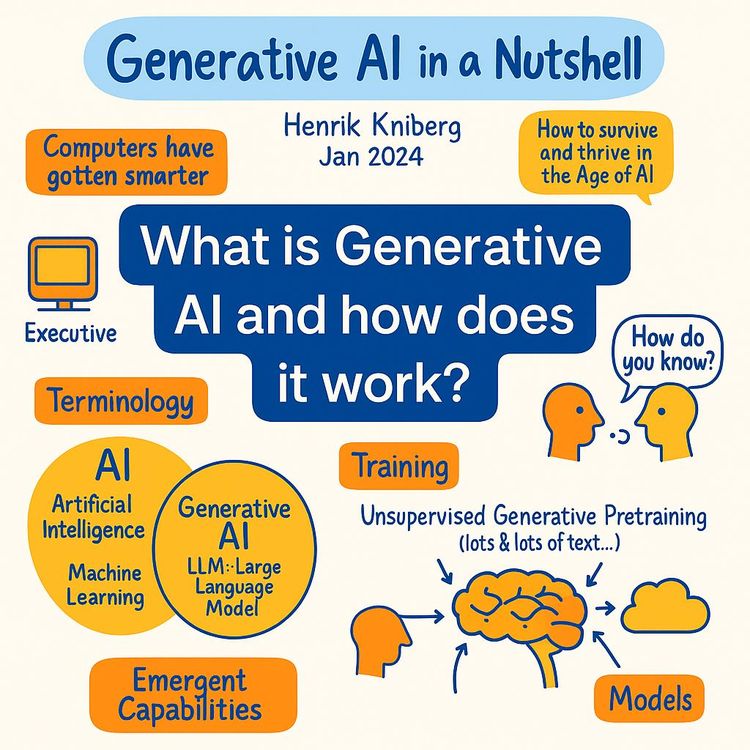
Video Course: What is Generative AI and how does it work?

Video Course: How to Use ChatGPT from Beginner to Professional
Video Course: How to Use Google Gemini for Google Workspace to Boost Productivity

Video Course: How to Use Claude 3.7 AI - Tips for Beginners!

Video Course: ChatGPT for Data Analytics: Full Course - from Beginners to Professional

Video Course: Generating Images and photos With ChatGPT?

Video Course: Generating Images & Photo's with MidJourney

Video Course: Generating Design's with Microsoft Designer and AI

Video Course: Generating Design's with Canva.com and AI
Join 20,000+ Professionals, Using AI to transform their Careers
Join professionals who didn’t just adapt, they thrived. You can too, with AI training designed for your job.