MCP server · Coding
Codex Control Plane MCP server
by aresyn
Let your AI hand long coding jobs to Codex Desktop, then check on them and approve plans.
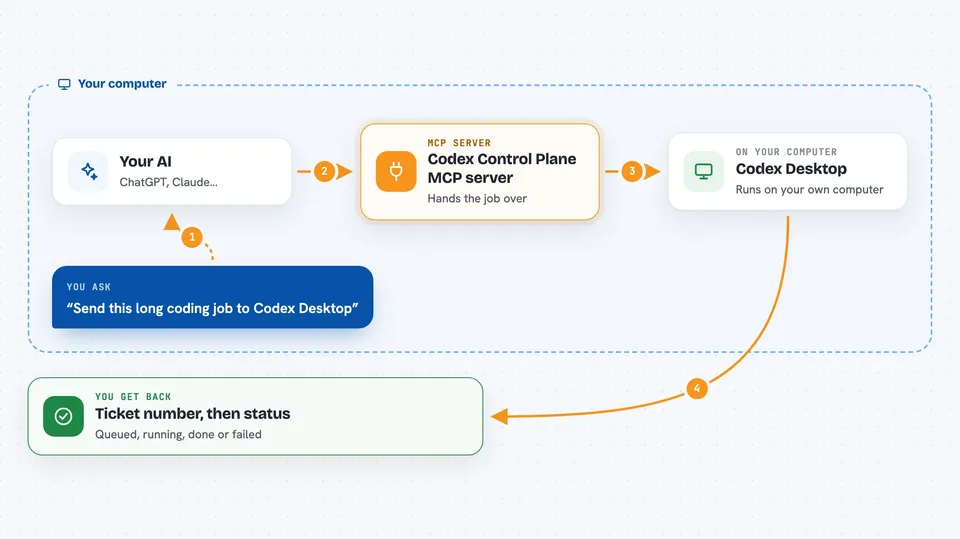
This is a helper that lets your AI send long coding tasks to Codex Desktop and keep an eye on them. Instead of waiting for one giant job to finish, your AI gets a ticket number right away and can check back later. It is handy for people who run big coding jobs on Windows and want them to survive timeouts and restarts.
What is an MCP server? The 30-second version
On its own, your AI can only chat. An MCP server is a small helper program that gives your AI a new skill or a connection to an app. This one connects your AI to Codex Desktop, a coding tool on your computer. Once connected, your AI can hand Codex Desktop a job, check its progress, and read the final report for you.
What this MCP server does
You ask your AI to run a coding task. Your AI passes that task to this helper, which sends it to Codex Desktop. The helper gives back a ticket number straight away, so your AI does not have to sit and wait. Later, your AI asks for the status and gets back whether the job is queued, running, waiting for approval, done, or failed. When it is finished, your AI can read the final report.
 Click to zoom
What you can do with it
- Send a long coding task to Codex Desktop and get a ticket number right away
- Check whether a task is queued, running, waiting for approval, done, or failed
- Approve a Plan Mode plan so Codex Desktop can start working
- Add extra context to a running task without starting a second one
- Branch an existing thread to try a different direction
- Search past tasks and results stored on your computer
- Run health checks and simple repairs on the helper itself
Try asking your AI
- “Start a Codex task to refactor the login module and give me the ticket number”
- “Check the status of my last Codex task”
- “Approve the plan for my current Codex workflow”
- “Search my Codex history for tasks about database migrations”
What it gives back to you
You get a ticket number first, then status updates in plain words like queued, running, waiting for approval, completed, or failed. When a job finishes, you can read the final report as text, and if you asked for a structured format, you also get the parsed version. You can also ask for diagnostics, thread IDs, and turn IDs.
Before you start
What you need
- A Windows computer with Codex Desktop installed
- Python and pipx or uvx to install the helper
- A local folder for its state database and logs
- An MCP client like Claude Desktop, Cursor, or OpenClaw
Good to know
This helper can start, change, and approve coding work on your computer, so use it only with projects you trust and keep it off the public internet.
Install it with your AI
Add Codex Control Plane MCP server to your AI, no technical skills needed
You don't install anything by hand. You copy one prompt, paste it into an AI that can work on your computer, and it checks, installs and connects the server for you, asking you when it needs something.
Sign in to get the install prompt
Members get a ready-made prompt that lets the Claude desktop app check Codex Control Plane MCP server, install it and connect it for them, step by step. You don't need any technical skills: you copy, paste and answer a few questions. Your connected AI can also find and install any of the 4,609 MCP servers here for you.
Who it's for
Developers and technical teams on Windows who run long Codex Desktop jobs and want them to survive timeouts, restarts, and retries.