MCP server · Design tools
Kiln MCP server for 3D printing
by codeofaxel
Let your AI design, slice, queue, and monitor 3D prints on your own printer from one chat.
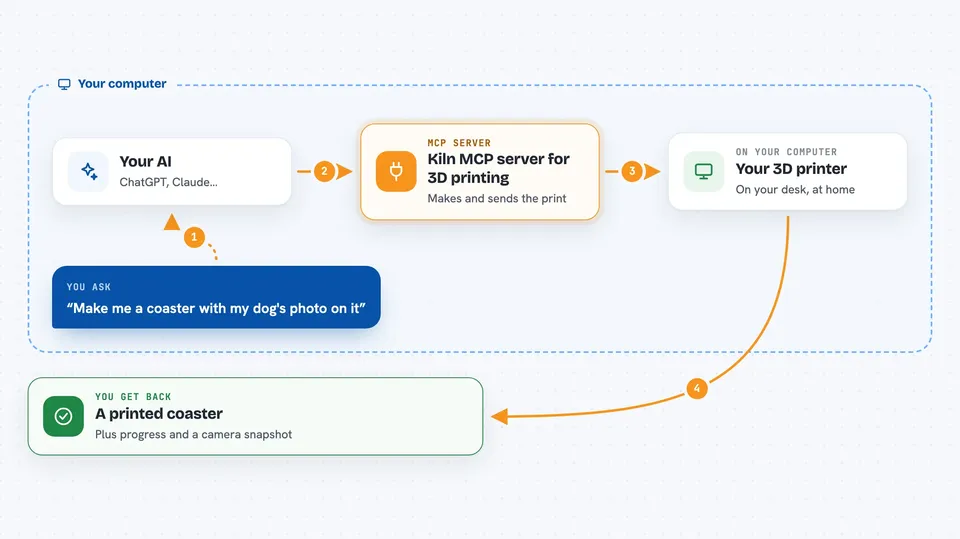
Kiln is a helper that connects your AI assistant to a real 3D printer. You describe what you want, and the AI can design it, prepare it, send it to the printer, and watch it print. It is handy if you own a 3D printer and would rather chat than click through several programs.
What is an MCP server? The 30-second version
On its own, your AI can only chat. An MCP server is a small helper program that gives your AI a new skill or a connection to an app or service. Kiln is that helper for 3D printing: it lets your AI talk to your printer and the tools around it, so the AI can look things up and do things there when you ask. You stay in the chat, and Kiln handles the connection behind the scenes.
What this MCP server does
You ask your AI for something, like a coaster with a photo on it. The AI uses Kiln to create or find a 3D model, prepare it for printing, and send it to the right printer. Kiln talks to your printer through whatever system it already uses, such as OctoPrint, Moonraker, PrusaLink, or a USB cable. While it prints, Kiln can check the camera and report progress. If something goes wrong, it can help you recover instead of starting over.
 Click to zoom
What you can do with it
- Design a simple 3D object from a text description
- Slice a model into a file your printer can print
- Send a print job to a specific printer
- Queue several prints one after another
- Watch a running print and show progress
- Take a webcam snapshot of the printer
- Resume a failed print from the layer where it stopped
Try asking your AI
- “Make me a coaster with my dog's photo on it”
- “Slice this STL file and print it on my Prusa”
- “What is my printer doing right now?”
- “Show me a snapshot of the print bed”
What it gives back to you
You get answers in the chat, like the current printer status, job progress, or a list of files. It can also show a webcam snapshot and tell you when a print finishes or fails. When it makes changes, such as starting a print, it tells you what it did. Some results, like a finished model or a sliced file, are saved where your printer or computer can use them.
Before you start
What you need
- A 3D printer that Kiln supports, connected to your network or by USB
- The printer's address and any access key it uses
- Python installed on your computer
- Optional: OpenSCAD for designing models, and a slicer like PrusaSlicer for preparing them
Good to know
Kiln can start, stop, and change things on your 3D printer, so make sure you are comfortable letting your AI control it.
Install it with your AI
Add Kiln MCP server for 3D printing to your AI, no technical skills needed
You don't install anything by hand. You copy one prompt, paste it into an AI that can work on your computer, and it checks, installs and connects the server for you, asking you when it needs something.
Sign in to get the install prompt
Members get a ready-made prompt that lets the Claude desktop app check Kiln MCP server for 3D printing, install it and connect it for them, step by step. You don't need any technical skills: you copy, paste and answer a few questions. Your connected AI can also find and install any of the 4,361 MCP servers here for you.
Who it's for
Makers, hobbyists, and small workshops who own a 3D printer and want to control it by chatting with an AI instead of using several separate programs.