MCP server · Gaming
Godot MCP server
by Coding-Solo
Lets your AI open, run and debug your Godot game projects and help build scenes.
This is a small helper that connects your AI assistant to Godot, the free program people use to make games. Once it is set up, your AI can open your game project, run it, read the error messages, and even add things to your scenes. It is handy for hobbyist game makers and anyone learning Godot who wants a second pair of hands.
What is an MCP server? The 30-second version
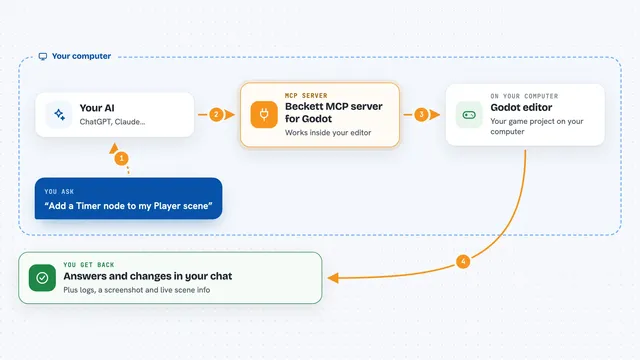
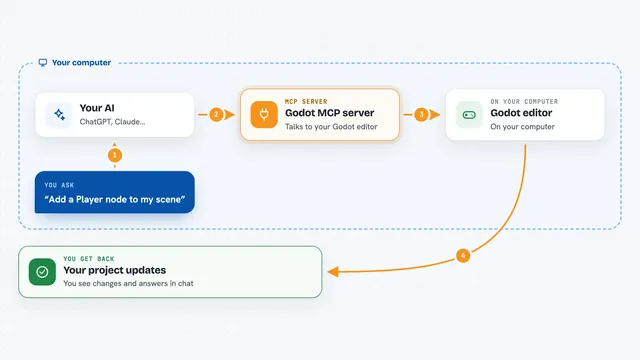
On its own, your AI can only chat with you. An MCP server is a small helper program that gives your AI a new skill, in this case a connection to Godot on your computer. You install it once, and then your AI can actually open Godot, run your project and look at what happened. When you ask for something, the AI passes the request to this helper, and the helper talks to Godot for you.
What this MCP server does
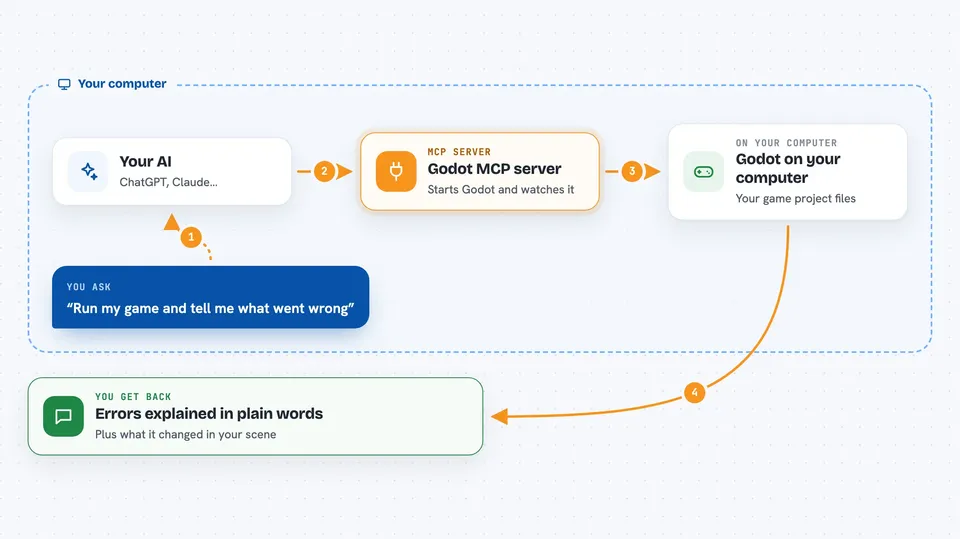
You ask your AI something like "run my game and tell me what went wrong". The AI sends that request to this helper program, which starts Godot in the background. The helper watches the output, collects any error messages, and hands them back to the AI. The AI then explains the errors to you in plain words and can suggest fixes. It can also make changes to your scenes, like adding a node or loading a sprite, if you ask it to.
 Click to zoom
What you can do with it
- Open the Godot editor for a project
- Run your game and capture the debug output
- Stop a running project when you are done
- Find Godot projects in a folder on your computer
- Create a new scene with a chosen root node
- Add nodes to an existing scene with properties you set
- Load a sprite or texture into a Sprite2D node
- Save a scene, including as a variant
Try asking your AI
- “Open my Godot project at C:/Games/MyPlatformer and run it”
- “Run my game and show me any errors that appear”
- “Create a new scene called Level2 with a Node2D as the root”
- “Add a Sprite2D node to my Main scene and load player.png into it”
- “Stop the running project and give me the debug output”
What it gives back to you
You get back plain text in your chat: the version of Godot you have, a list of projects found in a folder, or the console output from a run, including any error messages. When it changes a scene, it tells you what it did, like which node it added or which scene it saved. It does not show you a picture of your game, just the text Godot prints and the results of the actions.
Before you start
What you need
- Godot installed on your computer (free download from godotengine.org)
- Node.js version 18 or newer, and npm
- An AI assistant that supports MCP, like Claude Code, Cline or Cursor
- The path to your Godot program if it is not found automatically
Good to know
It can change and save files in your Godot projects, so keep backups or use version control before letting your AI edit scenes.
Install it with your AI
Add Godot MCP server to your AI, no technical skills needed
You don't install anything by hand. You copy one prompt, paste it into an AI that can work on your computer, and it checks, installs and connects the server for you, asking you when it needs something.
Sign in to get the install prompt
Members get a ready-made prompt that lets the Claude desktop app check Godot MCP server, install it and connect it for them, step by step. You don't need any technical skills: you copy, paste and answer a few questions. Your connected AI can also find and install any of the 4,361 MCP servers here for you.
Who it's for
Hobbyist game makers, students and anyone learning Godot who wants their AI to actually run and debug their project instead of just talking about code.