MCP server · Gaming
BizHawk MCP server
by dmang-dev
Let your AI read game memory, press buttons, take screenshots and save states inside the BizHawk emulator.
This is a helper that connects your AI assistant to BizHawk, the emulator people use to play and study old game consoles on a computer. Once it is set up, you can ask your AI to look inside a running game, press buttons, or save and load snapshots. It is handy if you like tinkering with retro games and want your AI to do the fiddly parts for you.
What is an MCP server? The 30-second version
On its own, your AI can only chat. An MCP server is a small helper program that gives your AI a new skill or a connection to another app. This one connects your AI to BizHawk, so when you ask it something about the game you have loaded, it can actually look at the game's memory or press buttons for you. Think of it as a bridge between the chat window and the emulator running on your own computer.
What this MCP server does
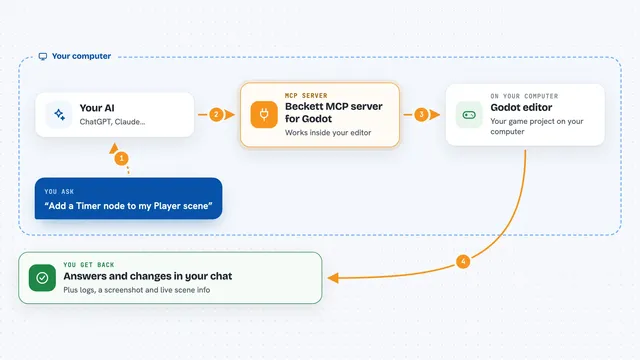
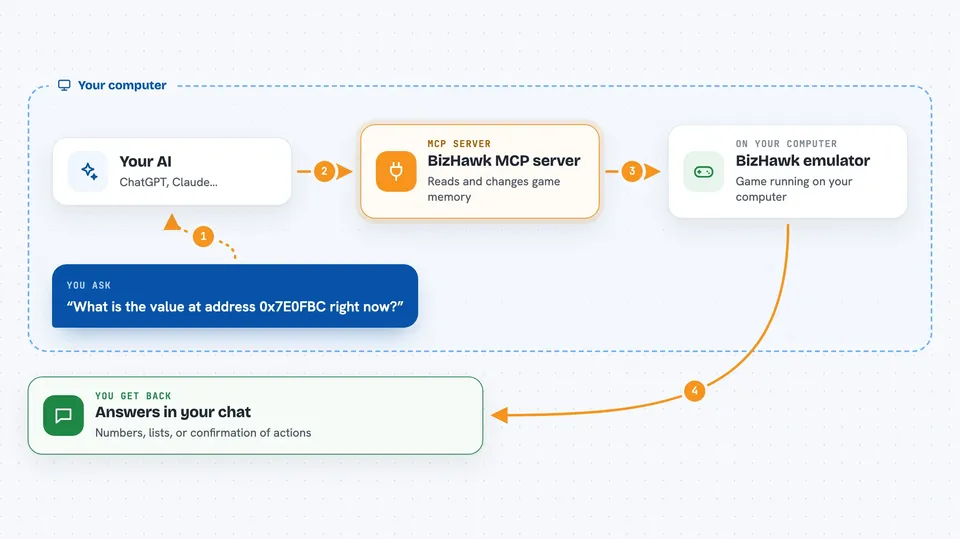
You ask your AI something about the game you have open in BizHawk, like what value is at a certain spot in memory or what happens if you hold right for a few frames. The AI sends that request to this helper program, which passes it along to a small script running inside BizHawk. BizHawk does the actual reading, writing, button pressing or frame stepping, and sends the answer back. The helper hands the result to your AI, and your AI tells you what it found or what it changed.
 Click to zoom
What you can do with it
- Read values from the game's memory at a specific address
- Write new values into memory to test what happens
- Press buttons for a player, like holding right or tapping A
- Advance the game by a set number of frames
- Take a screenshot of the current game screen
- Save and load emulator states to try things and go back
- List the memory areas available for the game you have loaded
Try asking your AI
- “What is the value at address 0x7E0FBC in the game right now?”
- “Hold right for 30 frames and then take a screenshot”
- “Save the current state, then tell me what is in the first 64 bytes of WRAM”
- “What memory areas does this game expose?”
What it gives back to you
You get answers in the chat, like a number read from memory, a list of memory area names, or a short confirmation that a button press or frame step happened. Screenshots and save states are saved as files on your computer, and the AI tells you the path. If something fails, you get a plain message explaining what went wrong, such as the bridge script not being loaded.
Before you start
What you need
- BizHawk 2.6.2 or newer installed on your computer
- Node.js 22 or newer installed
- The bridge.lua script from this project loaded in BizHawk's Lua Console
- BizHawk launched with the socket flags so it can talk to the helper
Good to know
It can change the game's memory and press buttons, so if you are playing a real save file, make a save state first in case something goes wrong.
Install it with your AI
Add BizHawk MCP server to your AI, no technical skills needed
You don't install anything by hand. You copy one prompt, paste it into an AI that can work on your computer, and it checks, installs and connects the server for you, asking you when it needs something.
Sign in to get the install prompt
Members get a ready-made prompt that lets the Claude desktop app check BizHawk MCP server, install it and connect it for them, step by step. You don't need any technical skills: you copy, paste and answer a few questions. Your connected AI can also find and install any of the 4,361 MCP servers here for you.
Who it's for
Retro game fans, tool-assisted speedrun hobbyists, and anyone curious about how old games work under the hood.