MCP server · Gaming
RetroArch MCP server
by dmang-dev
Let your AI peek into a running retro game, read its memory, save states, and take screenshots.

This is a small helper that connects your AI assistant to RetroArch, the popular app for playing old console games on your computer. Once it is set up, you can ask your AI things about the game you are playing, like what is in memory right now or what game is loaded. It is handy for people who enjoy retro games and like poking around under the hood.
What is an MCP server? The 30-second version
On its own, your AI can only chat with you. An MCP server is a small helper program that gives your AI a new skill or a connection to another app. This one connects your AI to RetroArch, the emulator running on your own computer. So when you ask a question about your game, the AI can actually look at RetroArch and answer based on what is really happening there.
What this MCP server does
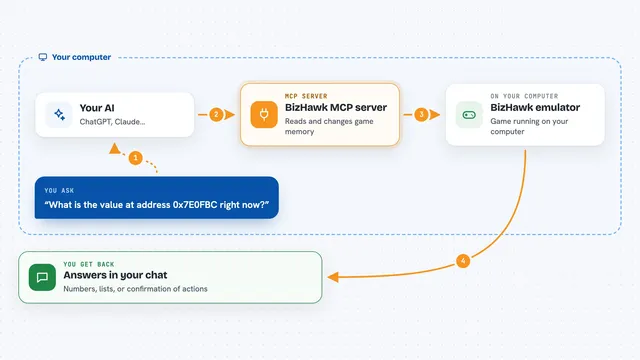
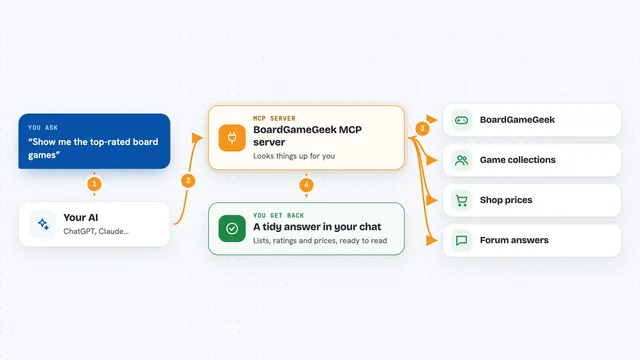
You ask your AI something about the game running in RetroArch. The AI sends that request to this helper program on your computer. The helper talks to RetroArch over a small network channel that RetroArch already has built in. RetroArch answers back, and the helper passes the answer to your AI. Then your AI tells you the result in plain words, like the game title, a chunk of memory, or confirmation that it paused the game.
 Click to zoom
What you can do with it
- Check which game and console are currently loaded
- Read a section of the game's memory at a specific address
- Write a value into the game's memory
- Save or load a save state in the current slot
- Take a screenshot of the running game
- Pause the game or step forward one frame at a time
- Show a short message on the RetroArch screen
Try asking your AI
- “What game is running in RetroArch right now?”
- “Read 16 bytes of memory starting at address 0x0000 in the current game.”
- “Pause the game and take a screenshot.”
- “Save a state to the current slot and show me a message that says checkpoint saved.”
What it gives back to you
You get answers in the chat: the game title, the system, a CRC32 code, or a list of bytes from memory. It can also confirm actions like pausing, resetting, saving a state, or taking a screenshot. Screenshots are saved as files in the folder RetroArch uses for screenshots, not shown inside the chat.
Before you start
What you need
- RetroArch installed on your computer
- Network Commands turned on in RetroArch (Settings, Network, Network Commands)
- Node.js version 22 or newer
Good to know
It can change the game's memory, reset the game, and overwrite save states, so be careful with write and reset commands while you are actually playing.
Install it with your AI
Add RetroArch MCP server to your AI, no technical skills needed
You don't install anything by hand. You copy one prompt, paste it into an AI that can work on your computer, and it checks, installs and connects the server for you, asking you when it needs something.
Sign in to get the install prompt
Members get a ready-made prompt that lets the Claude desktop app check RetroArch MCP server, install it and connect it for them, step by step. You don't need any technical skills: you copy, paste and answer a few questions. Your connected AI can also find and install any of the 4,361 MCP servers here for you.
Who it's for
Retro gaming fans, tinkerers, and anyone curious about how old games work who also likes using an AI assistant.