MCP server · Developer tools
RabbitMQ MCP server
by kenliao94
Let your AI check queues and send or read messages in RabbitMQ for you.
This is a small helper that connects your AI assistant to RabbitMQ, a tool companies use to pass messages between programs. It is handy if you work with a team that runs RabbitMQ and you want to peek at queues or send a test message without clicking around a web console. You do not need to be a programmer, but you do need RabbitMQ details from whoever set it up.
What is an MCP server? The 30-second version
On its own, your AI can only chat with you. An MCP server is a small helper program that gives your AI a new skill or a connection to another app or service. This one connects your AI to RabbitMQ, so the AI can look things up or do things there when you ask. You stay in the chat; the helper does the talking to RabbitMQ behind the scenes.
What this MCP server does
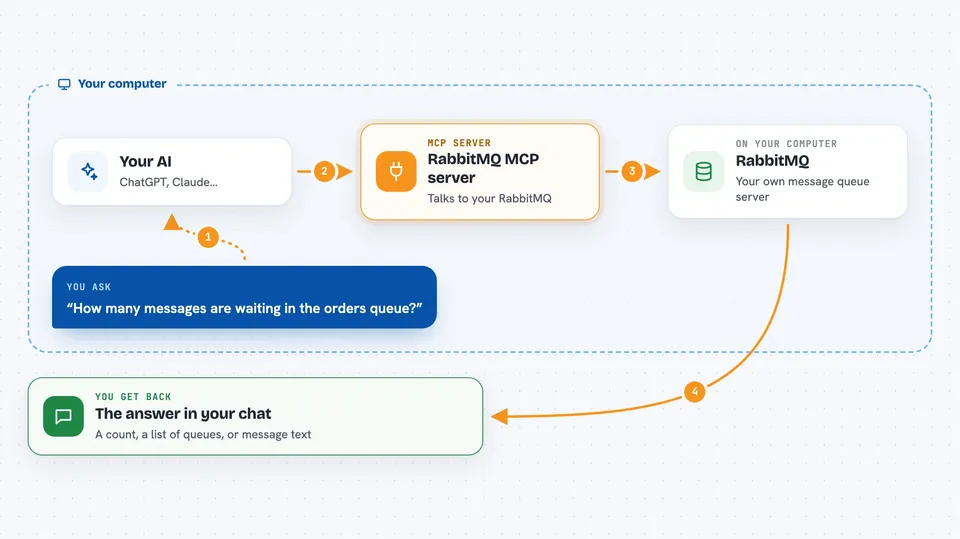
You ask your AI something about RabbitMQ in plain words. The AI passes your request to this helper program on your computer. The helper talks to your RabbitMQ server using the connection details you set up. It then brings the answer back into the chat, or makes the change you asked for. For example, it can list queues, show how many messages are waiting, or send a message into a queue.
 Click to zoom
What you can do with it
- List the queues on your RabbitMQ server
- Show how many messages are waiting in a queue
- Send a message into a queue
- Read messages from a queue
- Check basic details about your RabbitMQ setup
- Do simple admin tasks like creating or removing a queue
Try asking your AI
- “List all the queues on our RabbitMQ server”
- “How many messages are waiting in the orders queue?”
- “Send a test message to the notifications queue”
- “Show me the first few messages in the billing queue”
What it gives back to you
You get answers in plain chat text. For a queue list, you get a list of names. For a count, you get a number. For messages, you get the message contents back in the chat. If you asked it to send or change something, it tells you what it did.
Before you start
What you need
- A RabbitMQ server you can reach, with its address
- A username and password for that RabbitMQ server
- The Claude desktop app or another AI app that supports MCP servers
- Node.js installed on your computer (the helper runs on it)
Good to know
It can send messages and change or delete queues on your real RabbitMQ server, so be careful with requests that add, remove, or clear things.
Install it with your AI
Add RabbitMQ MCP server to your AI, no technical skills needed
You don't install anything by hand. You copy one prompt, paste it into an AI that can work on your computer, and it checks, installs and connects the server for you, asking you when it needs something.
Sign in to get the install prompt
Members get a ready-made prompt that lets the Claude desktop app check RabbitMQ MCP server, install it and connect it for them, step by step. You don't need any technical skills: you copy, paste and answer a few questions. Your connected AI can also find and install any of the 4,609 MCP servers here for you.
Who it's for
Office workers and support or operations people who already use RabbitMQ at their company and want a simple way to check queues or send test messages.