MCP server · Music
Yandex Music MCP server
by kenzolika
Let your AI look through your Yandex Music likes, history and playlists, and build or export playlists for you.
This is a small helper that connects your AI assistant to your Yandex Music account. It is handy if you use Yandex Music a lot and want your AI to look at your likes, your listening history and your playlists, or to build new playlists for you. It is made by a fan and is not connected to Yandex in any way.
What is an MCP server? The 30-second version
On its own, your AI can only chat with you. An MCP server is a small helper program that gives it one new skill, in this case being able to talk to Yandex Music. Once it is set up, you can ask your AI things about your music and it uses this helper to look them up or make changes for you. The helper runs on your own computer, so your login stays with you.
What this MCP server does
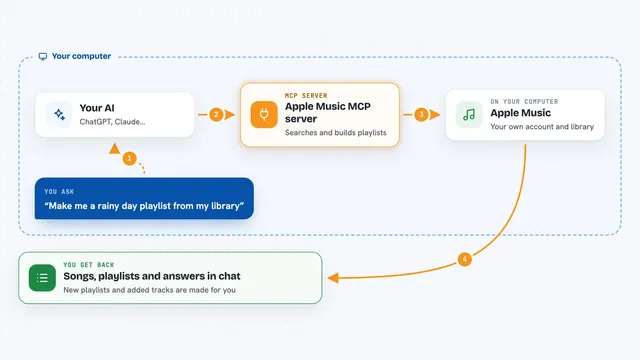
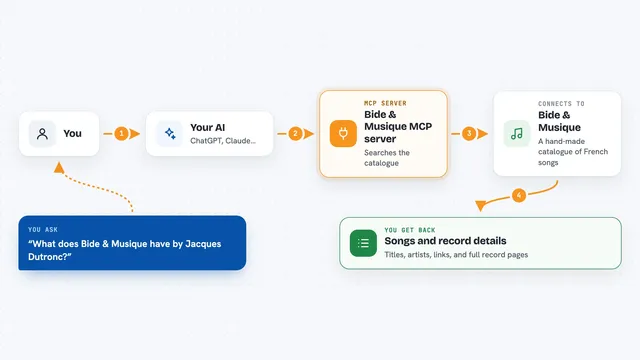
You ask your AI something about your music, like what you listened to this week. The AI passes your question to this helper, which talks to Yandex Music using your account. Yandex Music sends back the details, like track names, artists and dates. The helper hands those details to the AI, and the AI writes the answer for you in plain words. If you ask it to, it can also create playlists, add or remove tracks, change your likes, or save your library to a file.
What you can do with it
- Look through your liked tracks and describe the genres and decades you listen to
- Show what you listened to on a certain day or this week
- Build a new private playlist from tracks similar to your recent likes
- Add or remove tracks in one of your playlists
- Like or unlike tracks you name
- Open any public playlist or album from a link and compare it with your likes
- Export your likes or a playlist to a TXT or CSV file
- Show the chart and get recommendations from My Wave
Try asking your AI
- “What did I listen to this week?”
- “Analyze my last 300 likes and tell me which genres and decades they fall into”
- “Build a private playlist called Autumn with 25 tracks similar to my recent likes”
- “Here is a friend's playlist: paste the link here. Which of these tracks are already in my likes?”
What it gives back to you
You get answers in the chat, mostly as lists and short summaries: track and artist names, dates, counts, and a few sentences of explanation if you asked for analysis. When it changes something, it tells you what it did, and the change shows up in the Yandex Music app right away. When you ask for an export, it saves a TXT or CSV file on your computer, usually in a "Yandex Music exports" folder in your Documents, and tells you where it went.
Before you start
What you need
- A Yandex account with Yandex Music
- The uv tool installed on your computer (a small helper program you install once)
- The Claude desktop app or Claude Code, or another MCP client
- A Plus subscription for some features, like My Wave
Good to know
The tools that change things can add or remove tracks, change your likes, create or delete playlists, and your AI may ask for your confirmation first, but it is worth checking what it plans to do before you say yes.
Install it with your AI
Add Yandex Music MCP server to your AI, no technical skills needed
You don't install anything by hand. You copy one prompt, paste it into an AI that can work on your computer, and it checks, installs and connects the server for you, asking you when it needs something.
Sign in to get the install prompt
Members get a ready-made prompt that lets the Claude desktop app check Yandex Music MCP server, install it and connect it for them, step by step. You don't need any technical skills: you copy, paste and answer a few questions. Your connected AI can also find and install any of the 4,361 MCP servers here for you.
Who it's for
Yandex Music listeners who use an AI assistant and want it to work with their likes, history and playlists.