MCP server · Music
Ableton Live MCP server
by ntworm
Lets your AI look at and change your open Ableton Live Set, from tempo to clips and devices.
This is a helper that connects your AI assistant to Ableton Live on your own computer. Once it is set up, you can ask your AI things about your Live Set and have it make changes for you, like setting the tempo or creating a clip. It is handy for music makers who already use Ableton Live 12 and want to save time on fiddly clicking.
What is an MCP server? The 30-second version
On its own, your AI can only chat. An MCP server is a small helper program that gives your AI a new skill or a connection to an app. This one connects your AI to Ableton Live running on your machine, so it can look things up and do things there when you ask. It talks to Live through a small script you install inside Ableton, and everything stays on your computer.
What this MCP server does
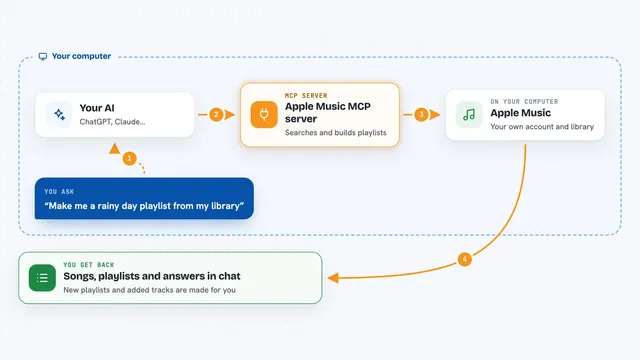
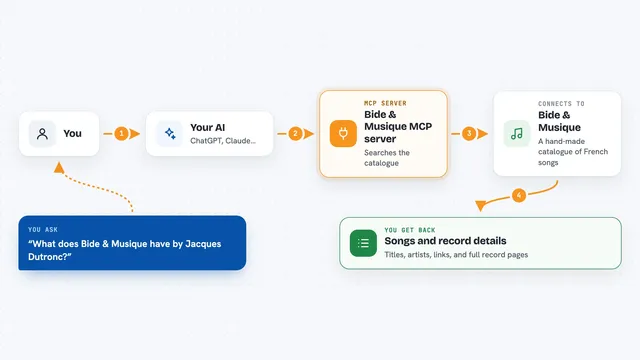
You ask your AI something in plain words, like what tracks are in your project or to set the tempo to 128. The AI passes that request to this helper, which talks to your open Ableton Live Set. The helper makes the change or reads the information, then checks that it worked. Finally, you get an answer back in the chat, such as a list of tracks or a short confirmation that the tempo is now 128.
What you can do with it
- See what tracks, devices, and clips are in your open Live Set
- Change the tempo, start and stop playback, and set loop points
- Create new MIDI or audio tracks and rename or move them
- Add notes to a clip or clear a clip's notes
- Change device settings and load a plugin preset
- Analyze audio for loudness, peaks, and frequency clashes
- Save your Live Set or create cue points
Try asking your AI
- “What tracks are in my Live Set right now?”
- “Set the tempo to 124 and start playback.”
- “Create a new MIDI track called Bass and add a clip with a simple four bar pattern.”
- “Analyze the audio on track 3 and tell me if it is too loud.”
What it gives back to you
You get answers in the chat: lists of tracks, devices, or clips, short confirmations that a change was made, or numbers like tempo and loudness readings. For analysis, it gives you figures such as loudness and peak levels. When it changes something in Live, it tells you what it did and whether it worked.
Before you start
What you need
- Ableton Live 12 installed and running on your computer
- Windows for the one-shot install script (macOS and Linux users can follow the manual steps)
- Python 3 and the project files downloaded from GitHub
- The Remote Script installed inside Ableton and selected under Preferences
Good to know
It can change or delete things in your open Live Set, so save your work first and check what it did before you trust it with anything important.
Install it with your AI
Add Ableton Live MCP server to your AI, no technical skills needed
You don't install anything by hand. You copy one prompt, paste it into an AI that can work on your computer, and it checks, installs and connects the server for you, asking you when it needs something.
Sign in to get the install prompt
Members get a ready-made prompt that lets the Claude desktop app check Ableton Live MCP server, install it and connect it for them, step by step. You don't need any technical skills: you copy, paste and answer a few questions. Your connected AI can also find and install any of the 4,361 MCP servers here for you.
Who it's for
Music producers and audio developers who already use Ableton Live 12 and want their AI assistant to help with everyday session tasks.