MCP server · Finance and crypto
Trading 212 MCP server
by KyuRish
Lets your AI check your Trading 212 portfolio, place orders, manage pies and review dividends for you.
This is a small helper that connects your AI assistant to your Trading 212 investing account. Once it is set up, you can just type things like what is my portfolio worth or buy five shares of Apple, and the AI will do it through your account. It is handy if you invest with Trading 212 and want to ask questions or make changes in plain English instead of clicking around the app.
What is an MCP server? The 30-second version
On its own, your AI can only chat with you. It cannot see your accounts or do anything in them. An MCP server is a small helper program that gives your AI one new skill, here a connection to your Trading 212 account, so it can look things up and take actions there when you ask. You install it once, add your Trading 212 keys, and then it just sits quietly in the background.
What this MCP server does
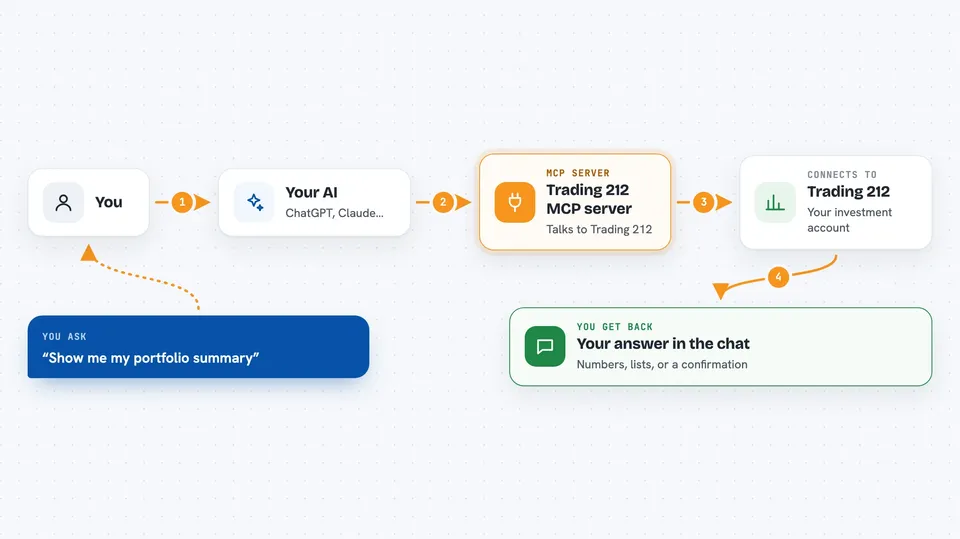
You ask your AI a question or give it an instruction, like show me my cash balance or sell my Tesla shares. The AI passes that to this helper program, which talks to the Trading 212 service on your behalf. Trading 212 sends back the answer or confirms the action, and the helper hands it to your AI. Your AI then writes it up for you in the chat, in normal words or a small table.
 Click to zoom
What you can do with it
- Check your portfolio value, profit and loss, and cash balance
- Buy or sell shares at the current market price
- Place limit, stop and stop-limit orders
- See all your open positions with live prices
- Create, update, copy or delete investment pies
- Review your dividend history and recent activity
- Search for instruments and exchanges
- Cancel a pending order
Try asking your AI
- “Show me my portfolio summary and how it is doing today”
- “Buy 5 shares of Apple at market price”
- “What dividends did I receive this year?”
- “Cancel my pending order for Tesla”
- “Show me my pie allocations”
What it gives back to you
You get answers written in the chat: numbers like your total value, profit and loss, cash, and top holdings, or lists of your positions, orders, dividends and transactions. Some tools give you a short summary with best and worst performers. When you place or cancel an order, or change a pie, you get a confirmation that it went through. You can also ask for CSV export reports from your history.
Before you start
What you need
- A Trading 212 account
- Your Trading 212 API key and secret (from the app under Settings, then API Beta)
- Python and the uvx tool installed on your computer, or pip if you prefer
- An AI app that supports MCP, like Claude Desktop
Good to know
This server can place real trades and change or delete your pies, so double check what the AI is about to do before you say yes, and try the demo setting first if you are unsure.
Install it with your AI
Add Trading 212 MCP server to your AI, no technical skills needed
You don't install anything by hand. You copy one prompt, paste it into an AI that can work on your computer, and it checks, installs and connects the server for you, asking you when it needs something.
Sign in to get the install prompt
Members get a ready-made prompt that lets the Claude desktop app check Trading 212 MCP server, install it and connect it for them, step by step. You don't need any technical skills: you copy, paste and answer a few questions. Your connected AI can also find and install any of the 4,361 MCP servers here for you.
Who it's for
Trading 212 investors who want to ask about their portfolio or place simple orders by chatting with their AI instead of tapping through the app.