MCP server · Gaming
RomM MCP server
by lodordev
Ask your AI about your RomM retro game library and update your own play status, notes, and collections.

This is a helper that connects your AI assistant to RomM, the app many people use to keep their retro game collection in order. Once it is set up, you can ask questions about your games in plain English instead of clicking around the RomM website. It is handy if you already run RomM at home and want to browse or tidy your library by chatting.
What is an MCP server? The 30-second version
On its own, your AI can only chat with you. An MCP server is a small helper program that gives your AI a new skill or a connection to an app. This helper connects your AI to your own RomM library, so the AI can look things up there or make small changes for you when you ask. You stay in control because the helper only touches your own user data, not the game files themselves.
What this MCP server does
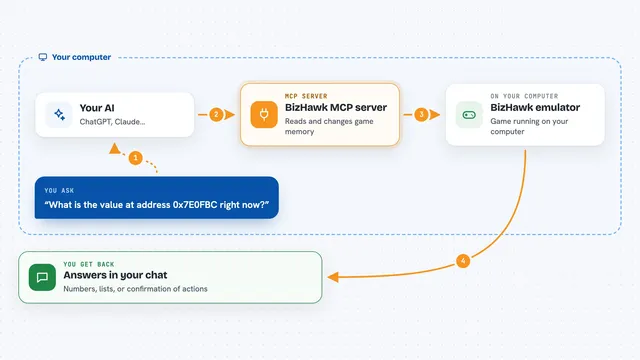
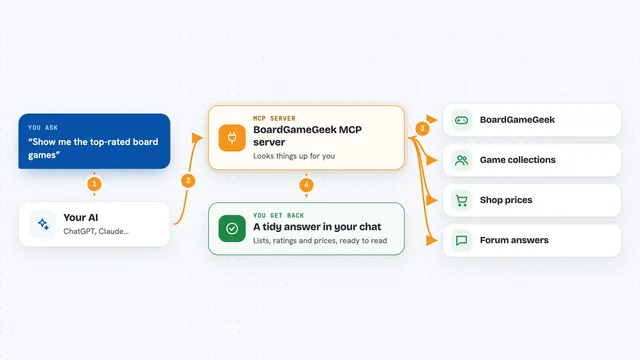
You ask your AI something about your RomM library, like which platforms you have or what is in your backlog. The AI sends that request to this helper program, which is running quietly on your computer. The helper logs in to your RomM instance and asks it for the information. RomM sends the answer back, and the helper hands it to your AI, which explains it to you in the chat. If you ask for a small change, like marking a game as finished, the helper makes that change in your own RomM account.
 Click to zoom
What you can do with it
- List your platforms with how many games and how much space each one uses
- Search your library for a game by name
- Show your backlog, now playing list, or completed games
- Look up saves, firmware files, devices, and running tasks
- Mark a game as finished, favorite it, or give it a rating
- Add or edit a note on a game
- Create a collection and add games to it
Try asking your AI
- “What platforms do I have in RomM?”
- “Search for Zelda games”
- “Show me my backlog”
- “Mark Chrono Trigger as finished and rate it 9”
What it gives back to you
You get answers in plain chat text: lists of games, counts, sizes, and short summaries. For example, asking about your backlog gives you a list of game names with their platforms. When you ask for a change, the AI tells you what it updated, like a game marked as finished or a note added. It does not show you raw data dumps unless you ask for details.
Before you start
What you need
- A running RomM instance (version 5.0 or newer for all features, 4.4 or newer for most browsing)
- Your RomM username and password (an ordinary account is enough, admin is not required)
- Python 3.10 or newer on the computer where the helper runs
- An MCP-compatible AI assistant, like Claude Desktop or Claude Code
Good to know
The write tools can change or permanently delete your own notes, collections, and play sessions, so double-check before saying yes to a delete.
Install it with your AI
Add RomM MCP server to your AI, no technical skills needed
You don't install anything by hand. You copy one prompt, paste it into an AI that can work on your computer, and it checks, installs and connects the server for you, asking you when it needs something.
Sign in to get the install prompt
Members get a ready-made prompt that lets the Claude desktop app check RomM MCP server, install it and connect it for them, step by step. You don't need any technical skills: you copy, paste and answer a few questions. Your connected AI can also find and install any of the 4,361 MCP servers here for you.
Who it's for
People who run RomM at home and want to browse or update their retro game library by chatting with their AI instead of clicking through the web interface.