MCP server · Customer communication
LINE bot ops MCP server
Check your LINE bot's queue, see failed jobs, retry them, and send messages or switch Rich Menus.
This is a helper for people who run their own LINE bot. It lets your AI look at your bot's webhook queue, find messages that never got answered, and put failed jobs back in line. It also handles simple LINE tasks like sending a message or changing a Rich Menu.
What is an MCP server? The 30-second version
On its own, your AI can only chat. An MCP server is a small helper program that gives your AI a new skill or a connection to an app. This one connects your AI to your LINE bot and its job queue, so the AI can look things up and do things there when you ask. You set it up once, and then you just talk to your AI like normal.
What this MCP server does
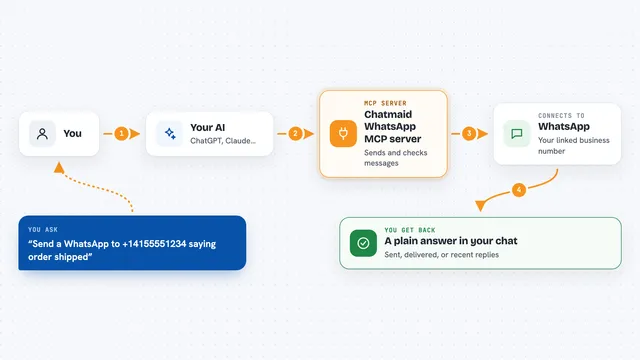
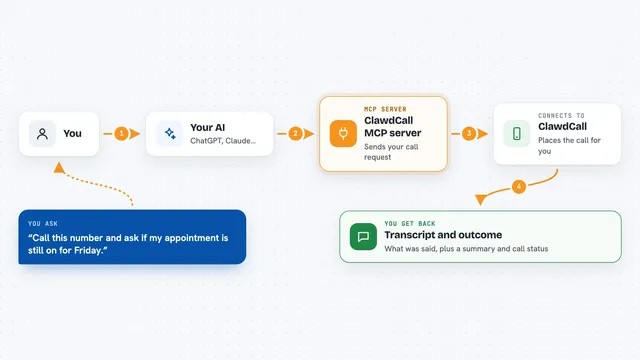
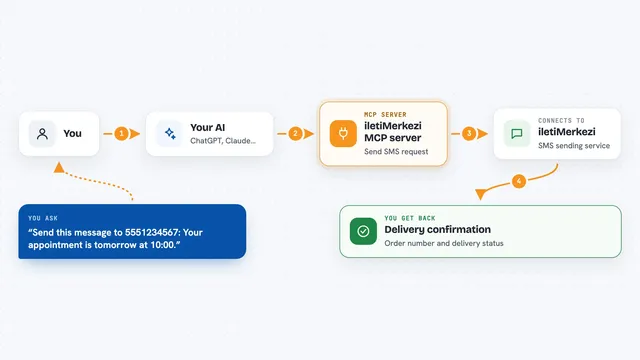
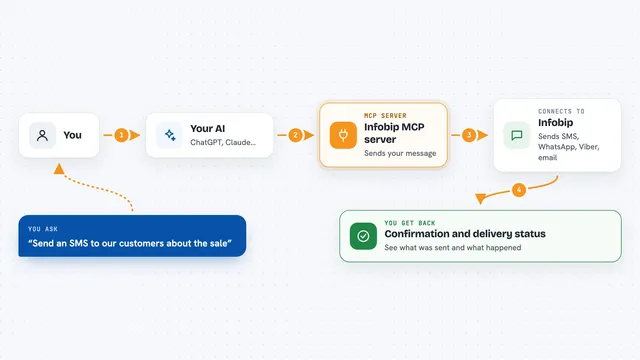
You ask your AI a question, like why the bot stopped replying. The AI uses this helper to talk to your LINE bot and your Supabase database. The helper checks the queue, lists failed jobs, or sends a message through LINE. Then it hands the answer back to your AI, and your AI explains it to you in the chat.
What you can do with it
- See how many jobs are waiting, processing, or failed
- Find the most recent failed jobs and read their error messages
- Put a failed job back to pending so it gets tried again
- Check your monthly push quota and how much is left
- See followers, targeted reaches, and blocks for a day
- Send a text message to one user, group, or room
- Switch a user to a different Rich Menu
Try asking your AI
- “Why did the bot stop replying yesterday?”
- “Show me the failed jobs from this morning”
- “Retry the last failed job”
- “How many followers did we gain yesterday and how much push quota is left?”
- “Switch user U1234567890abcdef1234567890abcdef to the seller menu”
What it gives back to you
You get answers in plain chat: counts of jobs by status, a list of failed jobs with their errors, follower numbers for a day, or your remaining push quota. When you retry a job or send a message, it tells you it worked. It also shows you the profile of a user, or which Rich Menu is the default.
Before you start
What you need
- A LINE Official Account with a Messaging API channel
- A long-lived channel access token from LINE (a kind of password for your bot)
- A Supabase project with the line_jobs and line_users tables (only if you want the queue tools)
- A Supabase service role key (only for the queue tools; keep it private)
Good to know
Broadcast sends to every friend and can't be undone, so it's off unless you turn it on. Retrying a job may fail again if the reply token has expired.
Install it with your AI
Add LINE bot ops MCP server to your AI, no technical skills needed
You don't install anything by hand. You copy one prompt, paste it into an AI that can work on your computer, and it checks, installs and connects the server for you, asking you when it needs something.
Sign in to get the install prompt
Members get a ready-made prompt that lets the Claude desktop app check LINE bot ops MCP server, install it and connect it for them, step by step. You don't need any technical skills: you copy, paste and answer a few questions. Your connected AI can also find and install any of the 4,609 MCP servers here for you.
Who it's for
People who run a LINE bot for their team or business and want to check on it without digging through logs.