MCP server · Music
Spotify MCP server
by marcelmarais
Let your AI control Spotify playback and manage your playlists for you.
This is a small helper that connects your AI assistant to your Spotify account. Once it is set up, you can ask your AI in plain words to play something, change the volume, or tidy up a playlist. It is handy for anyone who spends a lot of time in Spotify and likes the idea of just asking instead of clicking around.
What is an MCP server? The 30-second version
On its own, your AI can only chat. An MCP server is a small helper program that gives your AI a new skill or a connection to an app. This one connects your AI to Spotify, so when you ask for music, the AI can look things up and make changes in your Spotify account for you. You stay in the chat, and the helper does the work in the background.
What this MCP server does
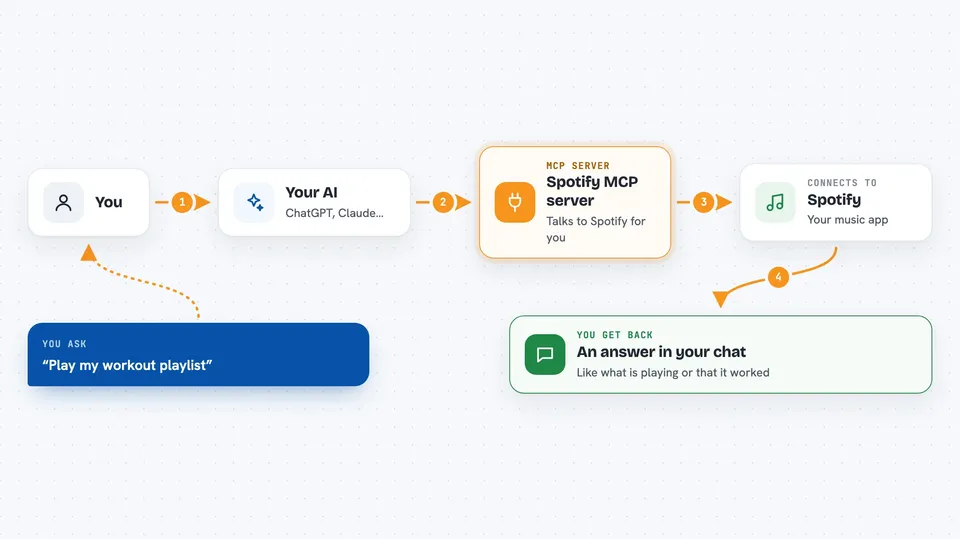
You ask your AI something like play my workout playlist or turn the volume down. The AI passes your request to this helper, which talks to Spotify on your behalf. The helper either looks something up, like what is playing now, or makes a change, like starting playback or adding a track to a playlist. Then it sends the result back, and your AI tells you what happened in the chat. You do not have to touch the Spotify app yourself.
 Click to zoom
What you can do with it
- Search Spotify for tracks, albums, artists, or playlists
- Start, pause, resume, and skip tracks
- See what is playing now, including device and volume
- Create new playlists and add tracks to them
- List your playlists and the tracks inside them
- Adjust the volume up or down
- Remove tracks from a playlist or from your Liked Songs
Try asking your AI
- “Play Bohemian Rhapsody on my laptop”
- “What am I listening to right now?”
- “Create a playlist called Focus and add my liked songs to it”
- “Turn the volume down a bit”
- “Show me my recently played tracks”
What it gives back to you
You get answers in the chat, like the name of the song playing, a list of your playlists, or the tracks in one playlist. When you ask it to change something, it tells you it worked, for example that a playlist was created or the volume went from 50 to 60 percent. Some actions give you back details such as playlist IDs and links. Everything shows up as normal text you can read and reply to.
Before you start
What you need
- A Spotify Premium account
- A Spotify Developer application (you create this for free on the Spotify developer site)
- Your Spotify client ID and client secret (these are like a username and password for the app you create)
- Node.js installed on your computer, latest version
Good to know
It can change your playlists and your Liked Songs, so be clear about what you want before you ask, and check the result if it matters.
Install it with your AI
Add Spotify MCP server to your AI, no technical skills needed
You don't install anything by hand. You copy one prompt, paste it into an AI that can work on your computer, and it checks, installs and connects the server for you, asking you when it needs something.
Sign in to get the install prompt
Members get a ready-made prompt that lets the Claude desktop app check Spotify MCP server, install it and connect it for them, step by step. You don't need any technical skills: you copy, paste and answer a few questions. Your connected AI can also find and install any of the 4,066 MCP servers here for you.
Who it's for
People who use Spotify a lot and want to control it by chatting with their AI instead of clicking through the app.