MCP server · Coding
Gemini Antigravity Bridge
Lets Google Gemini Spark send coding tasks to your Antigravity IDE, and lets the IDE ask Spark for cloud help.

This is a connector that links Google's cloud AI assistant, Gemini Spark, to the Antigravity coding app running on your own computer. It is made for people who use both tools and want them to talk to each other instead of copying things back and forth by hand. If you are not already using Gemini Spark and Antigravity, this one is probably not for you yet.
What is an MCP server? The 30-second version
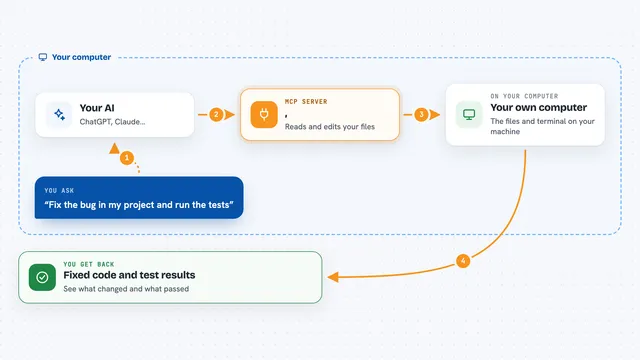
On its own, your AI can only chat with you. An MCP server is a small helper program that gives your AI a new skill or a connection to another app or service. This one is a helper that sits between Gemini Spark in the cloud and the Antigravity coding app on your machine, so each side can send work and answers to the other when you ask.
What this MCP server does
You set the bridge running on your computer, and it opens a secure web address that Gemini Spark can reach. When you ask Spark to do something that needs your local machine, Spark sends that request through the bridge. The bridge then runs the command, reads or writes the file, or hands the task to Antigravity. When Antigravity finishes, the result travels back the same way, and you see it in your chat with Spark.
 Click to zoom
What you can do with it
- Send a coding task from Gemini Spark to Antigravity on your computer
- Run a system command on your machine and read the output
- Read, write, edit, or create files in a project folder
- Check the status of a running agent task or stop it
- Save and read shared notes between the two AIs
- Ask Spark's connected apps like Gmail, Drive, or Canva to do something
- Check Git status for a repository
Try asking your AI
- “Ask Antigravity to add a login page to my project and tell me when it is done”
- “Run the tests in my project folder and show me what failed”
- “Save a note that says the database schema changed today”
- “Check my Git status for the website repo”
What it gives back to you
You get back plain answers in your chat: command output, file contents, a list of files in a folder, the status of a running task, or a short report from Antigravity. When the bridge changes something, like writing a file or running a command, it tells you what it did. Notes and history come back as short structured entries you can read.
Before you start
What you need
- Python 3.10 or newer on your computer
- A free ngrok account with a reserved domain (ngrok is a service that gives your computer a public web address)
- A Google Gemini Spark subscription (Advanced or Ultra)
- The Antigravity IDE installed on your machine
Good to know
This bridge can run commands and change files on your computer, so only connect it to a machine and accounts you trust.
Install it with your AI
Add Gemini Antigravity Bridge to your AI, no technical skills needed
You don't install anything by hand. You copy one prompt, paste it into an AI that can work on your computer, and it checks, installs and connects the server for you, asking you when it needs something.
Sign in to get the install prompt
Members get a ready-made prompt that lets the Claude desktop app check Gemini Antigravity Bridge, install it and connect it for them, step by step. You don't need any technical skills: you copy, paste and answer a few questions. Your connected AI can also find and install any of the 4,361 MCP servers here for you.
Who it's for
Developers and technical tinkerers who already use Gemini Spark and the Antigravity IDE and want them to work together.