MCP server · Apple, iOS and Mac
MarkView MCP server
by paulhkang94
Lets your AI show Markdown it writes in a live native macOS preview window as you work.

MarkView is a small macOS app that shows Markdown files in a proper window, with formatting, tables, diagrams and code colours. This MCP server is the bridge that lets your AI send Markdown straight into that window. It is handy if you use Claude Code or Claude Desktop on a Mac and you want to actually see the notes, docs or reports your AI writes instead of reading raw text in the chat.
What is an MCP server? The 30-second version
On its own, your AI can only chat with you in a text box. An MCP server is a small helper program that gives your AI one extra skill. This helper gives your AI the ability to talk to MarkView, a Markdown preview app on your Mac. So when you ask your AI to write something in Markdown, it can hand that text to MarkView and a real window pops up showing it nicely formatted.
What this MCP server does
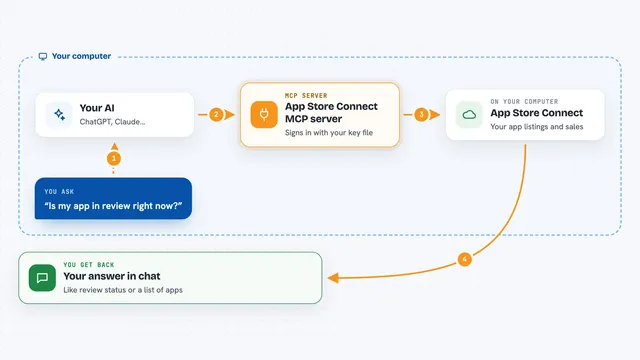
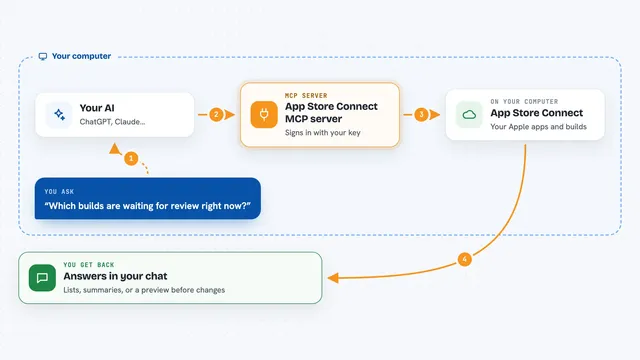
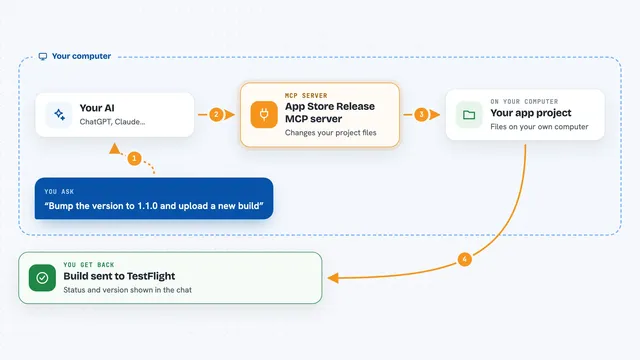
You ask your AI to write or open some Markdown. The AI passes that text or file name to this helper. The helper hands it to the MarkView app on your Mac. MarkView opens a window and renders it, with headings, tables, code colours and diagrams looking the way they should. If the AI keeps editing the text, the window updates as it goes, so you can watch the document take shape.
 Click to zoom
What you can do with it
- Preview Markdown your AI just wrote in a live window
- Open an existing .md file from your Mac in MarkView
- Watch a document update while your AI keeps editing it
- See tables, task lists and footnotes rendered properly
- View Mermaid diagrams like flowcharts and pie charts
- Read code blocks with syntax colours instead of plain text
Try asking your AI
- “Write me a project plan in Markdown and show it in MarkView”
- “Open my notes.md file in MarkView”
- “Draft a README for this folder and preview it as you go”
- “Turn this list into a Markdown table and show me the result”
What it gives back to you
You get a native MarkView window on your Mac showing the rendered Markdown. In the chat itself, your AI usually just confirms that it opened or updated the preview. If you asked it to open a file, the window shows that file's content. As the AI edits the text, the window refreshes so you always see the latest version.
Before you start
What you need
- A Mac running macOS 14 or newer
- The MarkView app installed (the Homebrew cask is the easy way)
- Node.js installed, since the helper runs through npx
- Claude Code or the Claude desktop app
Good to know
This only works on a Mac with the MarkView app installed, so on Windows or Linux it will not do anything.
Install it with your AI
Add MarkView MCP server to your AI, no technical skills needed
You don't install anything by hand. You copy one prompt, paste it into an AI that can work on your computer, and it checks, installs and connects the server for you, asking you when it needs something.
Sign in to get the install prompt
Members get a ready-made prompt that lets the Claude desktop app check MarkView MCP server, install it and connect it for them, step by step. You don't need any technical skills: you copy, paste and answer a few questions. Your connected AI can also find and install any of the 4,361 MCP servers here for you.
Who it's for
Mac users who write with Claude Code or Claude Desktop and want to see their Markdown documents rendered properly while they work.