MCP server · Developer tools
App Store Connect MCP server
Ask your AI to look up and manage your App Store apps, builds, TestFlight testers, and reviews.

This is a helper that connects your AI assistant to App Store Connect, Apple's website where you manage your apps. It runs on your own Mac and lets you ask for things in plain words instead of clicking through Apple's site. It is handy if you publish apps and want to check builds, testers, or reviews without hunting through menus.
What is an MCP server? The 30-second version
On its own, your AI can only chat with you. An MCP server is a small helper program that gives your AI a new skill, in this case a connection to App Store Connect. Once it is set up, your AI can ask this helper to look things up or make changes in your App Store account when you request it. You stay in control: the AI only does what you ask.
What this MCP server does
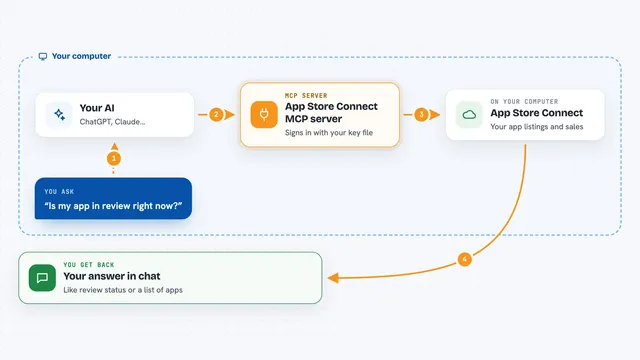
You type a request in your AI chat, like asking which apps you have or which builds are waiting for review. Your AI passes that request to this helper program running on your Mac. The helper signs in to App Store Connect with your own Apple key and fetches or changes the information there. Then the answer comes back into your chat as a list, a summary, or a confirmation that something was updated.
 Click to zoom
What you can do with it
- List your apps and their versions
- Check builds and their processing status
- Manage TestFlight beta groups and testers
- Read customer reviews and feedback
- Look up in-app purchases and subscriptions
- Check pricing and availability
- Review screenshots and product page details
Try asking your AI
- “List my App Store Connect apps.”
- “Which builds are waiting for review right now?”
- “Show me the latest customer reviews for my app.”
- “What TestFlight groups do I have and who is in them?”
What it gives back to you
You get answers right in the chat: lists of apps, builds, testers, or reviews, plus short summaries when you ask for one. If you ask it to change something, it tells you what it did. Some actions need you to confirm before anything happens, so you will see a preview first.
Before you start
What you need
- A Mac running macOS 15.6 or newer with Xcode 26
- An App Store Connect API key (Apple gives you a .p8 file, a Key ID, and an Issuer ID from the Users and Access page)
- The Mint tool installed, or a way to build the program from source
- An MCP client like Claude Desktop, Claude Code, or Codex
Good to know
It can change or delete things in your real App Store Connect account, so read the preview or confirmation before saying yes, and keep your Apple key file private.
Install it with your AI
Add App Store Connect MCP server to your AI, no technical skills needed
You don't install anything by hand. You copy one prompt, paste it into an AI that can work on your computer, and it checks, installs and connects the server for you, asking you when it needs something.
Sign in to get the install prompt
Members get a ready-made prompt that lets the Claude desktop app check App Store Connect MCP server, install it and connect it for them, step by step. You don't need any technical skills: you copy, paste and answer a few questions. Your connected AI can also find and install any of the 4,361 MCP servers here for you.
Who it's for
iOS and macOS app developers, release managers, and small teams who publish apps and want to check or update App Store Connect without clicking through the website.