MCP server · Developer tools
Shell MCP server
by tumf
Lets your AI run a small, approved set of command-line tools on your computer and read the results back to you.

This is a helper that lets your AI run certain command-line programs on your computer, but only the ones you allow. It is handy if you already use the terminal a little and want your AI to look at files, search text, or check what is in a folder for you. If you have never opened a terminal, this one is probably not for you yet.
What is an MCP server? The 30-second version
On its own, your AI can only chat. An MCP server is a small helper program that gives your AI a new skill or a connection to something outside the chat. This one gives your AI a connection to your computer's command line, so it can run approved commands like listing files or searching text. You stay in control because you decide up front which commands are allowed.
What this MCP server does
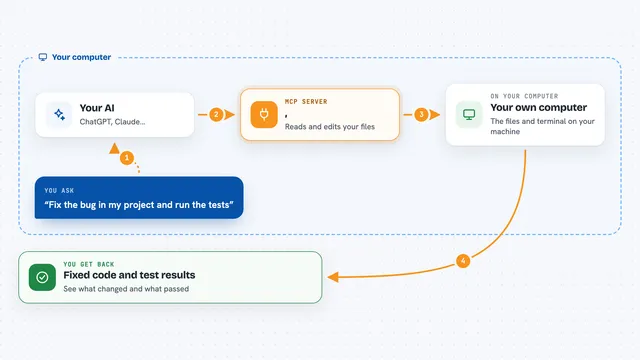
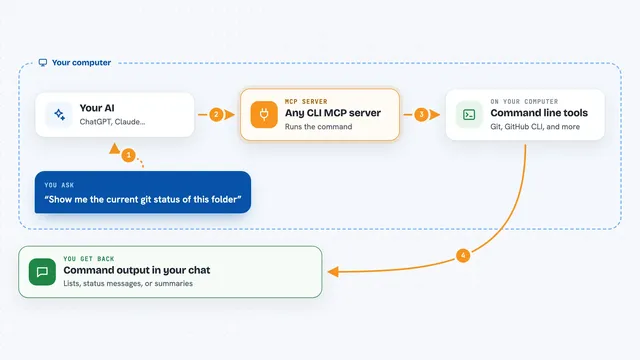
You ask your AI something like what files are in this folder. Your AI sends that request to this helper program. The helper checks whether the command is on your allowed list, then runs it on your computer. It collects the normal output, any error output, the exit code, and how long it took. Then it hands all of that back to your AI, which explains the result to you in plain words.
 Click to zoom
What you can do with it
- List files and folders in a directory
- Read the contents of a text file
- Search for a word or pattern inside files
- Count lines, words, or characters in a file
- Show the current working directory
- Create an empty file with touch
- Find files by name or pattern
Try asking your AI
- “List all files in my Documents folder and tell me which ones are largest”
- “Search this project folder for the word invoice and show me the matching lines”
- “How many lines are in the file notes.txt”
- “What is the current working directory of the server”
What it gives back to you
You get back the command's normal output, any error messages, an exit code, and how long it took. Your AI usually turns that into a short summary or a list in the chat. If a command is not allowed, you get a clear message saying it was rejected. Nothing is shown as raw logs unless you ask for them.
Before you start
What you need
- The Claude desktop app or another app that supports MCP servers
- Python installed, plus the uvx tool (a small runner for Python programs)
- A list of command names you want to allow, set in a setting called ALLOW_COMMANDS
Good to know
This is not a sandbox: any command you allow runs with the same access your computer account has, so keep the allowed list as short as possible and only use it with content you trust.
Install it with your AI
Add Shell MCP server to your AI, no technical skills needed
You don't install anything by hand. You copy one prompt, paste it into an AI that can work on your computer, and it checks, installs and connects the server for you, asking you when it needs something.
Sign in to get the install prompt
Members get a ready-made prompt that lets the Claude desktop app check Shell MCP server, install it and connect it for them, step by step. You don't need any technical skills: you copy, paste and answer a few questions. Your connected AI can also find and install any of the 4,361 MCP servers here for you.
Who it's for
People who are comfortable with basic terminal commands and want their AI to peek at files and folders for them.