MCP server · Coding
Claude Codex Bridge
by umum-ai
Lets Claude Code hand coding tasks to a Codex agent and follow along while it works.
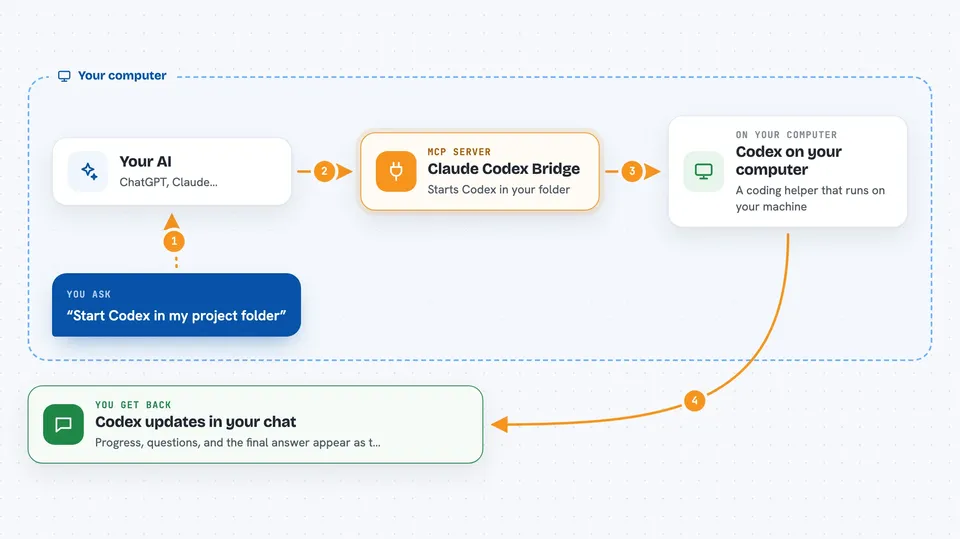
This is a helper that connects Claude Code to Codex, OpenAI's coding agent. You ask Claude to give Codex a job, and Claude stays in the loop while Codex works on it. It is handy if you already use both tools and want them to cooperate instead of switching back and forth.
What is an MCP server? The 30-second version
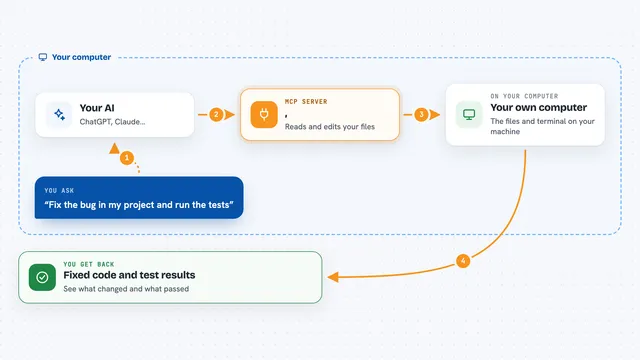
On its own, Claude can only chat with you. An MCP server is a small helper program that gives Claude a new skill or a connection to another app. This one connects Claude to Codex, so Claude can start a Codex task, watch its progress, send it more instructions, or stop it. You never touch the helper directly; you just talk to Claude and it uses the bridge for you.
What this MCP server does
You tell Claude to start a Codex task in a specific project folder. Claude passes that request to this bridge, which starts Codex in the background and hands back a session ID right away. As Codex works, progress notes and questions flow back to Claude through a feature called Channels. You can send Codex another instruction mid-task, stop it, or pick up a saved session later. When Codex finishes, its answer shows up in your Claude conversation.
 Click to zoom
What you can do with it
- Start a Codex task in a project folder and get a session ID
- Watch Codex progress arrive as notifications in Claude
- Send Codex a new instruction while it is still working
- Stop a running Codex task
- Resume a saved Codex session by its thread ID
- Answer a question Codex asks during a task
- List the models your Codex account can use
Try asking your AI
- “Use the bridge to start Codex in /Users/me/my-project. Review the login code and suggest a fix for the failing test.”
- “Tell that Codex session to focus on the token refresh path.”
- “Ask that Codex session to stop.”
- “Continue that Codex session: apply the proposed fix and run the tests.”
What it gives back to you
You get a session ID as soon as a task starts, then progress notes, questions, errors, and the final answer as messages in your Claude chat. Status and recent events can also be pulled on demand. Everything appears as text in the conversation, not as a separate window.
Before you start
What you need
- Claude Code 2.1.261, installed and signed in
- Codex CLI 0.153.4, installed and signed in with access to the model you want
- Node.js 24.20.0 or newer, with npm and npx
- Channels turned on in Claude Code settings (channelsEnabled: true)
Good to know
Codex runs with full access to your files and can run commands as your local user without asking for approval, so pick the project folder and tasks carefully.
Install it with your AI
Add Claude Codex Bridge to your AI, no technical skills needed
You don't install anything by hand. You copy one prompt, paste it into an AI that can work on your computer, and it checks, installs and connects the server for you, asking you when it needs something.
Sign in to get the install prompt
Members get a ready-made prompt that lets the Claude desktop app check Claude Codex Bridge, install it and connect it for them, step by step. You don't need any technical skills: you copy, paste and answer a few questions. Your connected AI can also find and install any of the 4,361 MCP servers here for you.
Who it's for
Developers and technical teams who already use both Claude Code and Codex and want them to work together in one chat.