MCP server · API
Wanaku MCP server
by wanaku-ai
Lets your AI use company tools safely, without touching the systems behind them directly.
Wanaku is a helper program that sits between your AI assistant and the systems it needs to work with, like company databases or internal apps. It is made for teams that want the AI to be able to do things, but only in a controlled way, with rules and a record of what happened. If your workplace uses AI agents and cares about who can do what, this is built for that world.
What is an MCP server? The 30-second version
On its own, your AI can only chat. An MCP server is a small helper program that gives your AI a new skill or a connection to an app or service. Wanaku is that helper, and it connects your AI to enterprise systems through a controlled middle layer. When you ask your AI to do something, Wanaku checks the request, applies the rules your team set, and only then lets the action go through.
What this MCP server does
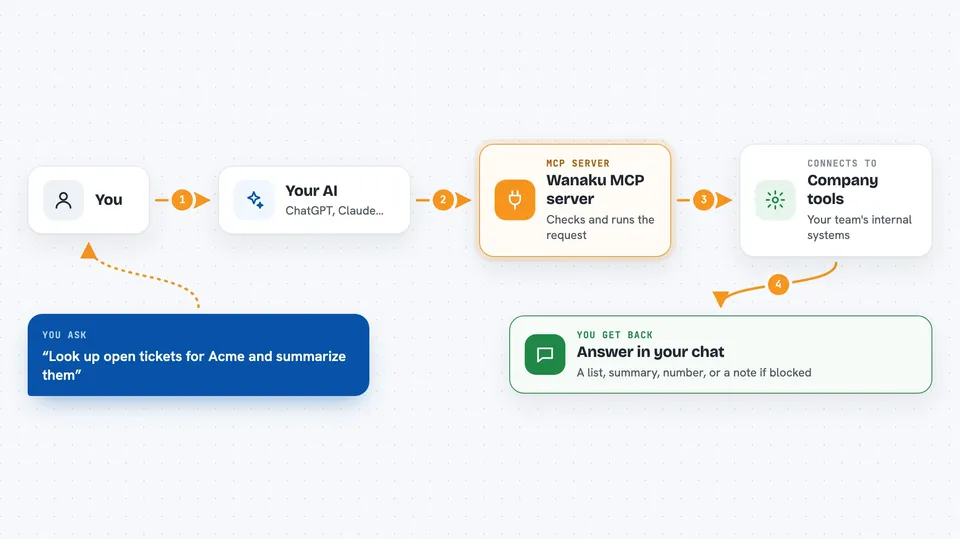
You ask your AI to do something, like look up a customer or run a task in an internal system. The AI sends that request to Wanaku instead of reaching the system directly. Wanaku checks who is asking, applies any rules your team set up, and decides whether the action is allowed. If it is allowed, Wanaku runs the work and sends the result back to your AI. You then see the answer in your chat, without ever touching the backend system yourself.
 Click to zoom
What you can do with it
- Call company tools through your AI while keeping the backend systems hidden
- Discover tools that other MCP servers offer and use them from one place
- Organize tools by team, tenant, or environment so people only see what they should
- Apply rules that filter, block, or allow certain AI actions
- Sign in with your company identity before any action runs
- Manage tools, prompts, and resources from a web dashboard
- Keep a record of what the AI tried to do and what was allowed
Try asking your AI
- “Look up the open tickets for customer Acme and summarize them”
- “Run the daily report tool and tell me the totals”
- “Which tools do I have access to in my team's namespace”
- “Check whether this action is allowed before you do it”
What it gives back to you
You get answers in your chat, the same way you would from any AI reply. Depending on the tool, that could be a list, a summary, a number, or a short note saying the action was completed. If a request was blocked by a rule, Wanaku tells your AI that, and your AI can pass that message on to you.
Before you start
What you need
- A computer running Linux or macOS to install the Wanaku server
- A web browser to open the admin dashboard at localhost:8080
- Your company's sign-in setup if your team uses one (Keycloak or oauth2-proxy)
- Someone on your team who can set up the tools and rules you will use
Good to know
Wanaku can run real actions in company systems on your behalf, so make sure the rules and sign-in settings are correct before letting it loose on anything important.
Install it with your AI
Add Wanaku MCP server to your AI, no technical skills needed
You don't install anything by hand. You copy one prompt, paste it into an AI that can work on your computer, and it checks, installs and connects the server for you, asking you when it needs something.
Sign in to get the install prompt
Members get a ready-made prompt that lets the Claude desktop app check Wanaku MCP server, install it and connect it for them, step by step. You don't need any technical skills: you copy, paste and answer a few questions. Your connected AI can also find and install any of the 4,609 MCP servers here for you.
Who it's for
This is mostly for IT teams, integration developers, and platform engineers who set up AI access to company systems, not for everyday office users on their own.