MCP server · Developer tools
Garmin Connect IQ docs MCP server
by ztuskes
Ask your AI about Garmin Connect IQ coding and it looks it up in the offline SDK docs for you.

This is a helper for people who write Garmin watch apps and watch faces using the Connect IQ tools. It gives your AI assistant a copy of the Garmin Connect IQ SDK 8.2.3 documentation, so it can answer your coding questions from the real docs instead of guessing. It is handy if you already tinker with Garmin apps and want quick, accurate answers while you work.
What is an MCP server? The 30-second version
On its own, your AI can only chat with you from what it already learned. An MCP server is a small helper program that gives your AI a new skill or a connection to something useful. This one connects your AI to the Garmin Connect IQ documentation stored on your own computer. So when you ask about a module, a class, or an example, the AI can look it up in those docs and answer you with the real details.
What this MCP server does
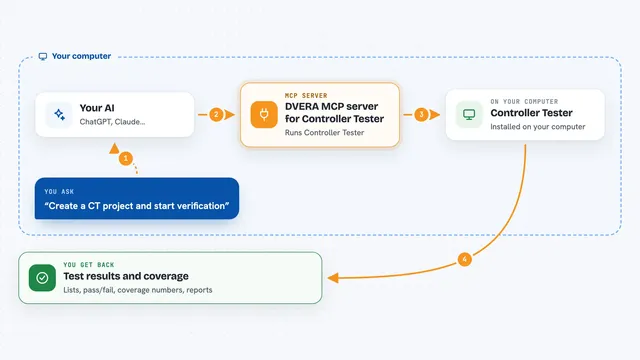
You ask your AI a question about Garmin Connect IQ, like how a module works or how to build a watch face. The AI sends that question to this helper program running on your computer. The helper searches the local Garmin documentation files, which it has already read and organized. It sends back the matching modules, classes, methods, guides, or code examples. Your AI then explains the result to you in plain words in the chat.
 Click to zoom
What you can do with it
- Search the Garmin Connect IQ docs for a module, class, or method
- Get full details about a module, including which SDK version it needs
- Get full details about a class and where it lives
- List all the modules in the SDK with short descriptions
- Fetch code examples for a topic like watch faces or Bluetooth
- Look up device specs such as memory limits and round screen support
- Read programming guides and troubleshooting FAQ entries
Try asking your AI
- “Search for bluetooth functionality in Garmin Connect IQ”
- “Show me details about the System module”
- “Get examples for creating a watch face”
- “What are the memory limits for different Garmin devices?”
What it gives back to you
You get answers in the chat, written out by your AI. Depending on your question, that can be a list of matching modules or classes, a short summary of one item, a code example, or a note about which SDK version supports something. It also can pull device specs like memory limits or FAQ entries about fonts and graphics. Nothing is changed anywhere; it only reads the docs and reports back.
Before you start
What you need
- The Garmin Connect IQ SDK 8.2.3 documentation files, copied into a docs folder inside the project
- Node.js installed on your computer
- The Claude desktop app or Claude Code set up on your computer
Good to know
It only reads the documentation on your computer, so it cannot change anything, but it does need the Garmin docs to be downloaded and placed in the right folder first.
Install it with your AI
Add Garmin Connect IQ docs MCP server to your AI, no technical skills needed
You don't install anything by hand. You copy one prompt, paste it into an AI that can work on your computer, and it checks, installs and connects the server for you, asking you when it needs something.
Sign in to get the install prompt
Members get a ready-made prompt that lets the Claude desktop app check Garmin Connect IQ docs MCP server, install it and connect it for them, step by step. You don't need any technical skills: you copy, paste and answer a few questions. Your connected AI can also find and install any of the 4,609 MCP servers here for you.
Who it's for
People who build Garmin watch apps and watch faces with Connect IQ and want fast, accurate answers while they code.