AI agent for technical writers
Accessibility Check for Docs Agent
Publish docs that pass accessibility checks, with unresolved items clearly listed.
What it does
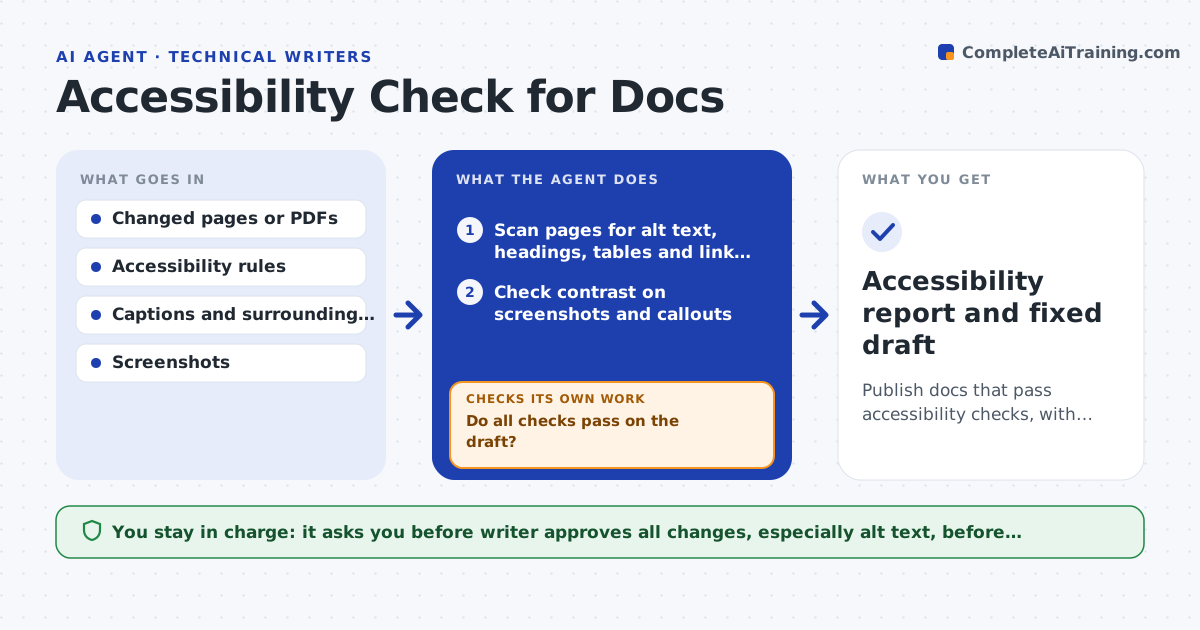
A customer using a screen reader complains that your setup guide has 14 images with no description and a heading that jumps from level 2 to level 4. This agent scans new and changed pages before they publish. It checks alt text on images, heading order, table headers, link text such as click here, language settings and, for PDFs, tags and reading order. It also measures contrast on screenshots and callouts. For each problem it drafts a fix on a draft copy, such as an alt text based on the caption and surrounding text, or a corrected heading level. It then rescans the draft to confirm the fixes worked and nothing new broke. Items that cannot be fixed automatically go on a list for the writer, such as a diagram that needs a long description. The writer approves the changes before publishing. Edge case: a decorative image should have empty alt text, so the agent leaves it.
How it works
Follow the arrows from top to bottom. The orange dashed arrow is the loop: when a check fails, the agent goes back and tries again.
Read the steps as a list
- Pages are ready to publish
- Scan pages for alt text, headings, tables and link text
- Check contrast on screenshots and callouts
- List each failure with the page and element
- Draft fixes on a copy of the pages
- Rescan the draft copy
- Do all checks pass on the draft?If not: revise the failed fixes and rescan. Back to step 4.
- List items that need the writer, such as long descriptions
- Did the fixes leave the meaning and layout intact?If not: revert the fix and move it to the writer list. Back to step 5.
- Writer approves the changes before publishingThe agent waits here for your OK.
- Accessibility report and fixed draft
How it decides
A page fails when a check from the rules is not met. Fixes are applied automatically only if they cannot change the meaning, such as heading levels. Alt text is drafted for review.
- Apply heading level and table header fixes automatically on the draft
- Draft alt text from caption and context and mark it for review
- Leave decorative images with empty alt text
- Fail any text or screenshot label with contrast below 4.5:1
Make it yours
Every agent is a starting point. You choose these settings for your own situation.
- Accessibility standard (default WCAG 2.1 AA)
- Contrast ratio (default 4.5:1)
- File types to scan
- Fixes applied automatically
- Report format
What keeps you in control
It always asks you first
- Writer approves all changes, especially alt text, before publishing
Hard limits
- Never publish or overwrite the live pages
- Never invent details in alt text that the image does not show
It stops when
- Done: all checks pass or remaining items are on the writer list
- Stop: a PDF is a scanned image with no text and needs a new source
Set it up
We guide you through the set-up, step by step
Members get the full set-up guide for this agent. No technical skills needed: you copy, paste and upload.
- One set of instructions to paste into your AI, with the clicks for ChatGPT, Claude, Microsoft 365 Copilot, Gemini and Grok
- The agent then walks you through connecting your own data, one source at a time
- A downloadable copy with the flow chart, the rules and the full guide