AI agent for motion graphics designers
Audio Sync and Beat Marker Agent
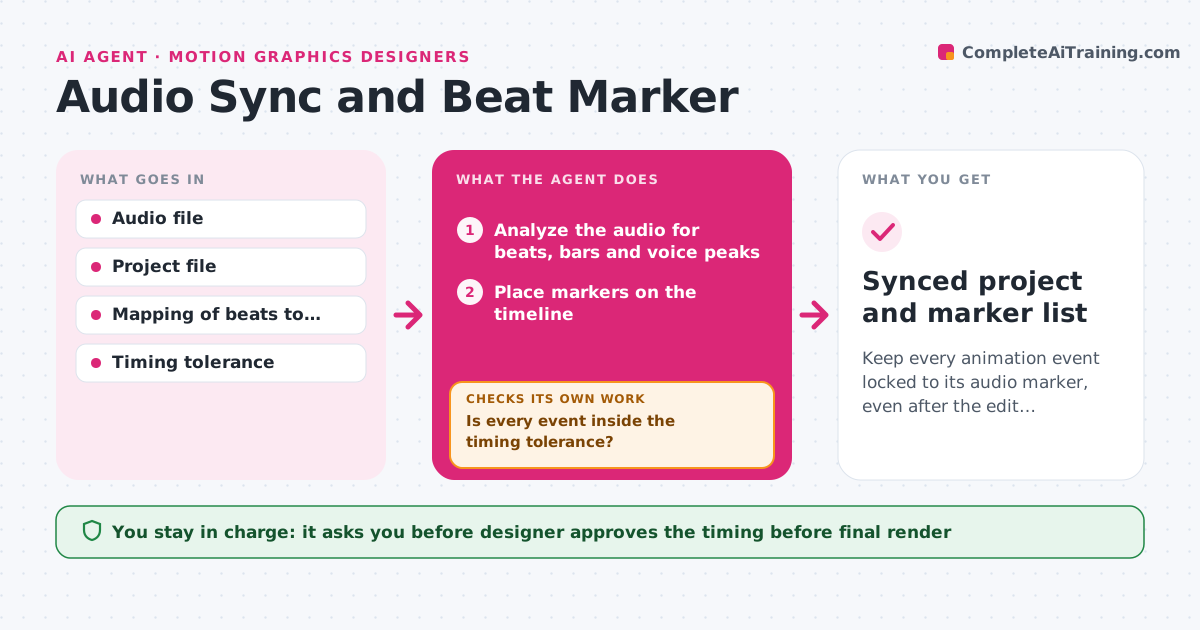
Keep every animation event locked to its audio marker, even after the edit changes.
What it does
You spend an afternoon placing keyframes on every beat, then the editor trims two seconds from the intro and everything is off. This agent analyzes the audio track and detects beats, bars and voice peaks. It places markers on the timeline and maps them to animation events you define, such as a logo hit on every fourth beat or a text pop on each stressed word. It renders a short test and measures how far each animation event lands from its audio marker. If any event is off by more than the tolerance, it shifts it and measures again. When the edit changes, it detects the shift in the audio, moves all markers and checks the timing again. The designer approves the result. Edge case: a tempo change in the middle of the track, so the agent resets the grid at that point.
How it works
Follow the arrows from top to bottom. The orange dashed arrow is the loop: when a check fails, the agent goes back and tries again.
Read the steps as a list
- Audio and project are ready
- Analyze the audio for beats, bars and voice peaks
- Place markers on the timeline
- Map markers to animation events
- Render a short test
- Measure each animation event against its marker
- Is every event inside the timing tolerance?If not: shift the late or early events and render the test again. Back to step 4.
- Detect any change in the edit and move the markers
- Do events still match after the edit change?If not: rerun the analysis on the new audio and rebuild the markers. Back to step 4.
- Designer approves the timingThe agent waits here for your OK.
- Synced project and marker list
How it decides
It uses beat and peak detection to place markers, then accepts an animation event when it lands within the tolerance of its marker, 2 frames by default.
- Accept events within 2 frames of their marker
- Reset the beat grid at any tempo change over 3 BPM
- Prefer strong beats over weak ones for key animation hits
- Ignore voice peaks below a set loudness
Make it yours
Every agent is a starting point. You choose these settings for your own situation.
- Timing tolerance in frames (default 2)
- Which beats trigger which animations
- Voice peak sensitivity
- Frame rate
- Marker color and naming
What keeps you in control
It always asks you first
- Designer approves the timing before final render
Hard limits
- Never change the audio
- Never overwrite the designer's original keyframes without a saved copy
It stops when
- Done: all events are within tolerance and approved
- Stop: the audio has no steady beat, so ask the designer to place markers
Set it up
We guide you through the set-up, step by step
Members get the full set-up guide for this agent. No technical skills needed: you copy, paste and upload.
- One set of instructions to paste into your AI, with the clicks for ChatGPT, Claude, Microsoft 365 Copilot, Gemini and Grok
- The agent then walks you through connecting your own data, one source at a time
- A downloadable copy with the flow chart, the rules and the full guide