AI agent for graphic designers
Brand Color and Font License Audit Agent
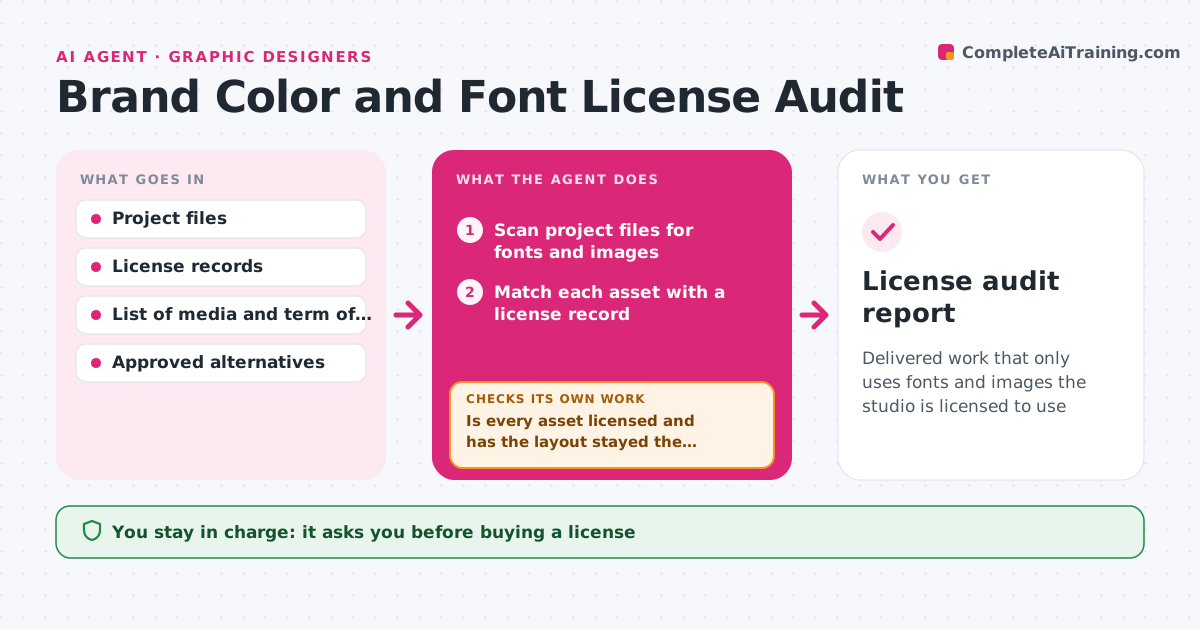
Delivered work that only uses fonts and images the studio is licensed to use
What it does
Fonts and images in delivered work are sometimes used outside their license without anyone noticing, and the bill arrives later. This agent scans project files for fonts and images and matches each to the license record. It flags uses that exceed the seats, media or term in the license, such as a desktop font used on a website. For each flag it proposes a licensed alternative, either a similar font or an image from a licensed library. After the designer swaps the item, it scans again to confirm the file is clean and that the swap did not change the layout. The designer approves purchases and replacements. Edge case: an expired license is flagged even if the work was made while it was valid.
How it works
Follow the arrows from top to bottom. The orange dashed arrow is the loop: when a check fails, the agent goes back and tries again.
Read the steps as a list
- Project nearing delivery
- Scan project files for fonts and images
- Match each asset with a license record
- Flag uses outside seats, media or term
- Propose licensed alternatives for each flag
- Designer approves purchases and replacementsThe agent waits here for your OK.
- Apply the replacement in the project files
- Re-scan the project
- Is every asset licensed and has the layout stayed the same?If not: fix the remaining flags or restore spacing, then scan again. Back to step 3.
- License audit report
How it decides
Each asset is checked against seats, media (print, web, app) and term. A use outside any of these is a flag.
- Flag a desktop font used on web or in an app
- Flag more users than the licensed seats
- Flag an expired license
- Propose an alternative within the same style
Make it yours
Every agent is a starting point. You choose these settings for your own situation.
- License types to check
- Registers or accounts to read
- Media and term rules
- Where reports are saved
What keeps you in control
It always asks you first
- Buying a license
- Replacing an asset in client work
Hard limits
- Never buys anything
- Never claims a license covers a use it does not
It stops when
- Done: all assets licensed and approved
- Stop: license records are missing
Set it up
We guide you through the set-up, step by step
Members get the full set-up guide for this agent. No technical skills needed: you copy, paste and upload.
- One set of instructions to paste into your AI, with the clicks for ChatGPT, Claude, Microsoft 365 Copilot, Gemini and Grok
- The agent then walks you through connecting your own data, one source at a time
- A downloadable copy with the flow chart, the rules and the full guide