AI agent for construction contractors
Construction Cost Report Variance Agent
A monthly cost report with a reliable forecast final cost and explained variances
What it does
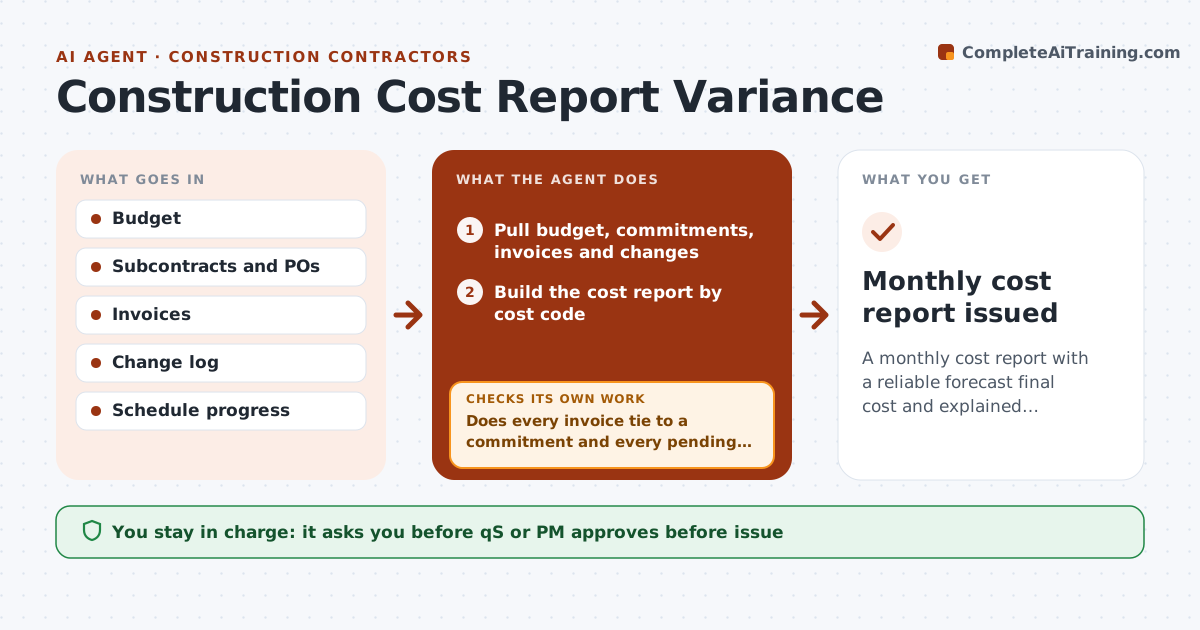
A project cost report must show the budget, commitments, actual costs, pending changes and forecast final cost, and errors hide in unmatched invoices. At month-end cutoff, this agent pulls the budget, subcontracts, purchase orders, invoices and change log and builds the report by cost code. It checks that every invoice ties to a commitment and every pending change appears in the forecast. Unmatched items go back to the team to fix before it pulls again. It then compares forecast with budget and flags lines over 5% of their budget. Pending changes are forecast at the most likely value, and contingency use is shown separately. It drafts variance notes from the change log. The quantity surveyor or project manager writes the commentary and approves. Edge case: a change still under negotiation shows its range next to the most likely value.
How it works
Follow the arrows from top to bottom. The orange dashed arrow is the loop: when a check fails, the agent goes back and tries again.
Read the steps as a list
- Month-end cutoff
- Pull budget, commitments, invoices and changes
- Build the cost report by cost code
- Does every invoice tie to a commitment and every pending change appear in the forecast?If not: list unmatched items for the team to fix and pull again. Back to step 2.
- Compare forecast with budget and flag variances
- Draft variance notes from the change log
- QS or PM approves the reportThe agent waits here for your OK.
- Monthly cost report issued
How it decides
Forecast equals commitments plus pending changes plus cost to complete. Lines over 5% of budget are flagged.
- Variance over 5% of line budget is flagged
- Pending changes forecast at most likely value
- Contingency use shown separately
Make it yours
Every agent is a starting point. You choose these settings for your own situation.
- Variance threshold (default 5%)
- Cost code structure
- Report format for owner
- Cutoff day
What keeps you in control
It always asks you first
- QS or PM approves before issue
- Owner or developer approves contingency use
Hard limits
- Never approves payments
- Never changes the budget
It stops when
- Done: report issued
- Stop: accounting data not closed
Set it up
We guide you through the set-up, step by step
Members get the full set-up guide for this agent. No technical skills needed: you copy, paste and upload.
- One set of instructions to paste into your AI, with the clicks for ChatGPT, Claude, Microsoft 365 Copilot, Gemini and Grok
- The agent then walks you through connecting your own data, one source at a time
- A downloadable copy with the flow chart, the rules and the full guide