AI agent for video editors
Proxy and Relink Recovery Agent
Bring a project fully online with every clip matched to the correct file.
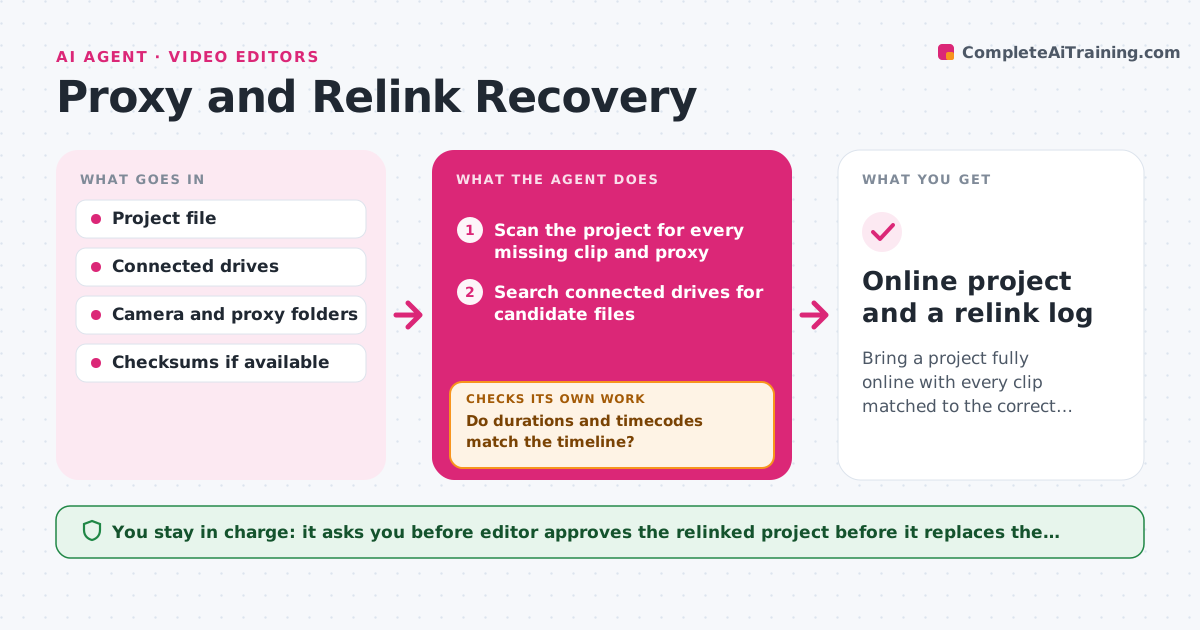
What it does
You open a project on a new machine and half the clips show as offline, and the proxies do not match the camera originals. This agent scans the project for every missing file. It then searches the connected drives for files that match by name, duration, timecode and checksum. It relinks the confident matches in a copy of the project and lists the uncertain ones with the reason. After relinking, it checks that each clip plays, that its duration equals the one in the timeline and that proxies point to the matching original. Failed matches go back to the search with wider rules, such as a changed folder name. The editor approves the final relink before the working project is replaced. Edge case: two cameras have the same file name, so timecode and checksum decide.
How it works
Follow the arrows from top to bottom. The orange dashed arrow is the loop: when a check fails, the agent goes back and tries again.
Read the steps as a list
- Project opens with offline media
- Scan the project for every missing clip and proxy
- Search connected drives for candidate files
- Score candidates by name, duration, timecode and checksum
- Relink the confident matches in a project copy
- Do durations and timecodes match the timeline?If not: widen the search to renamed folders and other drives, then score again. Back to step 3.
- Does each clip play and each proxy point to its own original?If not: unlink the clip and put it on the uncertain list with the reason. Back to step 4.
- List uncertain clips for review
- Editor approves the final relinkThe agent waits here for your OK.
- Online project and a relink log
How it decides
A match is confident when duration and timecode agree and the checksum or the name pattern matches. Matches that fit only by name are listed as uncertain.
- Relink automatically only when duration, timecode and name or checksum agree
- Never relink on file name alone when two files share it
- Prefer the camera original over a copy in an exported folder
- Stop searching a drive after three folder levels beyond the usual path
Make it yours
Every agent is a starting point. You choose these settings for your own situation.
- Drives and folders to search
- Fields that must match (default duration and timecode)
- Whether checksums are required
- Proxy and original folder naming
- Where the relink log is saved
What keeps you in control
It always asks you first
- Editor approves the relinked project before it replaces the working copy
Hard limits
- Never overwrite or move original media
- Never replace the working project without approval
It stops when
- Done: all clips online and verified
- Stop: more than 10% of clips cannot be found on any connected drive
Set it up
We guide you through the set-up, step by step
Members get the full set-up guide for this agent. No technical skills needed: you copy, paste and upload.
- One set of instructions to paste into your AI, with the clicks for ChatGPT, Claude, Microsoft 365 Copilot, Gemini and Grok
- The agent then walks you through connecting your own data, one source at a time
- A downloadable copy with the flow chart, the rules and the full guide