AI agent for help desk technicians
Ticket Triage and Routing Agent
Each ticket reaches the right team with the right priority on the first try
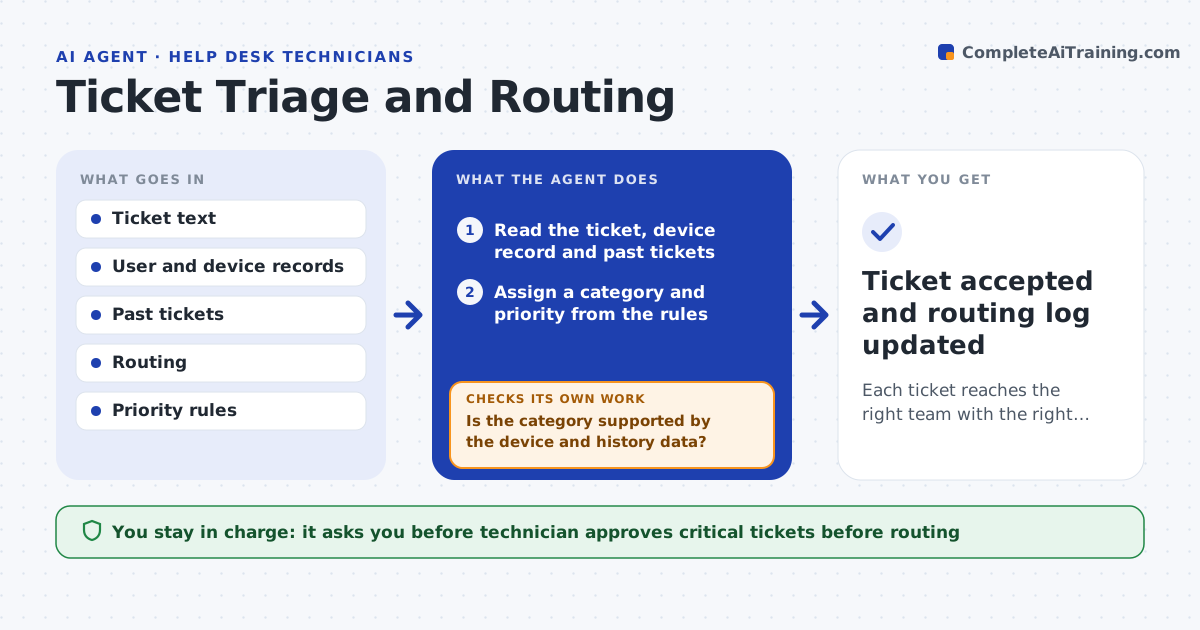
What it does
Tickets land with the wrong team or priority and bounce between queues, which delays the user. For each new ticket this agent reads the description and looks at the user's device and past tickets. It assigns a category and priority from your rules and routes the ticket. It then watches the first reply from the receiving team. If the ticket is bounced back or marked wrong, it re-routes and records the mistake so that rules can be improved. Anything marked critical waits for a technician to approve before it is routed. Edge case: the user writes that they cannot log in but their device shows a network fault, so the agent routes to networking, not accounts.
How it works
Follow the arrows from top to bottom. The orange dashed arrow is the loop: when a check fails, the agent goes back and tries again.
Read the steps as a list
- New ticket arrives
- Read the ticket, device record and past tickets
- Assign a category and priority from the rules
- Is the category supported by the device and history data?If not: reread the evidence and choose the next best category. Back to step 2.
- Technician approves any ticket marked criticalThe agent waits here for your OK.
- Route the ticket to the team queue
- Watch the first reply from the receiving team
- Did the team accept the ticket?If not: re-route using the team's note and record the routing error. Back to step 3.
- Ticket accepted and routing log updated
How it decides
Category comes from the rules matched to the description and device data. Priority comes from impact and number of users affected.
- Mark critical when many users or a core service are affected
- Prefer device and history data over the user's wording
- Re-route within an hour of a bounce
- Log every bounce to improve rules
Make it yours
Every agent is a starting point. You choose these settings for your own situation.
- Category and priority rules
- Critical criteria
- Bounce time limit (default: 1 hour)
- Teams and queues
What keeps you in control
It always asks you first
- Technician approves critical tickets before routing
Hard limits
- Never closes tickets
- Never changes priority to critical without a technician
It stops when
- Done: a team accepts the ticket
- Stop: the ticket has no usable description
Set it up
We guide you through the set-up, step by step
Members get the full set-up guide for this agent. No technical skills needed: you copy, paste and upload.
- One set of instructions to paste into your AI, with the clicks for ChatGPT, Claude, Microsoft 365 Copilot, Gemini and Grok
- The agent then walks you through connecting your own data, one source at a time
- A downloadable copy with the flow chart, the rules and the full guide