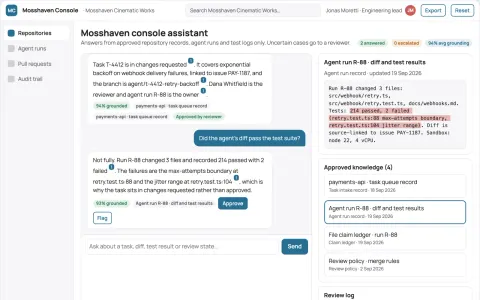
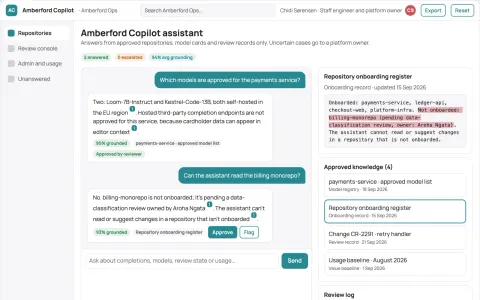
AI app for it and development · no coding needed
Screen-aware assistant and admin console
Reduce context switching and missed follow-ups while keeping screen data under the buyer's control.
Made for: Software teams and IT administrators who support users working across many desktop applications
What it does for you
The problem
Support and development work is split across tools that each see only part of the screen, so context is lost and follow-ups are missed.
What it gives you
Reviewed, source-linked assistance and tracked follow-ups
What you give it
Permitted screen contextlocal audiosession historyconnected tool events
Build your own version of PIP, Everywhere and more
One app with what these 7 AI tools do, yours to keep and change: PIP, Everywhere, Crade AI, Highlight AI, Clicky, Talk To Your Computer, AirJelly.
Everything these tools do, in one app
- Screen-aware assistance Reads what is on your screen to understand context without manual screenshots or copying.Found in PIP, Everywhere, Crade AI and 4 more
- Hotkey activation Activates the assistant quickly with a keyboard shortcut or hold-to-talk key.Found in PIP, Everywhere, Clicky
- Visual click-pointing Shows exactly where to click or highlights UI elements for multi-step tasks.Found in PIP, Clicky
- Voice interaction Allows spoken questions and provides spoken responses for hands-free use.Found in Highlight AI, Clicky, Talk To Your Computer
- Local audio transcription Captures and transcribes meeting audio locally into text.Found in Highlight AI
- Instant content analysis Summarizes, translates, or analyzes selected on-screen text quickly.Found in Highlight AI
- Workflow automation Integrates with tools like GitHub, Notion, Slack, and Google Calendar to automate tasks.Found in Highlight AI
- Customizable responses Personalizes answers based on user preferences and context.Found in Highlight AI
- Open-source Provides source code for inspection, modification, and community contributions.Found in Everywhere, Clicky
- Local model support Allows use of local or self-hosted AI models for offline or privacy-focused operation.Found in Everywhere
- Cross-platform Works on both Mac and Windows operating systems.Found in Crade AI, Highlight AI
- Desktop overlay Displays answers in a small window above other applications without switching.Found in Crade AI
- Credit-based usage Limits usage by credits, with higher tiers offering more daily credits and smarter AI.Found in Crade AI
- Screen sharing Shares your screen with the AI via a one-click action for real-time visibility.Found in Talk To Your Computer
- Session chat history Keeps track of the conversation within a session for multi-step workflows.Found in Talk To Your Computer
- Intent capture Identifies to-dos and commitments from your workflow without manual entry.Found in AirJelly
- Follow-up tracking Logs interactions and surfaces promises made in conversations to avoid missed follow-ups.Found in AirJelly
- Proactive task surfacing Foresees upcoming actions based on accumulated context and brings them to your attention.Found in AirJelly
How it works, step by step
- Read the current screen to establish context without manual screenshots
- Activate the assistant by hotkey or hold-to-talk
- Point to the exact UI element to click for multi-step tasks
- Accept spoken questions and return spoken answers
- Transcribe meeting audio locally into text
- Summarize, translate or analyze selected on-screen text
- Automate tasks through GitHub, Notion, Slack and Google Calendar
- Personalize answers from user preferences and context
- Provide inspectable source code for modification
- Support local or self-hosted models for offline use
- Run on both Mac and Windows
- Show answers in a desktop overlay without switching apps
- Meter usage by credits with tiered daily limits
- Share the screen with the assistant in one click
- Keep session chat history for multi-step workflows
- Capture to-dos and commitments from the workflow
- Log interactions and surface promises made in conversations
- Surface upcoming actions from accumulated context
- Compare the reviewed result with the recorded baseline and value assumptions
- Capture corrections and named-owner approval before consequential use
- Export a versioned reviewed assistance record with source references and unresolved questions
Jobs this app suits
Our AI checked this app against 500 jobs; these get the most out of it. Each job links to its learning path.
Build it yourself with your AI system
Build this app yourself, no coding needed
Start with a quick version you can try in a few minutes. Like it? Then build the full app by copying and pasting our step-by-step instructions: everything is prepared for you.
Sign in to see how to build it yourself
Build a quick version to try, or get the full app pack for Screen-aware assistant and admin console with the step-by-step building instructions. You don't need any technical skills: you copy, paste and answer a few questions. Both are included in the membership.
4 Have it built for you days to a few weeks
Rather not do it yourself, or want it fully tailored to your data, your way of working and your brand? Nexibeo builds Screen-aware assistant and admin console with you.
What's in the app pack
Included in the Complete AI Training membership.
- The building instructions your AI follows, step by step
- The questions your AI will ask you about your business before it starts
- A clickable demo you can open in your browser, to see how it should work
- A detailed blueprint of the screens, the information it keeps and the checks it runs
Become a member to get the app packAlready a member? Sign in
The files, for the technically curious
- START-HERE.mdHow to build it with your own AI (read first)3 KB
- README.mdOverview and links4 KB
- questions.mdQuestions to answer before you build2 KB
- prompt-cloudflare.mdThe full build prompt, hosted on Cloudflare24 KB
- prompt-vps.mdThe same build on your own server (Docker)24 KB
- spec.jsonData model, API, AI pipeline, acceptance criteria11 KB
- demo/index.htmlThe working demo on sample data196 KB
Questions
Do I need to know how to code?
No. You copy and paste the prompts on this page into ChatGPT or Claude, and the AI does the building. When it asks you something, you answer in your own words.
What does it cost?
The quick version, the app pack and the step-by-step instructions are for members: you pay the membership price, not a price per app (see the plans). Building the full app uses your own ChatGPT or Claude subscription. Putting it online is often cheap or no cost at the start, and your AI tells you before anything costs money.
How long does it take?
The quick version: about two minutes. The real app: an afternoon for a first version you can use, longer if you want every feature.
Can I change it to fit my business?
Yes. Tell your AI what to change in plain words, like “add a column for the price” or “use our logo and colours”. Or have Nexibeo build and customise it for you.
More detailsHow the AI works, safeguards and what to build first
Reduce context switching and missed follow-ups while keeping screen data under the buyer's control. For software teams and IT administrators who support users working across many desktop applications, convert permitted screen context, local audio, session history and connected tool events into reviewed, source-linked assistance and tracked follow-ups. The benefit is a testable hypothesis, measured through accepted assisted tasks per support hour and missed follow-ups after review; do not assume that AI output alone produces business value.
Confirm the buyer's problem and scope, collect permitted screen context, local audio, session history and connected tool events, then follow this sequence: 1. Read the current screen to establish context without manual screenshots. 2. Activate the assistant by hotkey or hold-to-talk. 3. Point to the exact UI element to click for multi-step tasks. Resolve uncertain cases with qualified reviewers, approve reviewed, source-linked assistance and tracked follow-ups, and measure accepted assisted tasks per support hour and missed follow-ups after review against a documented baseline.
How the AI works
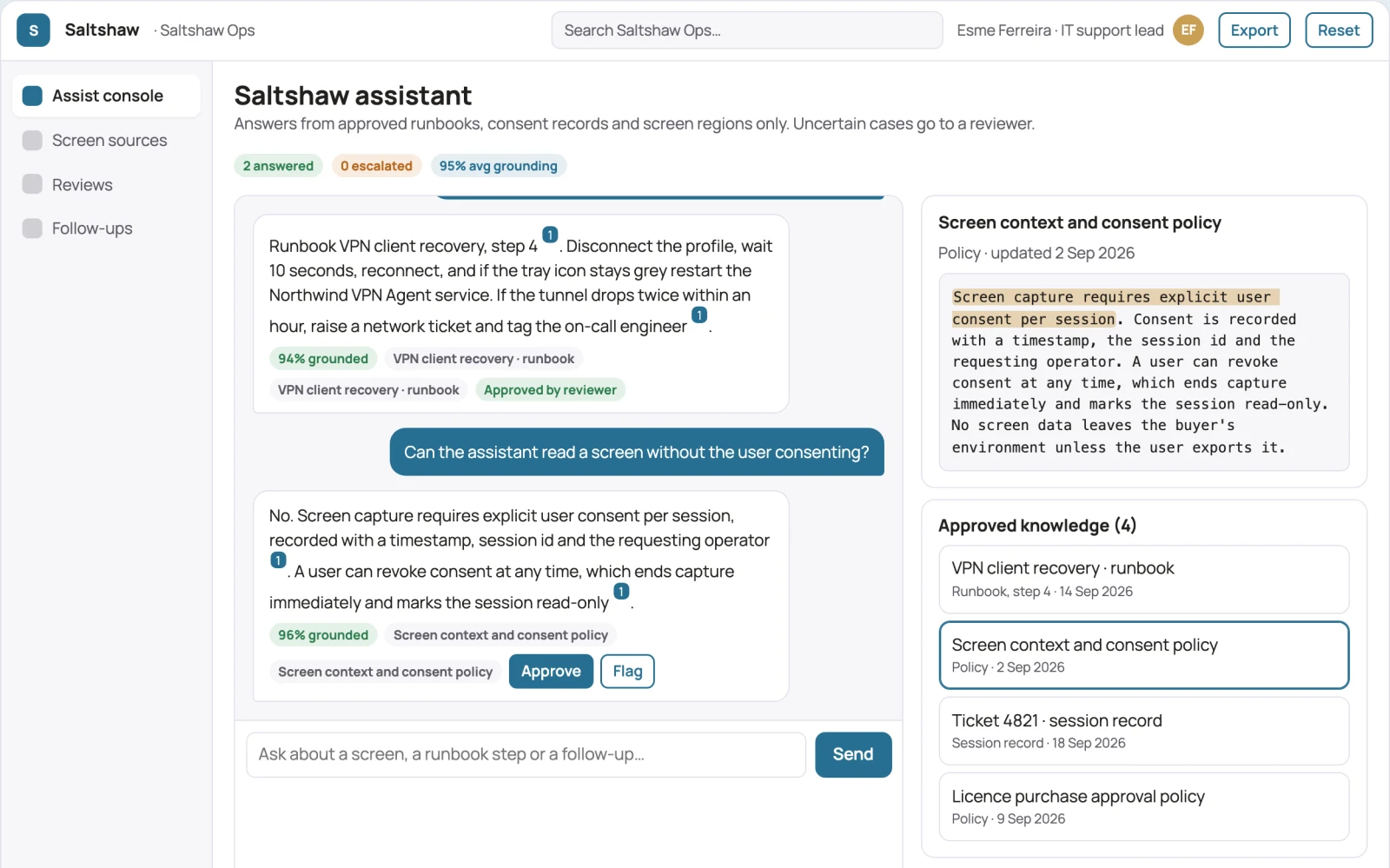
Use AI to interpret permitted inputs, suggest structured mappings and generate candidate outputs for the three stated task modules. Use deterministic code for arithmetic, schema validation, hard constraints and reproducible tests. Review source-linked explanations and uncertainty before accepting results. Screen capture requires explicit user consent per session; final actions and follow-up commitments remain human. A model suggestion is never a verified fact, professional decision or authorization to act.
Safeguards
Preserve user consent, source attribution, screen-data accuracy and usage permissions. Users approve substantive actions and follow-up scope. One operating system and one connected tool; screen capture requires explicit user consent per session; final actions and follow-up commitments remain human. Keep all consequential actions under authorized human control and do not fabricate missing inputs, permissions, professional judgments or market evidence.
What to build first
Pilot scope: One operating system and one connected tool; screen capture requires explicit user consent per session; final actions and follow-up commitments remain human. Implement one approved input format, a bounded representative case set and the first two task modules: read the current screen to establish context without manual screenshots; activate the assistant by hotkey or hold-to-talk. Support the third module with operator review: point to the exact UI element to click for multi-step tasks. Include source references, corrections, basic organization access, approval states, export and value measurement. Use managed operator assistance for unresolved exceptions. The cost estimate covers this narrow prototype, not unrestricted multi-tenant scale, complex production integrations, specialist certification or physical operations.
What it can connect to
User-owned screen sessions, authorized meeting audio and permitted tool events. GitHub, Notion, Slack and Google Calendar; local model runtimes; Mac and Windows desktop APIs. Start with file exchange and validate destination specifications before promising direct publishing. Start with authorized file exchange. Validate current provider access, usage rights and schema behavior before promising a connector.
The screens in detail
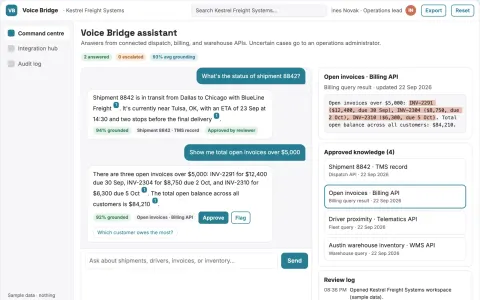
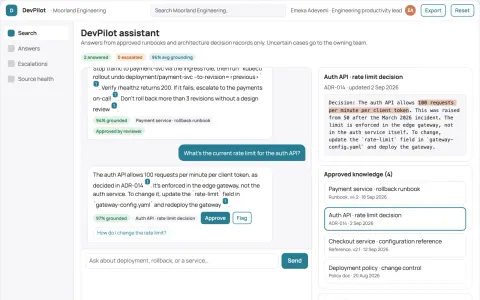
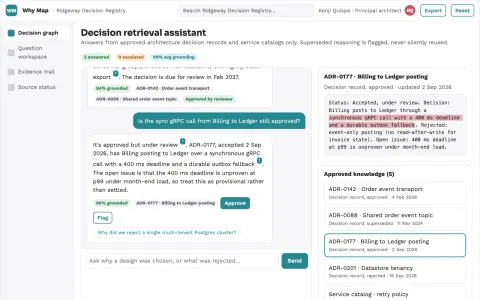
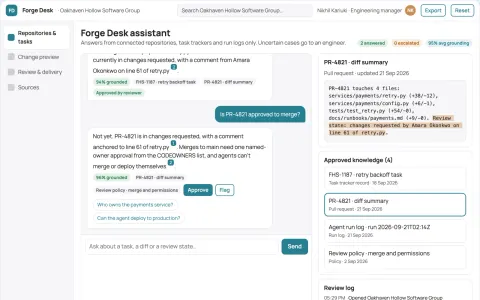
Primary screens: Screen context and consent, Editable assistance preview, Admin console and audit. Use a thumbnail gallery for sessions, a large central overlay canvas, and a right-hand panel for sources, permissions and comments. Let users compare suggested actions side by side. Display draft, changes requested and approved states. Provide a client preview link with comments anchored to the relevant screen region. Make the task-specific outcome reviewed, source-linked assistance and tracked follow-ups visible beside its evidence, review state and value baseline.