
MCP server · Browser automation
Veil browser MCP server
Lets your AI open and click through real Chrome pages, including ones you are already signed into.
Veil is a helper that lets your AI drive a real Chrome browser. It is made for people who want their AI to visit pages, fill in forms and click buttons, without the site treating it like a robot. It is handy if you work with sites that need a login or that block automated tools.
What is an MCP server? The 30-second version
On its own, your AI can only chat. An MCP server is a small helper program that gives your AI a new skill or a connection to an app. This one connects your AI to Chrome, so it can open pages, read what is on them and click things for you. You just ask in plain words, and the helper does the browser work behind the scenes.
What this MCP server does
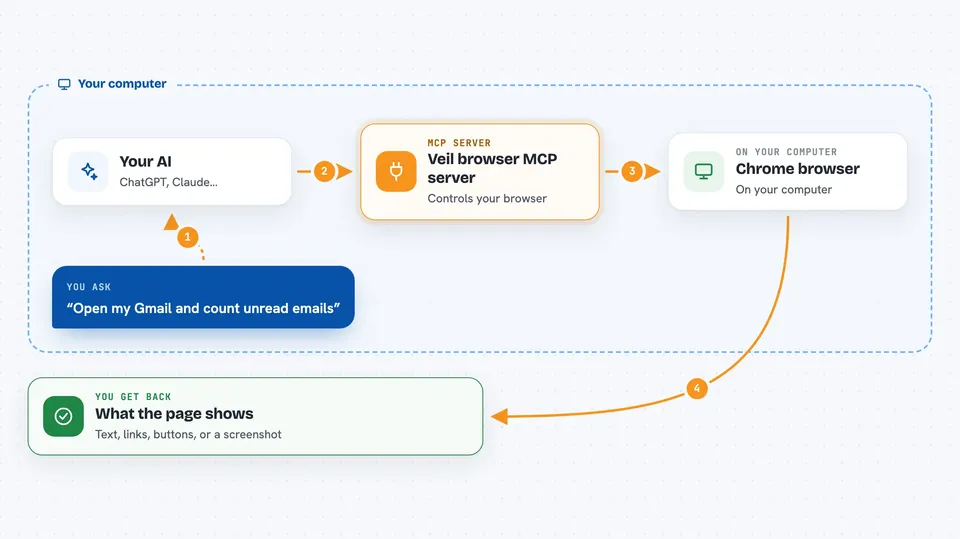
You ask your AI to do something in a browser, like open a page or fill in a form. The AI sends that request to this helper. The helper talks to a real Chrome browser on your computer and carries out the steps. It reads the page and finds the right buttons and boxes for you. Then it tells your AI what happened, and your AI tells you.
 Click to zoom
What you can do with it
- Open a web page and read what is on it
- Click buttons and links by their visible name
- Type into search boxes and forms
- Take a screenshot of the page
- Use a Chrome window you are already signed into
- Move the mouse and type in a human-like way
- Block visited pages from scanning your local network
Try asking your AI
- “Open my logged-in Gmail and tell me how many unread emails I have”
- “Go to this page and fill in the contact form with my name and email”
- “Take a screenshot of the checkout page and show it to me”
- “Log into this site using my saved session and download the latest invoice”
What it gives back to you
It gives back what the page shows: text, lists of links and buttons, and screenshots as images. It can also tell you what it clicked or typed. In the chat you see a short summary or a picture of the page. If something went wrong, it tells you that too.
Before you start
What you need
- Chrome or Chromium installed on your computer
- Bun installed (a tool for running JavaScript programs)
- A Chrome profile signed into the sites you want to use (for the attach feature)
Good to know
If you attach it to your everyday Chrome profile, the AI can reach anything you are signed into, like your email or bank. Use a separate Chrome profile for this.
Install it with your AI
Add Veil browser MCP server to your AI, no technical skills needed
You don't install anything by hand. You copy one prompt, paste it into an AI that can work on your computer, and it checks, installs and connects the server for you, asking you when it needs something.
Sign in to get the install prompt
Members get a ready-made prompt that lets the Claude desktop app check Veil browser MCP server, install it and connect it for them, step by step. You don't need any technical skills: you copy, paste and answer a few questions. Your connected AI can also find and install any of the 4,361 MCP servers here for you.
Who it's for
People who want their AI to do browser tasks on sites that need a login or that block robots, like checking email, filling forms or downloading files.


