MCP server · Social media
LinkedHelper MCP server
Let your AI run LinkedHelper campaigns, send messages, and look up LinkedIn profiles for you.

This is a helper that connects your AI assistant to LinkedHelper, the desktop app many people use to run LinkedIn outreach. Once it is set up, you can ask your AI in plain words to create a campaign, add people to it, or check who replied. It is handy if you already use LinkedHelper and want to spend less time clicking around inside it.
What is an MCP server? The 30-second version
On its own, your AI can only chat with you. An MCP server is a small helper program that gives your AI a new skill or a connection to another app. This one connects your AI to LinkedHelper on your own computer, so the AI can look things up there or do things there when you ask. You still talk to your AI normally, and it quietly uses this helper behind the scenes.
What this MCP server does
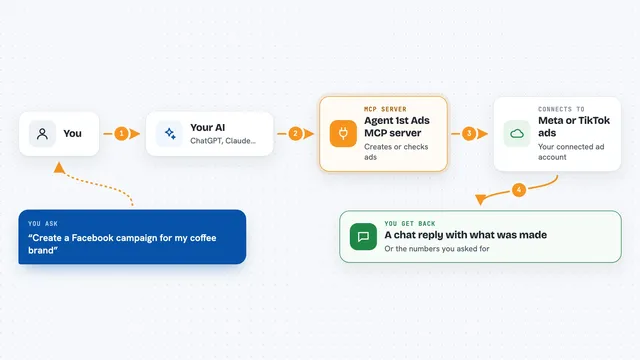
You ask your AI something like create a campaign or check my replies. The AI passes that request to this helper. The helper then talks to LinkedHelper running on your computer, which in turn works with LinkedIn. The result comes back to the AI, and the AI tells you what happened in the chat. So you get campaign control, profile lookups, and messaging results without leaving the conversation.
 Click to zoom
What you can do with it
- Create, start, stop, and monitor LinkedHelper campaigns
- Import LinkedIn profile links into a campaign's target list
- Send direct messages, InMails, and connection requests
- Check your messaging history and see who replied
- Look up cached LinkedIn profiles and their details
- Visit profiles, endorse skills, follow people, and like posts
- Check your daily action budget and LinkedIn throttling status
Try asking your AI
- “List my LinkedHelper campaigns and tell me which ones are running”
- “Create a campaign called Spring Outreach and add these profile links to it”
- “Check my replies since yesterday and summarize them”
- “Look up the profile for this LinkedIn URL and show me their company”
What it gives back to you
You get answers written in the chat: lists of campaigns, accounts, or profiles, short summaries of who replied, and status updates on how a campaign is going. When it makes a change, like creating a campaign or sending a message, it tells you that it did so. Numbers like action budgets and throttle status come back as simple figures. Everything shows up as normal text you can read and reply to.
Before you start
What you need
- Node.js version 24 or newer installed on your computer
- The LinkedHelper desktop app, which needs a paid subscription
- LinkedHelper running with remote debugging turned on (the launch-app command does this for you)
Good to know
This helper can send real messages, connection requests, and InMails on your LinkedIn account, and LinkedIn watches for automated activity, so use sensible pacing and check the rate limiting guide before running large campaigns.
Install it with your AI
Add LinkedHelper MCP server to your AI, no technical skills needed
You don't install anything by hand. You copy one prompt, paste it into an AI that can work on your computer, and it checks, installs and connects the server for you, asking you when it needs something.
Sign in to get the install prompt
Members get a ready-made prompt that lets the Claude desktop app check LinkedHelper MCP server, install it and connect it for them, step by step. You don't need any technical skills: you copy, paste and answer a few questions. Your connected AI can also find and install any of the 4,361 MCP servers here for you.
Who it's for
People who already use LinkedHelper for LinkedIn outreach, like recruiters, sales reps, and marketers, and want to run it by chatting with their AI instead of clicking through the app.