MCP server · Analytics
CloudScope MCP server
by alexpota
Ask your AI about your Azure or Google Cloud bill and get a plain-English cost report.
CloudScope is a small helper that connects your AI assistant to your cloud billing account. Once it is set up, you can just ask things like "how much did we spend last month?" and get a clear answer instead of digging through dashboards. It is handy for anyone who has to keep an eye on cloud costs but is not a cloud engineer.
What is an MCP server? The 30-second version
On its own, your AI can only chat with you. An MCP server is a small helper program that gives your AI a new skill or a connection to an app or service. This one connects your AI to your cloud billing data, here Azure and Google Cloud, so it can look up your spending and answer your questions. You ask in normal words, and the helper fetches the numbers for you.
What this MCP server does
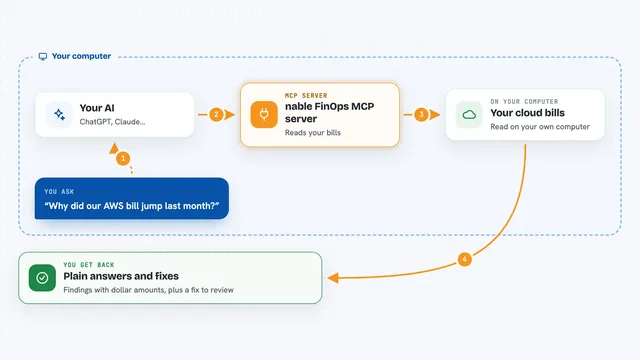
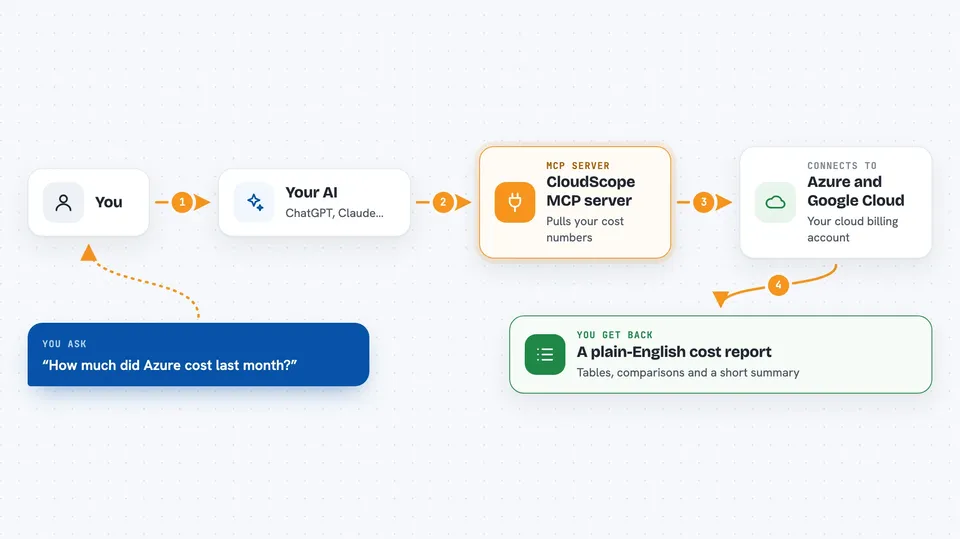
You ask your AI a question about your cloud bill, like how much you spent or what changed. Your AI passes that question to CloudScope, the helper running on your computer. CloudScope talks to Azure Cost Management or Google Cloud billing data using your existing login. It pulls back the numbers, spots things like spending spikes or idle resources, and hands your AI a tidy report. Your AI then explains it to you in the chat.
 Click to zoom
What you can do with it
- See your spending broken down by service, region, or group
- Compare this month's costs with last month's
- Spot unusual spending spikes
- Check how close you are to your budget
- Get a forecast of what next month might cost
- Find idle resources that are costing money but doing nothing
- Group costs by a tag or label for chargeback
Try asking your AI
- “How much did Azure cost last month?”
- “Show GCP spending by service for the last 7 days”
- “Any cost anomalies this week?”
- “What will Azure cost next month?”
- “Give me this month's cost review”
What it gives back to you
You get a written report in the chat, with tables of costs, comparisons, and a short summary at the top. It can list idle resources, budget status, and suggested actions with estimated savings. Everything is in plain words, not raw numbers you have to figure out yourself.
Before you start
What you need
- Azure CLI installed and logged in (az login), or gcloud CLI logged in for Google Cloud
- Cost Management Reader role on your Azure subscription, or BigQuery Data Viewer and Job User roles for Google Cloud
- For Google Cloud: billing export to BigQuery set up (a one-time manual step)
Good to know
It is read-only, so it cannot change or delete anything, but it does read your cloud billing data, so make sure you are comfortable with that.
Install it with your AI
Add CloudScope MCP server to your AI, no technical skills needed
You don't install anything by hand. You copy one prompt, paste it into an AI that can work on your computer, and it checks, installs and connects the server for you, asking you when it needs something.
Sign in to get the install prompt
Members get a ready-made prompt that lets the Claude desktop app check CloudScope MCP server, install it and connect it for them, step by step. You don't need any technical skills: you copy, paste and answer a few questions. Your connected AI can also find and install any of the 4,361 MCP servers here for you.
Who it's for
Anyone who needs to keep an eye on cloud spending, like finance teams, managers, or developers who are not cloud cost experts.