MCP server · Analytics
TokenBurnRate MCP server
by nikhilnt1234
Track what your Claude, GPT and Gemini calls cost, and get plain tips on how to spend less.
TokenBurnRate is a small helper that keeps a record of every AI call you make and turns it into a simple cost report. It shows you where your money goes and gives you clear tips on how to lower the bill. It is handy if you use Claude, GPT or Gemini often and want to know what it actually costs.
What is an MCP server? The 30-second version
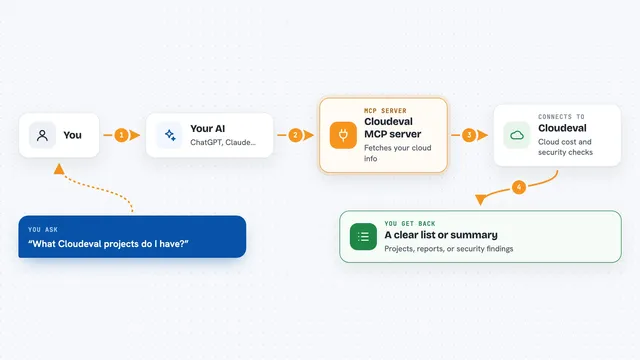
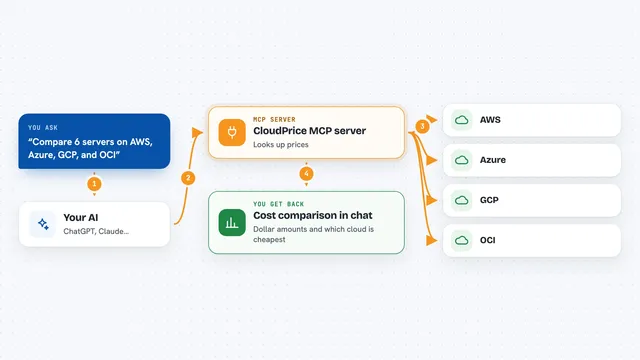
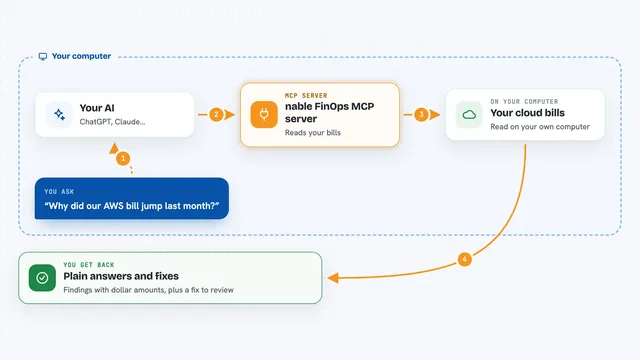
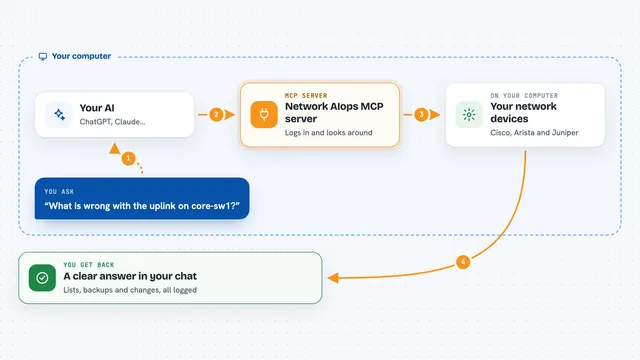
On its own, your AI can only chat with you. An MCP server is a small helper program that gives your AI a new skill or a connection to something else. This one connects your AI to your own local cost records, so it can look up what you have spent and suggest ways to save. You ask in normal words, and the AI uses this helper behind the scenes to get the numbers.
What this MCP server does
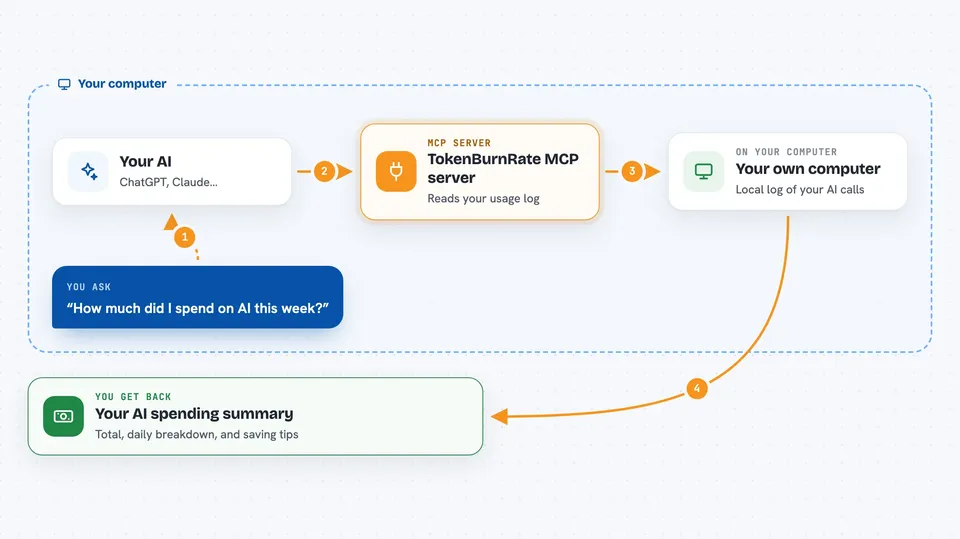
You ask your AI something like how much you spent this week. The AI passes that question to TokenBurnRate, which reads its local log of your API calls. It adds up the tokens and the cost, checks for patterns like unused caching or expensive models doing simple work, and hands the answer back. You see the total, the daily breakdown and a short list of saving tips right in the chat.
 Click to zoom
What you can do with it
- See your total AI cost for today, this week or this month
- Get a ranked list of saving tips with estimated monthly savings
- Set a daily, weekly or monthly spending limit
- List your sessions ranked by how much they cost
- Look up the price table for all supported models
- Export your raw usage data as a CSV file
- Log a call manually and let it work out the cost
Try asking your AI
- “How much did I spend on AI this week?”
- “Show me my top three ways to save money on tokens”
- “Set a monthly budget of 50 dollars and warn me when I get close”
- “Which of my sessions cost the most this month?”
What it gives back to you
You get numbers and short lists in the chat: total cost, number of calls, token counts and a daily breakdown. The saving tips come as short items with a severity, the evidence and an estimated monthly saving. If you ask for a CSV, it gives you a file you can open in a spreadsheet.
Before you start
What you need
- Node.js 18 or newer installed on your computer
- The Claude desktop app (or another AI app that supports MCP servers)
- You log your API calls through this tool so it has data to report on
Good to know
It keeps a local record of your AI usage, so treat that file as private, and remember the saving tips are suggestions, not guarantees.
Install it with your AI
Add TokenBurnRate MCP server to your AI, no technical skills needed
You don't install anything by hand. You copy one prompt, paste it into an AI that can work on your computer, and it checks, installs and connects the server for you, asking you when it needs something.
Sign in to get the install prompt
Members get a ready-made prompt that lets the Claude desktop app check TokenBurnRate MCP server, install it and connect it for them, step by step. You don't need any technical skills: you copy, paste and answer a few questions. Your connected AI can also find and install any of the 4,361 MCP servers here for you.
Who it's for
Anyone who uses Claude, GPT or Gemini regularly and wants to keep an eye on what it costs, especially freelancers, small teams and people on a budget.