MCP server · Health and learning
Garmin Local MCP server
by anup-shesh
Ask your AI about your Garmin sleep, heart rate, and training trends, all from a copy of your data on your own computer.
This is a helper for your AI that connects it to your own Garmin health and fitness data. It keeps a copy of your Garmin Connect history on your computer, so your AI can answer questions about sleep, heart rate, training load, and more. It is handy if you wear a Garmin watch and want to understand your own trends without digging through the app.
What is an MCP server? The 30-second version
On its own, your AI can only chat with you. An MCP server is a small helper program that gives your AI a new skill. This one connects your AI to your Garmin data, which is stored locally on your machine. Once it is set up, your AI can look things up and do simple calculations for you when you ask.
What this MCP server does
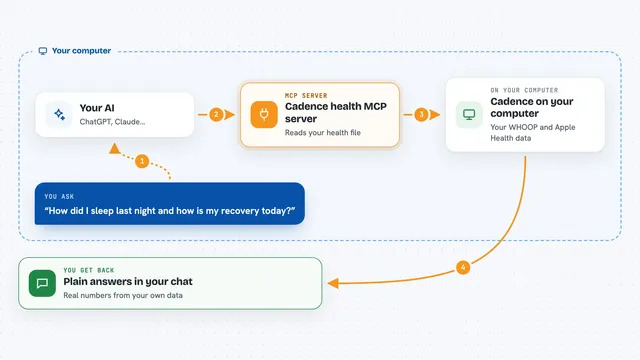
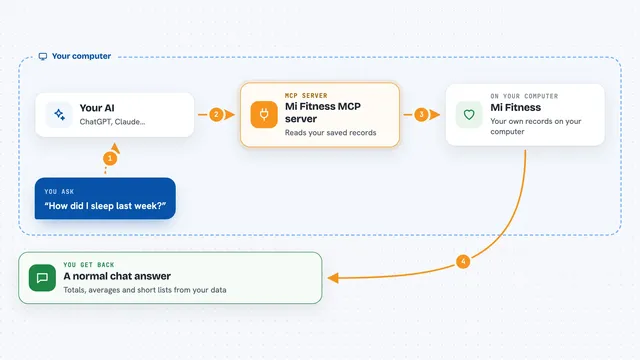
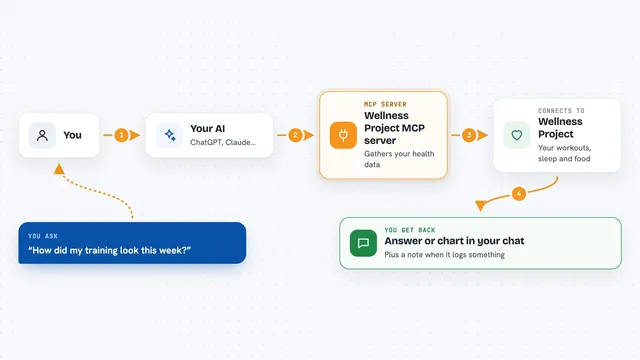
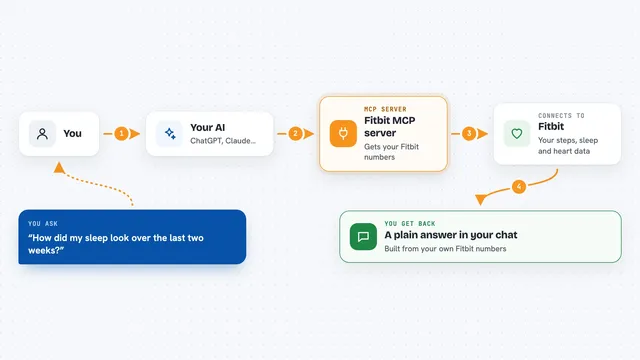
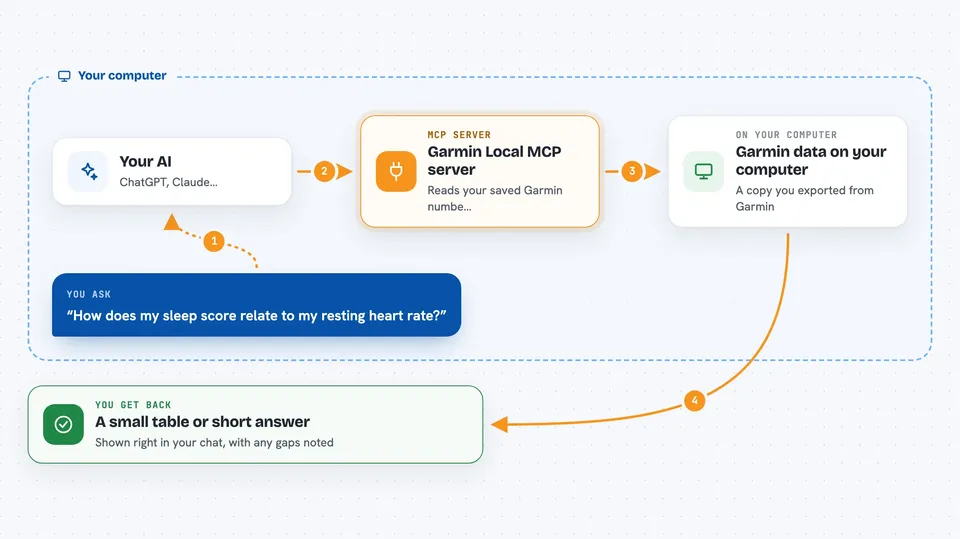
You ask your AI a question about your Garmin data, like how your sleep relates to your resting heart rate. The AI uses this helper to look at the copy of your data on your computer. The helper reads the stored numbers and does the math, like finding averages or correlations. Then it sends back a small, clear table or answer. You see the result right in your chat.
 Click to zoom
What you can do with it
- Check your sleep score and resting heart rate for a specific day
- Find out if your training load affects your resting heart rate the next day
- See which days your HRV was unusually high or low
- Compare your weekly training load with your sleep over several months
- List your recent activities and their details
- Spot missing days in your data so you know what to re-sync
- Import a wellness file you exported from Garmin's website without logging in
Try asking your AI
- “How does my sleep score correlate with next-day resting HR?”
- “What were my anomalous HRV days this quarter?”
- “Show weekly training load vs sleep for the last 3 months.”
- “What was my resting heart rate on the day I felt sick last month?”
What it gives back to you
You get back small, tidy tables and short answers in your chat. For example, a correlation might come back as a number with a note about whether it is meaningful. A list of activities appears as a compact table. It also tells you if some days are missing or if a number is flagged as unreliable.
Before you start
What you need
- A Garmin Connect account (for syncing your data)
- Python 3.12 or newer installed on your computer
- The garmin-local-mcp program installed (via pip or uvx)
- Your AI client set up to use MCP servers (like Claude Desktop or Cursor)
Good to know
This tool reads your private health data and stores it on your computer, so keep that folder safe and do not share it.
Install it with your AI
Add Garmin Local MCP server to your AI, no technical skills needed
You don't install anything by hand. You copy one prompt, paste it into an AI that can work on your computer, and it checks, installs and connects the server for you, asking you when it needs something.
Sign in to get the install prompt
Members get a ready-made prompt that lets the Claude desktop app check Garmin Local MCP server, install it and connect it for them, step by step. You don't need any technical skills: you copy, paste and answer a few questions. Your connected AI can also find and install any of the 4,361 MCP servers here for you.
Who it's for
Garmin watch owners who want to explore their health and fitness data with an AI assistant, especially those who care about trends and correlations.