MCP server · Security
Wireshark MCP server
by bx33661
Ask your AI to read a network capture file and explain what happened inside it.
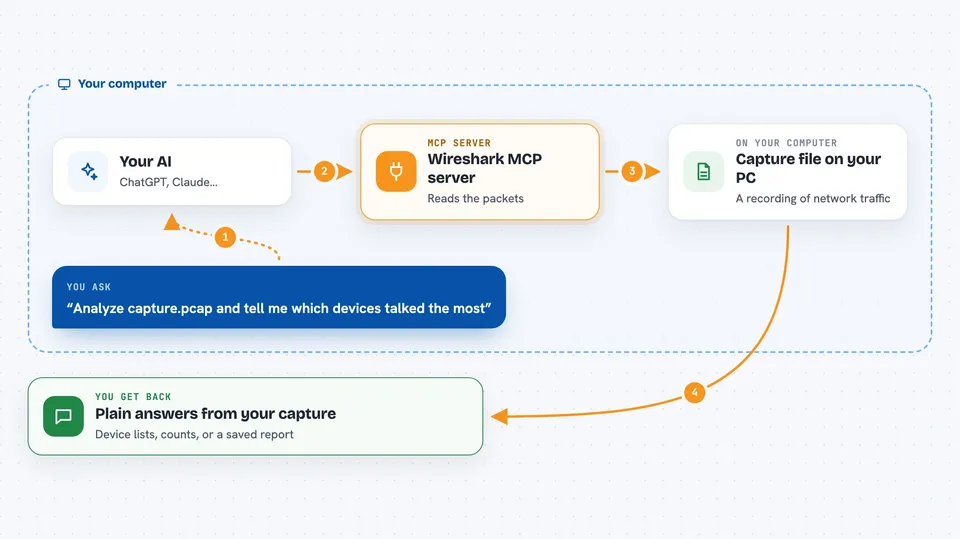
This is a helper that lets your AI assistant look inside network capture files, the kind Wireshark saves with a .pcap ending. Instead of clicking through Wireshark yourself, you drop the file in and ask questions in plain English. It is handy for anyone who has to check network traffic but does not want to learn every Wireshark menu.
What is an MCP server? The 30-second version
On its own, your AI can only chat. An MCP server is a small helper program that gives your AI a new skill or a connection to another tool. This one connects your AI to Wireshark's command line tool, called tshark, so it can actually open capture files and read the packets. You ask a question, the AI passes it to this helper, and the helper runs the real analysis for you.
What this MCP server does
You point your AI at a capture file and ask a question, like which computers talked to each other or whether anything looks suspicious. The AI sends that request to this helper, which runs tshark behind the scenes. tshark reads the packets and returns real data, not guesses. The helper hands the results back to the AI, and the AI explains them to you in the chat. You can then ask follow-up questions or have it write a report file.
 Click to zoom
What you can do with it
- Open a capture file and get a quick overview of what is inside
- List the conversations between devices and how much data each one sent
- Pull out DNS queries, web requests, or any field you name
- Scan for signs of trouble, like port scans, password leaks, or strange DNS traffic
- Look at one specific packet in full detail
- Follow a single conversation from start to finish
- Save your findings into a report file
Try asking your AI
- “Analyze capture.pcap and tell me which devices talked to each other the most”
- “Find all DNS queries in this capture and flag any that look suspicious”
- “Show me the full details of packet number 42”
- “Write a short summary of this capture to report.md”
What it gives back to you
You get answers in plain language, backed by real numbers from the capture. That can be lists of devices, counts of packets, tables of conversations, or a written summary. It can also save a report file for you. If a result is very long, it is trimmed and you can ask for the next part.
Before you start
What you need
- Python 3.10 or newer
- Wireshark installed, with its tshark command available on your computer
- An AI client that supports MCP, like Claude Desktop, Claude Code, Cursor, or VS Code
Good to know
Some tools can create or change files on your computer, and they stay switched off until you set the allowed folders, so check that setting before using them.
Install it with your AI
Add Wireshark MCP server to your AI, no technical skills needed
You don't install anything by hand. You copy one prompt, paste it into an AI that can work on your computer, and it checks, installs and connects the server for you, asking you when it needs something.
Sign in to get the install prompt
Members get a ready-made prompt that lets the Claude desktop app check Wireshark MCP server, install it and connect it for them, step by step. You don't need any technical skills: you copy, paste and answer a few questions. Your connected AI can also find and install any of the 4,609 MCP servers here for you.
Who it's for
Anyone who needs to check network traffic, like IT support staff, security analysts, or students learning about networks, without being a Wireshark expert.