MCP server · Security
Cyntrisec AWS security MCP server
by cyntrisec
Lets your AI look through a saved AWS scan to find risky paths and suggest fixes.
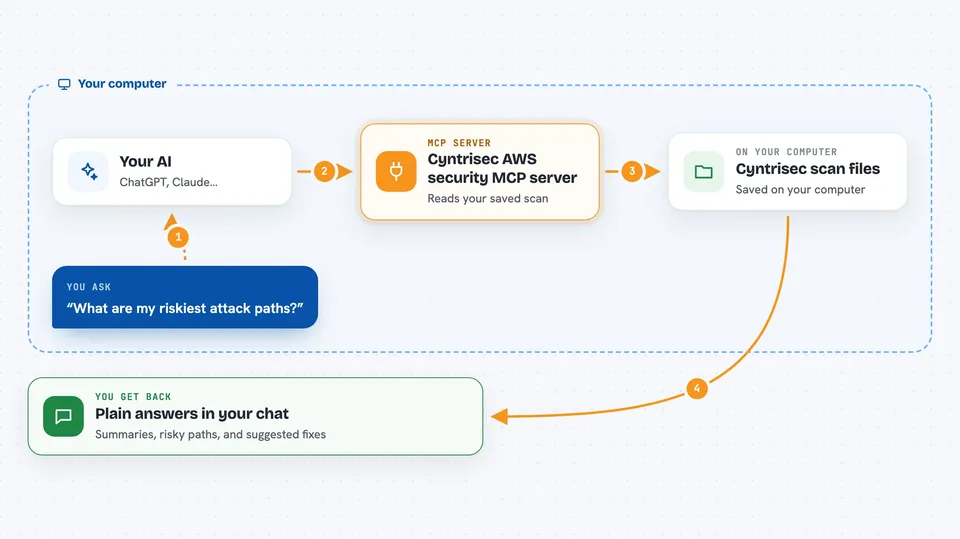
Cyntrisec is a small tool that looks at your Amazon Web Services (AWS) setup and hunts for ways an attacker could get from the internet to something sensitive. This page is about its MCP server mode, which lets your AI assistant read those results and answer your questions about them. It is handy if you work with cloud security, or if you just want to understand what a scan found without learning a command line.
What is an MCP server? The 30-second version
On its own, your AI can only chat. An MCP server is a small helper program that gives your AI a new skill or a connection to an app or service. Here, the helper is the Cyntrisec tool, and it connects your AI to the scan results stored on your own computer. Once it is running, your AI can look things up in those results and explain them to you when you ask.
What this MCP server does
You first run a Cyntrisec scan of your AWS account, which saves the results in a folder on your machine. Then you start Cyntrisec in its MCP server mode, and your AI assistant can talk to it. When you ask a question, your AI sends it to the helper, the helper reads the saved scan files, and it sends back an answer. You see that answer in your chat, in plain words.
 Click to zoom
What you can do with it
- Ask for a summary of your latest AWS scan
- List the assets and connections the scan found
- See the attack paths ranked by risk score
- Get a step by step explanation of one attack path
- Find the smallest set of fixes that would cut the most risk
- Check whether one account or role can reach a resource
- Check your setup against CIS AWS or SOC 2 rules
Try asking your AI
- “Summarize my latest Cyntrisec scan”
- “Show me the highest risk attack paths and explain the top one”
- “What is the cheapest set of fixes that removes the most risk?”
- “Can this role reach our production database?”
What it gives back to you
You get answers written in the chat, drawn from the scan files already on your computer. That can be a short summary, a list of assets or findings, a ranked list of attack paths, or a step by step explanation of one path. It can also hand back a suggested fix, sometimes as a Terraform snippet you can review. Nothing new is scanned unless you have already run a scan yourself.
Before you start
What you need
- Python installed on your computer
- The Cyntrisec tool installed with pip install cyntrisec
- A Cyntrisec scan already run and saved on your machine
- An AI assistant that supports MCP, like the Claude desktop app
Good to know
This is a historical project that is no longer supported, and if you ever turn on its optional write mode it can run Terraform on your machine, so always read any generated fix before applying it.
Install it with your AI
Add Cyntrisec AWS security MCP server to your AI, no technical skills needed
You don't install anything by hand. You copy one prompt, paste it into an AI that can work on your computer, and it checks, installs and connects the server for you, asking you when it needs something.
Sign in to get the install prompt
Members get a ready-made prompt that lets the Claude desktop app check Cyntrisec AWS security MCP server, install it and connect it for them, step by step. You don't need any technical skills: you copy, paste and answer a few questions. Your connected AI can also find and install any of the 4,609 MCP servers here for you.
Who it's for
Cloud and security people who already run Cyntrisec scans and want to ask questions about the results in plain English.