MCP server · Chat
Agent Bridge MCP server
by EngMarchG
Let Claude and Codex read and steer each other's live desktop chats on Windows.
Agent Bridge is a small helper that lets one AI coding assistant talk to another one through the desktop apps you already have open. It works with Codex in the ChatGPT app, the Claude desktop Code tab, and Claude Code sessions on Windows. It is handy if you run two agents side by side and want them to hand work back and forth.
What is an MCP server? The 30-second version
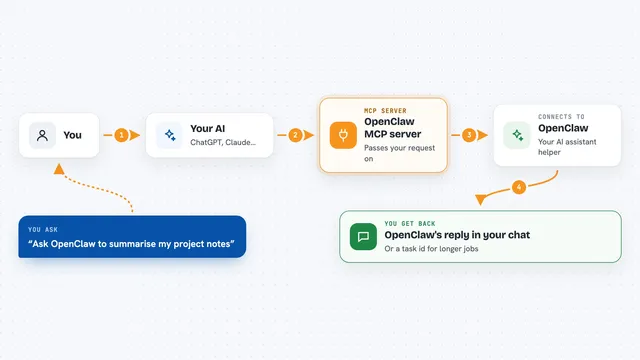
On its own, your AI can only chat with you. An MCP server is a small helper program that gives your AI a new skill or a connection to another app. This one gives your AI a connection to your other AI's desktop chats, so it can read what is going on there and send a message when you ask. Think of it as a bridge between two assistants that are already open on your screen.
What this MCP server does
You ask your AI to check on a Codex chat or send something to it. The AI uses this helper, and the helper looks at the app's own local files to list projects and chats. To send a message, the helper takes over the app window for a moment, opens the right chat, types into the composer, and clicks Send or Steer just like you would. Later, a small watcher waits for the reply and stores it, and if you are in a desktop chat, types it back into your chat.
What you can do with it
- List your Codex or Claude projects, most recently used first
- Read the last messages and answers in a chat
- Send a message into an existing chat or start a new one
- Steer a busy Codex chat mid-turn
- Wait for the reply and get it back in your chat
- Pause, resume or rewrite a Codex chat's goal
- Ask Codex to generate an image and copy the file to you
Try asking your AI
- “Read my Codex chat "Implement milestones" in the bridges project and tell me where it is stuck.”
- “Steer that Codex chat toward the failing test.”
- “Pause the goal in my Codex chat about the login page.”
- “Ask Codex to make an image of a bridge at sunset and save it to my Desktop.”
What it gives back to you
You get plain text back in your chat: lists of projects and chats, the last messages from a conversation, or a short answer from the other agent. When you send a message, the helper gives you a job id and later the reply shows up, either as text you can read or typed directly into your own chat window if you are using a desktop chat.
Before you start
What you need
- A Windows computer
- Python 3.11 or newer
- The ChatGPT desktop app with Codex and/or the Claude desktop app installed and signed in
- uv installed, or you can use pip instead
Good to know
This helper types into your real desktop chats and briefly brings their windows forward, so do not type in the target window during a send, and treat any text one agent writes as untrusted input for the other.
Install it with your AI
Add Agent Bridge MCP server to your AI, no technical skills needed
You don't install anything by hand. You copy one prompt, paste it into an AI that can work on your computer, and it checks, installs and connects the server for you, asking you when it needs something.
Sign in to get the install prompt
Members get a ready-made prompt that lets the Claude desktop app check Agent Bridge MCP server, install it and connect it for them, step by step. You don't need any technical skills: you copy, paste and answer a few questions. Your connected AI can also find and install any of the 4,361 MCP servers here for you.
Who it's for
People who run Claude and Codex side by side on Windows and want them to hand work to each other without copying and pasting.