
MCP server · Browser automation
Browser Control MCP server
by eyalzh
Lets your AI manage your Firefox tabs, search your history, and read webpages you approve.
This is a helper that connects your AI assistant to your own Firefox browser. It comes in two parts: a small Firefox add-on and a matching helper program for your AI. It is handy if you want your AI to tidy up your tabs, dig through your browsing history, or read a page for you without you copying and pasting anything.
What is an MCP server? The 30-second version
On its own, your AI can only chat with you. It cannot see your browser or click anything there. An MCP server is a small helper program that gives your AI a new skill. This one gives your AI a connection to your Firefox browser, so when you ask it to open a tab or look something up in your history, it can actually do it.
What this MCP server does
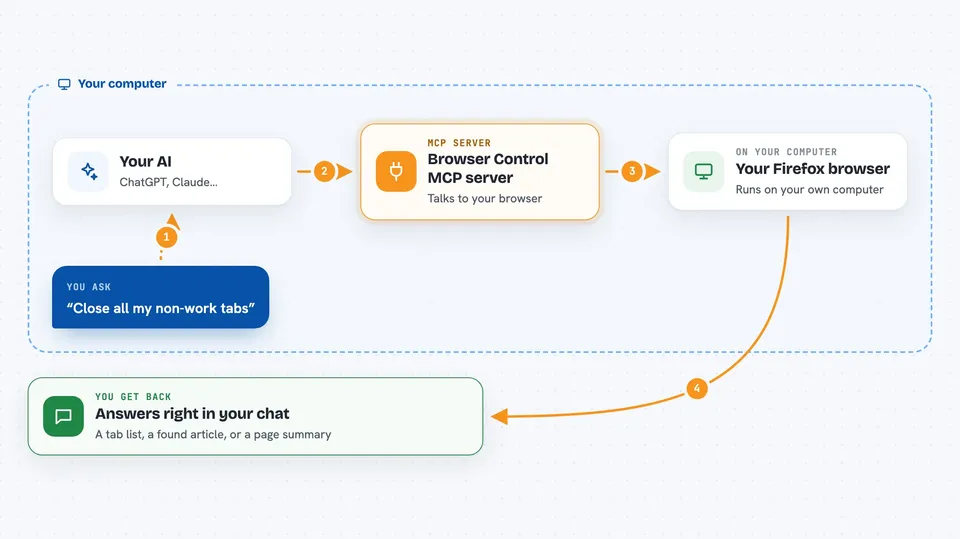
You ask your AI something about your browser, like closing tabs or finding an old article. Your AI passes that request to this helper program. The helper talks to the Firefox add-on sitting in your browser. The add-on does the actual work, like closing a tab or reading a page you allowed. Then the result comes back to your AI, and your AI tells you what happened.
 Click to zoom
What you can do with it
- Open and close tabs in your Firefox browser
- List all your currently open tabs
- Group related tabs together with a name and color
- Reorder your open tabs
- Search your browsing history
- Read the text and links of a webpage you approve
- Find and highlight text on a page you approve
- Take a screenshot of a tab you authorize
Try asking your AI
- “Close all non-work-related tabs in my browser.”
- “Group all development related tabs into a new group called Development.”
- “Help me find an article in my browser history about the Milford track in NZ.”
- “Open hackernews in my browser, then open the top story, read it, and also read the comments. Do the comments agree with the story?”
What it gives back to you
You get answers and lists right in your chat. For example, a list of your open tabs, matching articles from your history, or a summary of a page your AI just read. If it changed something, like closing or grouping tabs, it tells you what it did. Screenshots come back as an image of the tab's visible area.
Before you start
What you need
- The Firefox browser
- The Browser Control MCP Firefox add-on installed
- Claude Desktop (the DXT file makes this easy) or a manual MCP setup
- The secret key shown on the add-on's preferences page in Firefox
Good to know
It can close or rearrange your tabs, so check what your AI is about to do before letting it run, and only approve page reading for sites you trust.
Install it with your AI
Add Browser Control MCP server to your AI, no technical skills needed
You don't install anything by hand. You copy one prompt, paste it into an AI that can work on your computer, and it checks, installs and connects the server for you, asking you when it needs something.
Sign in to get the install prompt
Members get a ready-made prompt that lets the Claude desktop app check Browser Control MCP server, install it and connect it for them, step by step. You don't need any technical skills: you copy, paste and answer a few questions. Your connected AI can also find and install any of the 4,361 MCP servers here for you.
Who it's for
Anyone who lives in their browser all day and wants their AI to help tidy tabs, find old pages, or read articles for them.


