MCP server · Security
Volatility MCP server
by Gaffx
Ask your AI to look inside a memory image and list processes or network connections for you.
This is a small helper that connects your AI assistant to Volatility 3, a well known tool for looking inside a computer's memory. Once it is set up, you can ask plain questions about a memory image you already have, and your AI will run the analysis for you. It is handy for people doing security work, incident response, or anyone learning memory forensics.
What is an MCP server? The 30-second version
On its own, your AI can only chat with you. An MCP server is a small helper program that gives your AI a new skill or a connection to another tool. This one connects your AI to Volatility 3, so it can run memory analysis plugins on a memory image file you point it at. When you ask a question, the AI passes it to this helper, the helper runs Volatility, and the answer comes back into your chat.
What this MCP server does
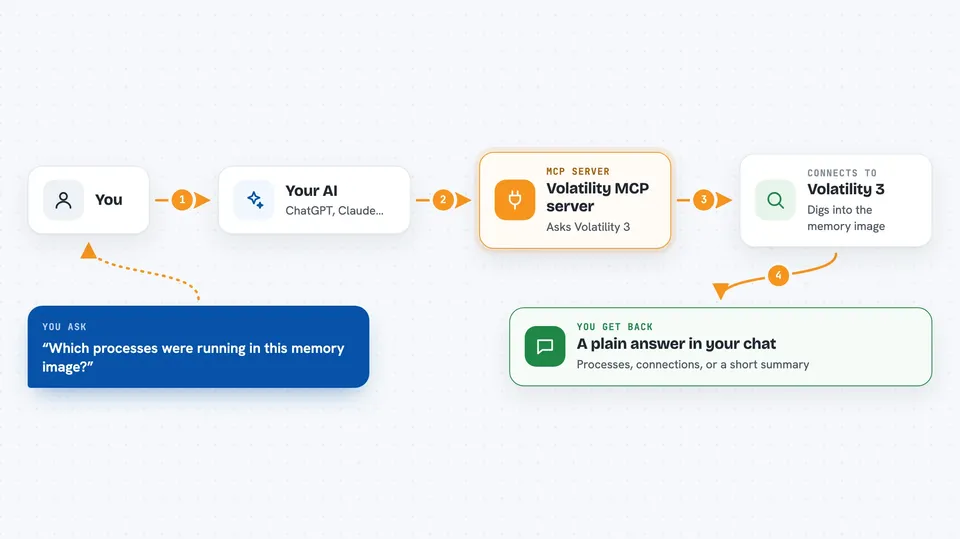
You ask your AI a question about a memory image, like which processes were running. The AI sends that request to this MCP server, which is a small program running on your machine. The server talks to Volatility 3, which does the actual digging into the memory file. Volatility returns its findings, and the server passes them back to your AI. Your AI then shows you the result in the chat, in plain language.
 Click to zoom
What you can do with it
- List the processes that were running in a memory image
- Show network connections found in memory, including external ones
- Ask follow up questions about a process or connection in plain words
- Build a picture of what was happening on the machine at capture time
- Use natural language instead of memorising Volatility commands
Try asking your AI
- “Show me the list of processes in the memory image”
- “Show me all the external connections made”
- “Which processes had network connections open”
- “Give me a summary of what was running on this machine”
What it gives back to you
You get answers in your chat, usually as a list or a short summary. For example, a table of process names and IDs, or a list of network connections with addresses and ports. Your AI can then explain what it sees or answer follow up questions about those results.
Before you start
What you need
- Python 3.7 or newer installed
- Volatility 3 installed and its location set in an environment variable called VOLATILITY_BIN
- A memory image file you want to analyse
- The Claude desktop app (or another MCP client)
Good to know
It only reads a memory image file you provide, but memory images can contain private data, so be careful who you share the results with.
Install it with your AI
Add Volatility MCP server to your AI, no technical skills needed
You don't install anything by hand. You copy one prompt, paste it into an AI that can work on your computer, and it checks, installs and connects the server for you, asking you when it needs something.
Sign in to get the install prompt
Members get a ready-made prompt that lets the Claude desktop app check Volatility MCP server, install it and connect it for them, step by step. You don't need any technical skills: you copy, paste and answer a few questions. Your connected AI can also find and install any of the 4,066 MCP servers here for you.
Who it's for
Security analysts, incident responders, and students learning memory forensics who want to explore memory images with plain questions instead of long command lines.