MCP server · Security
Cortex MCP server
by gbrigandi
Lets your AI check suspicious IPs, links, and files using your Cortex security tool.

This is a small helper program that connects your AI assistant to Cortex, a free security tool that checks whether an IP address, web link, or file looks dangerous. It is handy if you work in IT or security and already have Cortex running, because you can just ask your AI to look something up instead of clicking around the Cortex website.
What is an MCP server? The 30-second version
On its own, your AI can only chat with you. An MCP server is a small helper program that gives your AI a new skill or a connection to another app. This one connects your AI to your Cortex instance, so when you ask about a suspicious IP or link, the AI can send that question to Cortex and bring the answer back to you in the chat.
What this MCP server does
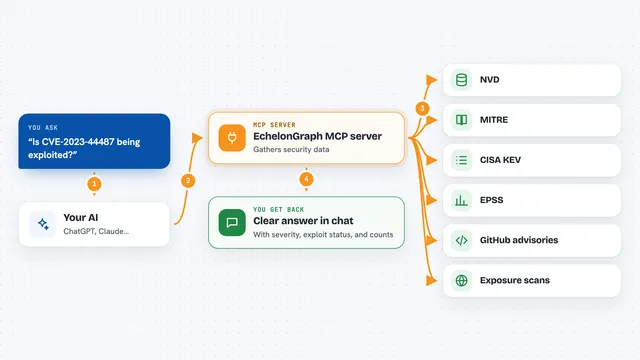
You ask your AI something like whether an IP address looks bad. The AI passes that to this helper program. The helper program talks to your Cortex instance, which runs an analyzer such as AbuseIPDB or VirusTotal on the item. Cortex does the actual checking and sends a report back. The helper hands that report to your AI, and your AI shows it to you in plain language.
 Click to zoom
What you can do with it
- Check an IP address for a bad reputation using AbuseIPDB
- Look up an IP, domain, URL, or email address with AbuseFinder
- Scan a web link with VirusTotal
- Analyze a web link with urlscan.io
- Pick which Cortex analyzer to use for a request
- Get a structured report back from Cortex in the chat
Try asking your AI
- “Is 8.8.8.8 a suspicious IP? Check it with AbuseIPDB.”
- “Use AbuseFinder to look up the domain example.com.”
- “Scan this link with VirusTotal: http://suspicious-site.example”
- “Analyze this URL with urlscan.io and tell me what it found.”
What it gives back to you
You get back the report from Cortex for the item you asked about, shown in the chat. That usually includes a summary of what the analyzer found, such as a reputation score, a list of warnings, or details about the domain or link. If the analyzer is not set up correctly, you will see an error message instead.
Before you start
What you need
- A running Cortex instance that this server can reach over the network
- A Cortex API key with permission to list analyzers and run jobs
- The analyzers you want to use (like AbuseIPDB or VirusTotal) enabled and configured inside Cortex
- The mcp-server-cortex program installed on your computer
Good to know
The tools only read and analyze data through your Cortex instance, but they need a working Cortex API key, and each analyzer may use its own paid or rate-limited service, so keep an eye on your analyzer settings.
Install it with your AI
Add Cortex MCP server to your AI, no technical skills needed
You don't install anything by hand. You copy one prompt, paste it into an AI that can work on your computer, and it checks, installs and connects the server for you, asking you when it needs something.
Sign in to get the install prompt
Members get a ready-made prompt that lets the Claude desktop app check Cortex MCP server, install it and connect it for them, step by step. You don't need any technical skills: you copy, paste and answer a few questions. Your connected AI can also find and install any of the 4,609 MCP servers here for you.
Who it's for
IT and security people who already use Cortex and want to ask their AI assistant to check suspicious IPs, links, and domains.