MCP server · Gaming
Unity Biome MCP server
Lets your AI look at and change your Unity scenes, objects, and playtests for you.
This is a helper that connects an AI assistant to the Unity Editor, the program where you build games. You can ask your AI in plain words to inspect a scene, add a component, or run a playtest, and it will do it inside Unity. It is handy for game developers and anyone who works in Unity and wants to skip a lot of clicking.
What is an MCP server? The 30-second version
On its own, your AI can only chat. An MCP server is a small helper program that gives your AI a new skill or a connection to an app. This helper connects your AI to the Unity Editor, so the AI can look things up or make changes there when you ask. You stay in charge, and the AI does the clicking for you.
What this MCP server does
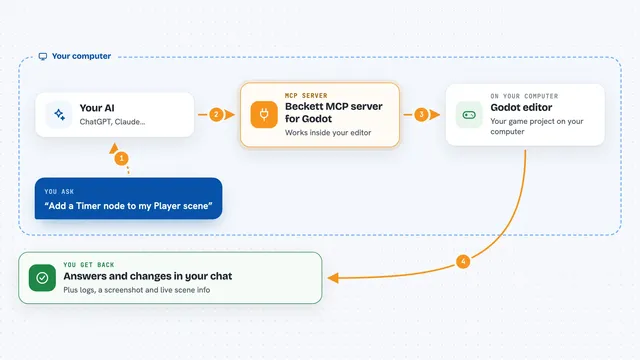
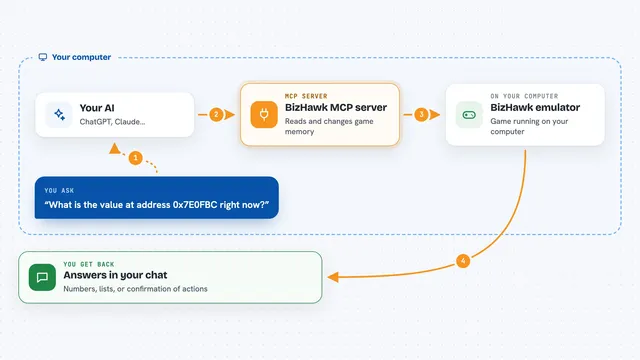
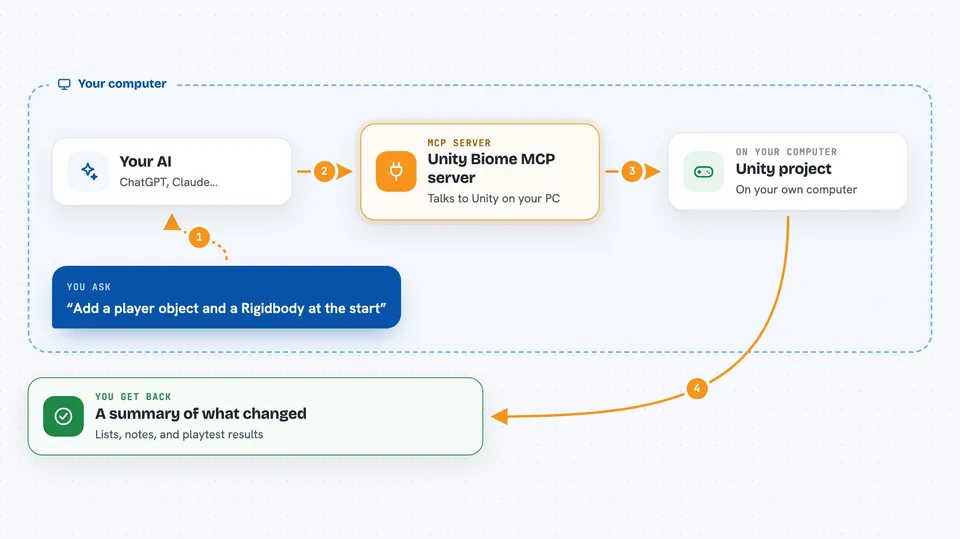
You type a request in your AI app, like asking it to check your scene or add an object. The AI sends that request to this helper program. The helper talks to a small add-on inside Unity, which is the part that actually reads or changes your project. Then the result comes back to you in the chat as a list, a summary, or a note about what changed.
 Click to zoom
What you can do with it
- Inspect your active scene and list the objects in it
- Create GameObjects and add components like Rigidbody or BoxCollider
- Change properties such as position, mass, or material settings
- Work with materials, shaders, and Shader Graph
- Run playtests and check that things behave as expected
- Capture the Game View and compare it with a saved baseline
- Summarize what changed in the scene since a checkpoint
Try asking your AI
- “Read the active Unity scene hierarchy at depth 2 and summarize its root objects.”
- “Create a player object, add a Rigidbody, and place it at the scene origin.”
- “Find enemies without colliders and add a BoxCollider to each.”
- “Run a playtest that moves the player to the door and verifies that the score increases.”
What it gives back to you
You get answers in your chat, like a list of scene objects, a summary of what the AI found, or a report of the changes it made. For playtests, you get the results of the checks and any captured images. If something fails, you get an error message you can act on.
Before you start
What you need
- Unity 6 (6000.0 or newer) with your project open
- Git 2.14 or newer on your PATH
- uv, a small tool the README shows how to install
- An MCP-compatible AI client, like Claude Desktop, Cursor, or VS Code
Good to know
It can change your Unity project, so make sure your work is saved or under version control before letting the AI make edits.
Install it with your AI
Add Unity Biome MCP server to your AI, no technical skills needed
You don't install anything by hand. You copy one prompt, paste it into an AI that can work on your computer, and it checks, installs and connects the server for you, asking you when it needs something.
Sign in to get the install prompt
Members get a ready-made prompt that lets the Claude desktop app check Unity Biome MCP server, install it and connect it for them, step by step. You don't need any technical skills: you copy, paste and answer a few questions. Your connected AI can also find and install any of the 4,361 MCP servers here for you.
Who it's for
Game developers and Unity users who want to work faster with an AI assistant by their side.