MCP server · Chat
Quickchat AI MCP server
by incentivai
Connect your Quickchat AI agent to Claude or Cursor so it can answer questions from your knowledge base.

This is a small helper that lets you plug your Quickchat AI agent into AI apps like Claude Desktop, Cursor, VS Code and Windsurf. Once it is connected, those apps can talk to your Quickchat AI agent and use its knowledge base and conversation skills. It is handy if you already built a Quickchat AI agent and want your everyday AI app to use it.
What is an MCP server? The 30-second version
On its own, your AI app can only chat with you using what it already knows. An MCP server is a small helper program that gives your AI a new skill or a connection to another service. This one connects your AI app to Quickchat AI, so when you ask something, your AI can pass the question to your Quickchat AI agent and bring back the answer. Think of it as a phone line between your AI app and your Quickchat AI agent.
What this MCP server does
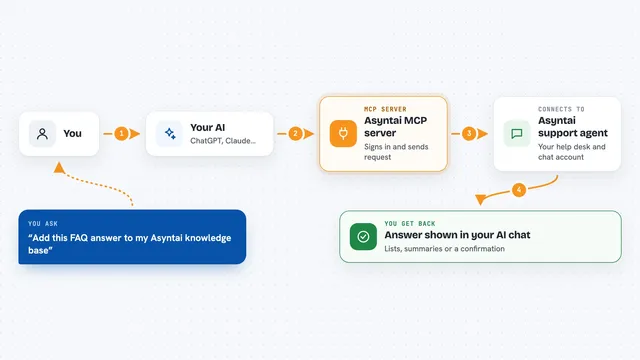
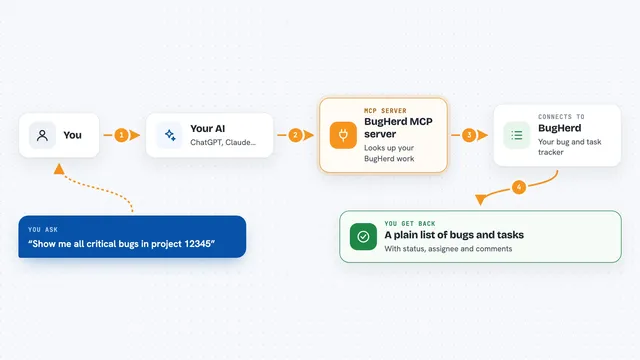
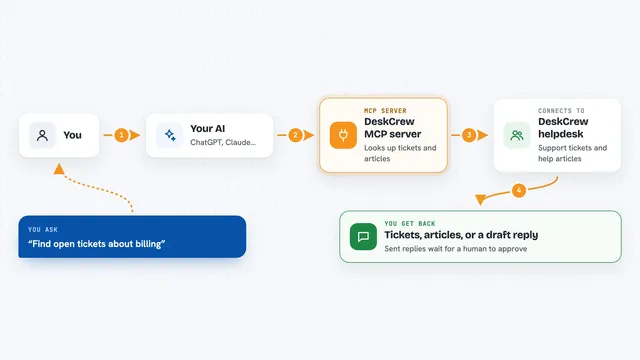
You ask your AI app a question, like you normally would. The AI app notices this Quickchat AI helper is connected and sends your question to it. The helper passes the question to your Quickchat AI agent, which looks things up in its knowledge base and settings. Your Quickchat AI agent sends an answer back, and the helper hands it to your AI app, which shows it to you in the chat. You can also see all these back-and-forth conversations later in your Quickchat Inbox.
 Click to zoom
What you can do with it
- Ask your Quickchat AI agent questions from inside Claude or Cursor
- Get answers based on the knowledge base you set up in Quickchat AI
- Use your agent's conversation skills from any connected AI app
- Share your Quickchat AI MCP with other people so they can connect too
- Change your MCP name and description from the Quickchat dashboard without reinstalling
- Review all AI-to-AI conversations in the Quickchat Inbox
Try asking your AI
- “Ask my Quickchat AI agent what our refund policy is”
- “Use the Quickchat agent to answer this customer question about pricing”
- “Check with my Quickchat AI what the onboarding steps are”
- “Let my Quickchat AI agent handle this support question”
What it gives back to you
You get answers in your chat, written in plain words, based on what your Quickchat AI agent knows. It can also return lists or explanations if your agent is set up that way. Behind the scenes, every exchange is saved in your Quickchat Inbox so you can read the transcript later. Nothing is changed in Quickchat AI itself, it just answers questions.
Before you start
What you need
- A Quickchat AI account with an active plan (a 7-day trial works)
- Your Quickchat AI Scenario ID (found on the MCP Integration page in the Quickchat app)
- Your Quickchat AI API key (also on the MCP Integration page)
- The uv tool installed on your computer, or a remote setup if you do not want to install anything
Good to know
Keep your Quickchat API key private, and if you share your MCP with other people, turn off the Require API key setting first so they can connect without your key.
Install it with your AI
Add Quickchat AI MCP server to your AI, no technical skills needed
You don't install anything by hand. You copy one prompt, paste it into an AI that can work on your computer, and it checks, installs and connects the server for you, asking you when it needs something.
Sign in to get the install prompt
Members get a ready-made prompt that lets the Claude desktop app check Quickchat AI MCP server, install it and connect it for them, step by step. You don't need any technical skills: you copy, paste and answer a few questions. Your connected AI can also find and install any of the 4,361 MCP servers here for you.
Who it's for
People who already built a Quickchat AI agent and want their everyday AI app, like Claude or Cursor, to use it.