MCP server · Productivity
BugHerd MCP server
by Berckan
Lets your AI look up BugHerd projects, tasks and comments, and make simple changes for you.

This is a small helper that connects your AI assistant to BugHerd, the tool teams use to collect website feedback and bug reports. Once it is set up, you can ask your AI things like which bugs are still open or what people said in the comments, instead of clicking around yourself. It is handy for project managers, support folks, and anyone who lives in BugHerd all day.
What is an MCP server? The 30-second version
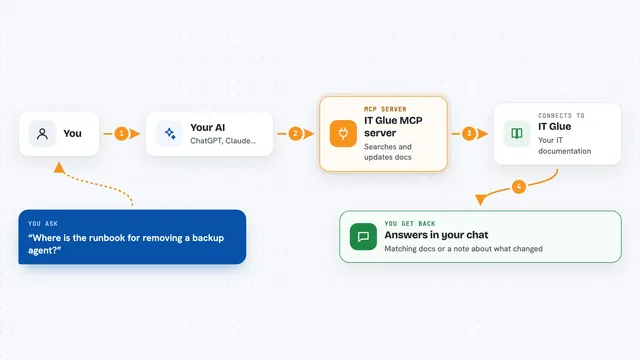
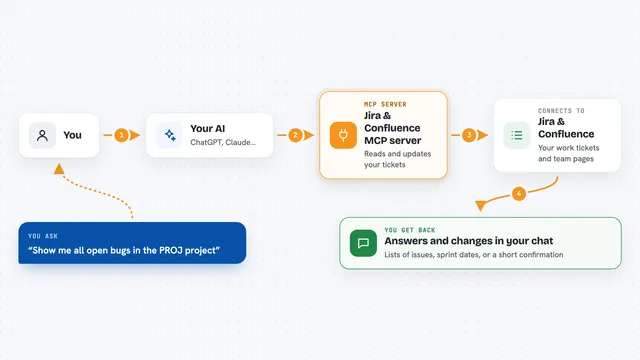
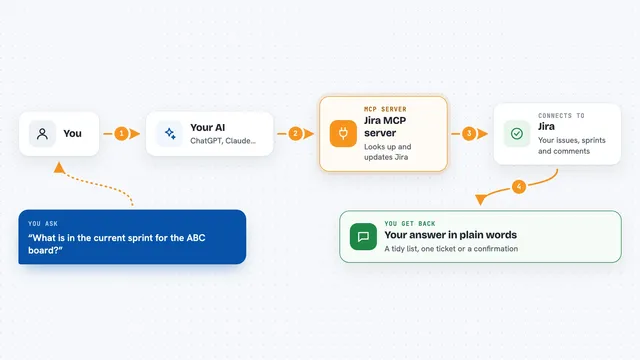
On its own, your AI can only chat with you. It cannot see your BugHerd account or do anything inside it. An MCP server is a small helper program that gives your AI a new skill, in this case the ability to talk to BugHerd. You ask a question, the AI passes it to this helper, the helper asks BugHerd, and the answer comes back to you in the chat.
What this MCP server does
You ask your AI something about your BugHerd work, like which tasks are still open or what is in a specific project. The AI sends that request to this helper program running on your computer. The helper logs into BugHerd with your API key and fetches the information you asked for. Then it hands the results back to the AI, which explains them to you in plain words. If you ask it to make a change, like updating a task status or adding a comment, the helper does that in BugHerd too.
 Click to zoom
What you can do with it
- List your BugHerd projects and see which ones are active
- Filter tasks by status, priority or tag
- Get the full details of any task, including who it is assigned to
- Read the comments on a task so you know what has been discussed
- Create new tasks with a description and assignee
- Update a task's status, priority or description
- Add a comment to a task, for example to note a fix
Try asking your AI
- “List my BugHerd projects”
- “Show me all critical bugs in project 12345”
- “What comments are on task 678?”
- “Update task 678 status to done and add a comment saying fixed in latest deploy”
What it gives back to you
You get back plain answers in the chat: lists of projects or tasks, task details with status and assignee, and comment threads written out. If you asked it to make a change, it tells you what it updated. Everything is shown as text you can read and copy, not as files.
Before you start
What you need
- A BugHerd account with API access
- Your BugHerd API key (find it under Settings, then General Settings)
- Node.js 18 or newer installed on your computer
- An AI assistant that supports MCP servers, like the Claude desktop app
Good to know
It can change or delete things in BugHerd, so double-check before you tell it to remove a project, task attachment or webhook.
Install it with your AI
Add BugHerd MCP server to your AI, no technical skills needed
You don't install anything by hand. You copy one prompt, paste it into an AI that can work on your computer, and it checks, installs and connects the server for you, asking you when it needs something.
Sign in to get the install prompt
Members get a ready-made prompt that lets the Claude desktop app check BugHerd MCP server, install it and connect it for them, step by step. You don't need any technical skills: you copy, paste and answer a few questions. Your connected AI can also find and install any of the 4,361 MCP servers here for you.
Who it's for
Project managers, support teams, QA testers and anyone who tracks website feedback or bugs in BugHerd.