MCP server · Apple, iOS and Mac
iOS Simulator MCP server
Lets your AI list, start, and stop iPhone simulators and install or open apps on them.
This is a small helper that lets your AI control iPhone and iPad simulators on your Mac. A simulator is a pretend iPhone that runs on your computer, used by app makers to test things without a real phone. If you build or test iPhone apps, this saves you a lot of clicking around.
What is an MCP server? The 30-second version
On its own, your AI can only chat with you. An MCP server is a small helper program that gives your AI a new skill or a connection to another tool. This one connects your AI to the iOS Simulator on your Mac. Once it is set up, you can just ask your AI to start a simulator or open an app, and it will do it for you.
What this MCP server does
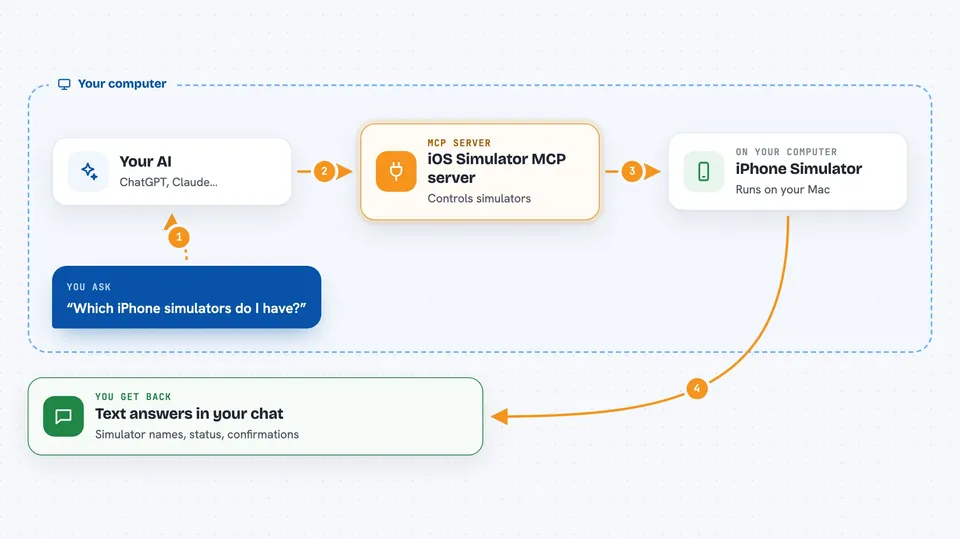
You ask your AI something like which simulators are available. The AI passes that request to this helper program. The helper talks to the iOS Simulator software on your Mac. It then reports back what it found, or carries out the action you asked for, like starting a simulator or installing an app. You see the result right in your chat.
 Click to zoom
What you can do with it
- List all the iOS simulators on your Mac
- Start a simulator so it is ready to use
- Shut down a simulator when you are done
- Install an .app file onto a simulator
- Open an installed app on a simulator by its bundle ID
Try asking your AI
- “Which iOS simulators do I have available?”
- “Boot the iPhone 15 simulator for me”
- “Install this app bundle on the simulator I just started”
- “Open the app with bundle ID com.example.myapp on the running simulator”
- “Shut down all the simulators that are running”
What it gives back to you
You get short answers in the chat, like a list of simulator names and their status, or a confirmation that a simulator was started or stopped. If something fails, the AI tells you what went wrong. You do not get screenshots or a visual view of the simulator, just text results.
Before you start
What you need
- A Mac with Xcode installed (Xcode comes with the iOS Simulator)
- Node.js installed on your Mac
- The Claude desktop app or another AI tool that supports MCP servers
Good to know
It can start, stop, and change things on your simulators, so be careful when you ask it to shut down or install, especially if you have unsaved work in a running app.
Install it with your AI
Add iOS Simulator MCP server to your AI, no technical skills needed
You don't install anything by hand. You copy one prompt, paste it into an AI that can work on your computer, and it checks, installs and connects the server for you, asking you when it needs something.
Sign in to get the install prompt
Members get a ready-made prompt that lets the Claude desktop app check iOS Simulator MCP server, install it and connect it for them, step by step. You don't need any technical skills: you copy, paste and answer a few questions. Your connected AI can also find and install any of the 4,361 MCP servers here for you.
Who it's for
iPhone and iPad app developers, testers, and anyone who works with iOS simulators on a Mac.