MCP server · Apple, iOS and Mac
iOS Simulator MCP server
by joshuayoes
Let your AI look at, tap, and type on an iPhone simulator running on your Mac.
This is a small helper that connects your AI assistant to the iPhone simulator app on your Mac. It lets the AI see the screen, tap buttons, type text, and take screenshots for you. It is handy for people who build or test iPhone apps and want a hand with the boring, repetitive parts.
What is an MCP server? The 30-second version
On its own, your AI can only chat with you. An MCP server is a small helper program that gives your AI a new skill or a connection to another app. This one connects your AI to the iOS Simulator on your Mac, so the AI can look at the screen, tap, type, and take pictures when you ask. You stay in charge; the AI just does the clicking for you.
What this MCP server does
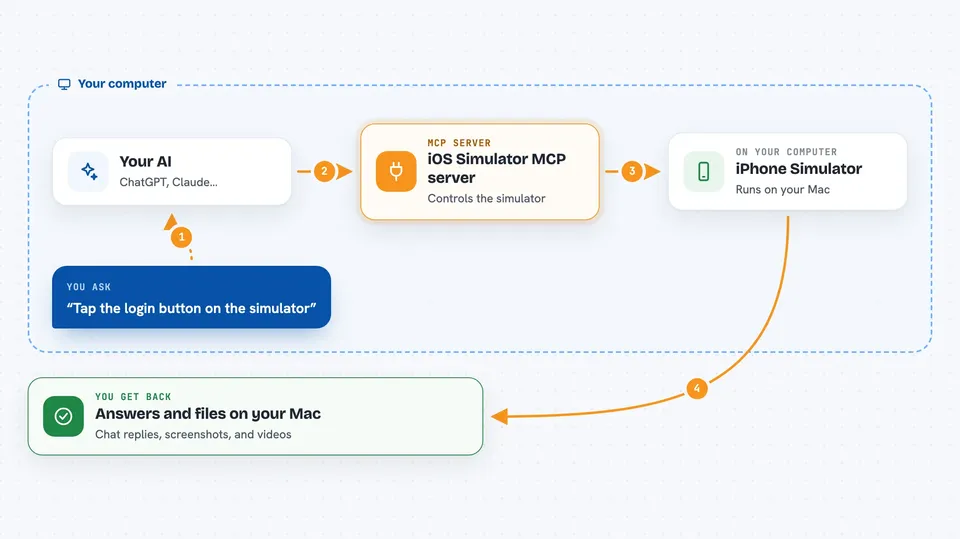
You ask your AI something like "tap the login button on the simulator." The AI passes that request to this helper program. The helper then talks to the iOS Simulator on your Mac and does the tap, the typing, or the screenshot. When it is done, the AI tells you what happened, or shows you the picture it took. It can also install and launch apps, open links, and record a short video of the screen.
 Click to zoom
What you can do with it
- See what is on the simulator screen right now
- Tap, swipe, and type on the simulator for you
- Take a screenshot and save it to a file
- Record a short video of the simulator screen
- Install an app and launch it by name
- Open a link or a deep link inside the simulator
- List which apps are installed on the simulator
Try asking your AI
- “Take a screenshot of the simulator and save it to my_screenshot.png”
- “Tap on coordinates x=250, y=400 and tell me what happened”
- “Enter QA Test into the text field and confirm it shows up”
- “Launch the Safari app on the simulator”
- “Open the deep link myapp://products/42 and check the product screen”
What it gives back to you
You get answers in the chat, like a list of what is on the screen, or a short note saying the tap worked. Screenshots and videos are saved as files on your Mac, usually in your Downloads folder. If you ask it to describe a screen, it gives you a plain list of the buttons, labels, and other elements it can see.
Before you start
What you need
- A Mac (iOS simulators only run on macOS)
- Xcode installed, with at least one iOS simulator set up
- Node.js version 20 or newer
- Facebook IDB tool installed (the README links to its install guide)
Good to know
This helper can tap, type, and install apps on your simulator, so it can change or remove things there; keep an eye on what you ask it to do.
Install it with your AI
Add iOS Simulator MCP server to your AI, no technical skills needed
You don't install anything by hand. You copy one prompt, paste it into an AI that can work on your computer, and it checks, installs and connects the server for you, asking you when it needs something.
Sign in to get the install prompt
Members get a ready-made prompt that lets the Claude desktop app check iOS Simulator MCP server, install it and connect it for them, step by step. You don't need any technical skills: you copy, paste and answer a few questions. Your connected AI can also find and install any of the 4,361 MCP servers here for you.
Who it's for
iPhone and iPad app developers, and QA testers who check app screens by hand.