MCP server · Security
VMS CCTV MCP server
by jyjune
Let your AI pull live and recorded video from your CCTV system and open the right camera view for you.

This is a small helper that connects your AI assistant to a CCTV recording program, often called a VMS. Once it is set up, you can ask your AI to check a camera, find a recording, or open a live view, and it will talk to your video system for you. It is handy if you work with security cameras and want to skip clicking through menus.
What is an MCP server? The 30-second version
On its own, your AI can only chat. An MCP server is a small helper program that gives your AI a new skill or a connection to an app or service. This one connects your AI to your CCTV recording program, so the AI can look up cameras, fetch images, and open views there when you ask. Think of it as a bridge between your chat window and your video system.
What this MCP server does
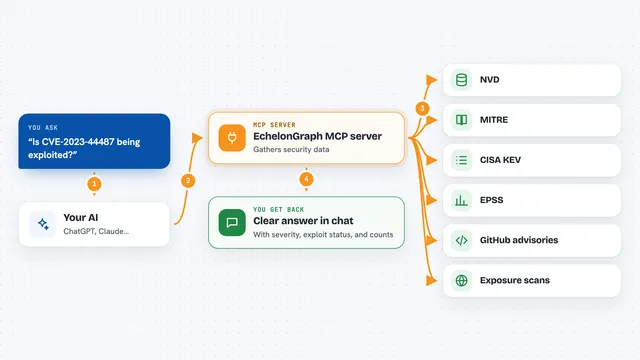
You ask your AI something about your cameras, like which ones are online or what was recorded last night. The AI sends that request to this helper program. The helper talks to your CCTV recording program over your local network. The CCTV program sends back the answer, such as a list of channels, a still image, or a confirmation that a live view was opened. Your AI then shows you the result in the chat.
 Click to zoom
What you can do with it
- List your video channels and see which are connected or recording
- Find out which dates and times have recordings for a channel
- Grab a live or recorded still image from a camera
- Open a live video window for a specific channel
- Open a playback window for a channel at a chosen time
- Move a PTZ camera to a saved preset position
Try asking your AI
- “Which cameras are online right now?”
- “Show me a picture from channel 3.”
- “Open playback for channel 1 at 2024-06-01 14:30.”
- “Move the camera on channel 2 to preset 1.”
What it gives back to you
You get answers in the chat, like a list of channels with their status, a set of recording dates and times, or a still image from a camera. When you ask it to open a live or playback window, it tells you that the window was opened on the VMS. It does not stream video into the chat itself.
Before you start
What you need
- Python 3.12 or newer
- The UV package manager
- The VMS server software from surveillance-logic.com installed and running
- The vmspy library files placed in the mcp-vms folder
Good to know
This helper can control your CCTV software, including moving cameras, so be careful with requests that change camera positions or open windows on a live security system.
Install it with your AI
Add VMS CCTV MCP server to your AI, no technical skills needed
You don't install anything by hand. You copy one prompt, paste it into an AI that can work on your computer, and it checks, installs and connects the server for you, asking you when it needs something.
Sign in to get the install prompt
Members get a ready-made prompt that lets the Claude desktop app check VMS CCTV MCP server, install it and connect it for them, step by step. You don't need any technical skills: you copy, paste and answer a few questions. Your connected AI can also find and install any of the 4,609 MCP servers here for you.
Who it's for
People who work with CCTV or security cameras and want to check or control them through an AI chat instead of clicking around the VMS software.