MCP server · Analytics
VikingDB MCP server
by KashiwaByte
Lets your AI save information into a VikingDB vector database and search it back when you ask.
This is a small helper that connects your AI assistant to VikingDB, a database made by ByteDance for storing and searching text in a smart way. It is handy if your team already keeps information in VikingDB and you want your AI to add to it or look things up without opening another tool. You do not need to understand how the database works inside.
What is an MCP server? The 30-second version
On its own, your AI can only chat with you using what it already knows. An MCP server is a small helper program that gives your AI one new skill, like a plug that connects it to another app. This particular helper connects your AI to VikingDB, so when you ask a question the AI can reach into that database for you. You set it up once, and after that you just talk to your AI like normal.
What this MCP server does
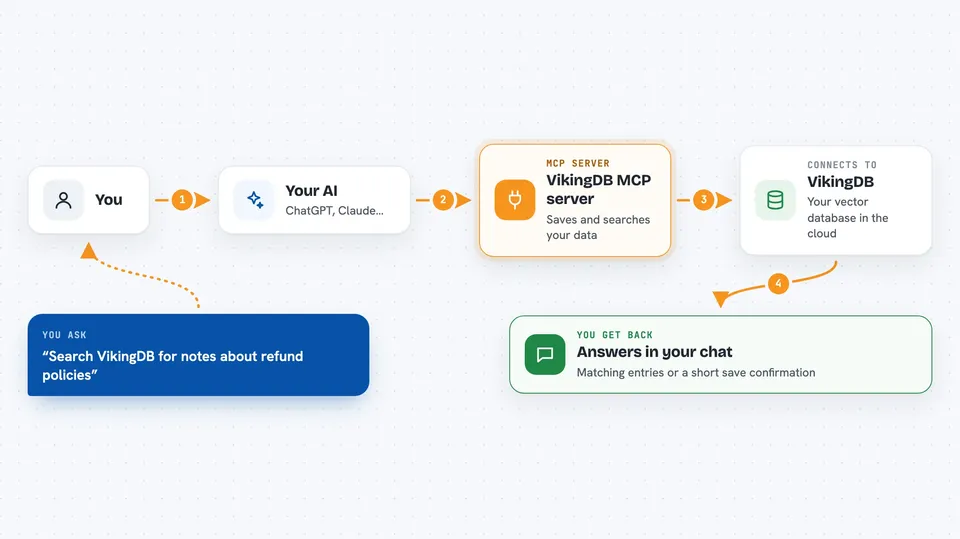
You ask your AI something in plain words, like saving a note or looking something up. The AI passes your request to this helper program. The helper then talks to your VikingDB database using the connection details you set up. It can describe the collection and index you are working with, save new information into the database, or search for information that is already there. Whatever comes back, the AI shows it to you in the chat as a normal answer.
 Click to zoom
What you can do with it
- Save a piece of text or information into your VikingDB collection
- Search your VikingDB collection for information that matches what you describe
- Ask what a collection contains before you use it
- Ask what an index is set up to do
- Add new entries to a collection you already have
- Look things up in VikingDB without leaving your chat window
Try asking your AI
- “Save this customer note into VikingDB: the client asked about our refund policy.”
- “Search VikingDB for anything we saved about refund policies.”
- “Tell me what the collection I am connected to is for.”
- “What does the index on this collection do?”
What it gives back to you
You get answers in the chat, in plain words. A search gives you the matching entries the database found. A save gives you a short confirmation that the information was stored. Asking about a collection or index gives you a description of what is set up there.
Before you start
What you need
- A VikingDB account with a collection and index already created
- The host and region of your VikingDB server
- An Access Key and Secret Key for VikingDB (these work like a username and password for the service)
- The Claude desktop app or another AI app that supports MCP servers
Good to know
It can add new entries to your VikingDB database, so be careful when asking it to save things, and keep your Access Key and Secret Key private.
Install it with your AI
Add VikingDB MCP server to your AI, no technical skills needed
You don't install anything by hand. You copy one prompt, paste it into an AI that can work on your computer, and it checks, installs and connects the server for you, asking you when it needs something.
Sign in to get the install prompt
Members get a ready-made prompt that lets the Claude desktop app check VikingDB MCP server, install it and connect it for them, step by step. You don't need any technical skills: you copy, paste and answer a few questions. Your connected AI can also find and install any of the 4,609 MCP servers here for you.
Who it's for
People whose team already uses VikingDB and wants their AI assistant to save and search that information without switching apps.