MCP server · Research
viznoir MCP server
by kimimgo
Turn simulation data into clear pictures, slices, and animations right from your AI chat.
viznoir is a helper that lets your AI make pictures and short videos from scientific simulation files. It is made for people who work with simulation results, like engineers and researchers, and who would rather ask in plain words than click around a heavy graphics program. If you have files from tools like OpenFOAM, VTK or CGNS and want to see what is inside them, this is for you.
What is an MCP server? The 30-second version
On its own, your AI can only chat. An MCP server is a small helper program that gives your AI a new skill, in this case the skill of opening simulation files and drawing pictures from them. Once viznoir is connected, your AI can read your data, cut it, colour it, and save an image or a short animation for you. You just ask in normal words, and the helper does the heavy drawing work behind the scenes.
What this MCP server does
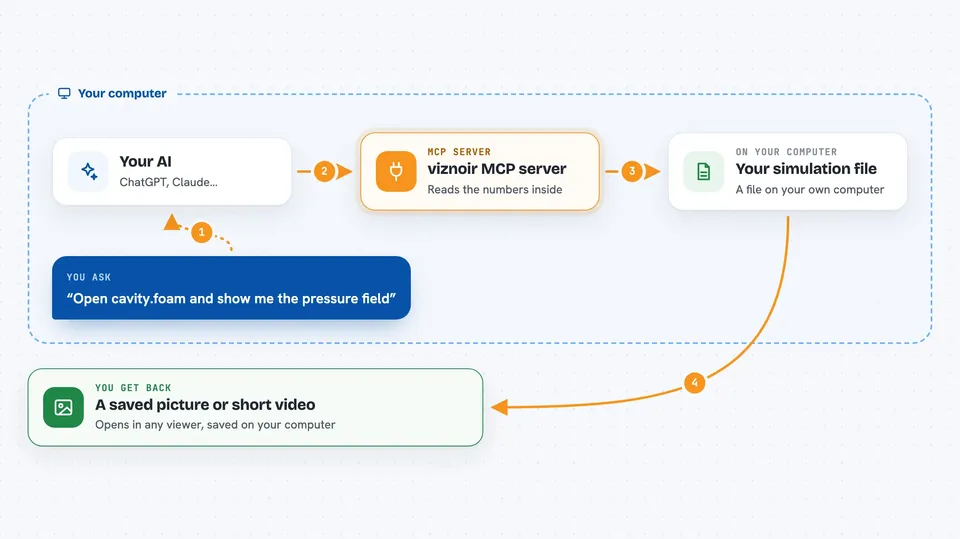
You tell your AI something like open this file and show me the pressure field. Your AI passes that request to viznoir. viznoir opens the file, reads the numbers inside, and uses a well known drawing engine called VTK to build an image. It can also cut the data with a slice, draw lines that follow the flow, or make a short animation. When it is done, it saves the picture or video and tells your AI where the file is, so you can open it.
 Click to zoom
What you can do with it
- Render a field from a simulation file as a clear image
- Slice through your data to see what is inside
- Draw contour lines or surfaces at a chosen value
- Show streamlines that follow the flow
- Make a short animation from a series of time steps
- Compare two cases side by side
- Save the result as PNG, WebP, MP4 or GLTF
Try asking your AI
- “Open cavity.foam and render the pressure field with nice lighting”
- “Slice the temperature field in half and save it as a PNG”
- “Show me the streamlines in this combustion case”
- “Make a short animation of the vorticity over time”
What it gives back to you
You get back a saved image or video file, plus a short note in the chat telling you where it was saved. Sometimes your AI also gives you a quick summary of what was found, like the list of fields in the file or a few numbers from the data. The picture itself opens in any normal image viewer, and the video plays like any other clip.
Before you start
What you need
- Python 3.10 or newer on your computer
- The viznoir package installed (pip install viznoir)
- An MCP client like Claude Desktop, Cursor or Windsurf
- The folder where your simulation files live
Good to know
It reads files from the folders you point it at and writes new files to your output folder, so make sure those folders are the ones you intend.
Install it with your AI
Add viznoir MCP server to your AI, no technical skills needed
You don't install anything by hand. You copy one prompt, paste it into an AI that can work on your computer, and it checks, installs and connects the server for you, asking you when it needs something.
Sign in to get the install prompt
Members get a ready-made prompt that lets the Claude desktop app check viznoir MCP server, install it and connect it for them, step by step. You don't need any technical skills: you copy, paste and answer a few questions. Your connected AI can also find and install any of the 4,361 MCP servers here for you.
Who it's for
Engineers, researchers and students who work with simulation data and want pictures without learning a heavy graphics program.