MCP server · Gaming
Pyxel MCP server
by kitao
Let your AI run Pyxel retro games, press keys, take screenshots, and read sprites and sounds.
This is a helper that connects your AI to Pyxel, a small engine for making retro-style games in Python. Once it is set up, your AI can actually run a game file, press buttons, and look at what happened on screen. It is handy if you are building or testing a Pyxel game and want your AI to check it for you.
What is an MCP server? The 30-second version
On its own, your AI can only chat. It cannot open a game window, press keys, or see a screen. An MCP server is a small helper program that gives your AI a new skill, and this one connects it to Pyxel. So when you ask your AI to try your game, it can run the game, send fake key presses, and look at the result for you.
What this MCP server does
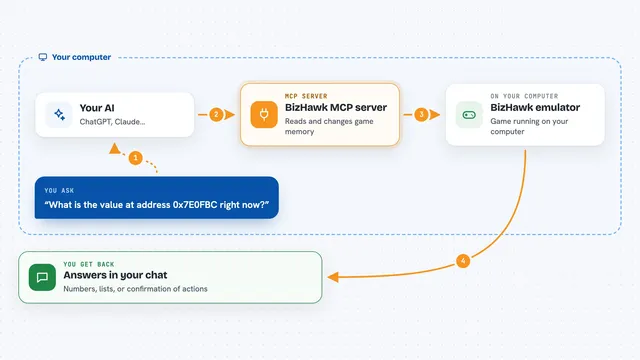
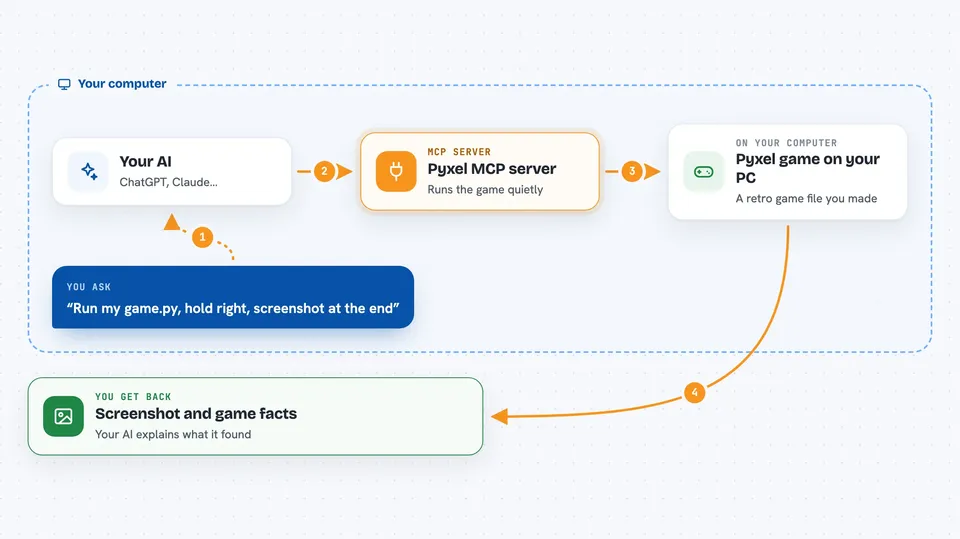
You point your AI at a Pyxel game file on your computer. The AI asks this helper to run that file quietly in the background, without opening a window. You can tell it which buttons to press and at which moment, and when to stop, for example when the score goes up. The helper then hands back facts like a screenshot, the values of game variables, the log, or the sounds. Your AI reads those facts and tells you what it found.
 Click to zoom
What you can do with it
- Run a Pyxel game file without opening a window
- Schedule button presses and mouse moves at specific moments
- Stop the run when a game value reaches a condition you set
- Capture a screenshot of the game screen
- Read the colors, sprites, and tilemap used by the game
- Render a sound or music track to a WAV file
- Compare two screenshots to see what pixels changed
Try asking your AI
- “Run my game.py for 600 frames, hold the right arrow, and take a screenshot at the end”
- “Play my game and stop as soon as the score is 1 or more, then show me the player position”
- “Check my game file for syntax errors before I run it”
- “Read the tilemap in my game and tell me which tiles are used most”
What it gives back to you
You get back plain facts in the chat: a screenshot image, the values of game variables you asked for, the log text, and the number of frames that ran. It also tells you whether your stop condition was met. If you asked for a sound, you get a WAV file path. Your AI then explains what those facts mean.
Before you start
What you need
- Python 3.11 or newer
- The uvx tool (a small program runner; the install command uses it)
- A Pyxel game file saved on your computer
Good to know
It runs your game file as real Python code on your computer, so only point it at files you trust.
Install it with your AI
Add Pyxel MCP server to your AI, no technical skills needed
You don't install anything by hand. You copy one prompt, paste it into an AI that can work on your computer, and it checks, installs and connects the server for you, asking you when it needs something.
Sign in to get the install prompt
Members get a ready-made prompt that lets the Claude desktop app check Pyxel MCP server, install it and connect it for them, step by step. You don't need any technical skills: you copy, paste and answer a few questions. Your connected AI can also find and install any of the 4,361 MCP servers here for you.
Who it's for
People making or testing small retro games with Pyxel who want their AI to run and check the game for them.