MCP server · Browser automation
Selenix MCP server
by markmircea
Let your AI create, run, and fix Selenix browser automation tests just by chatting.

This is a small helper that connects Claude Desktop to Selenix, the app people use to build browser automation tests. Once it is set up, you can ask Claude in plain words to make a test, run it, or fix what broke. It is handy for anyone who tests websites and would rather describe what they want than click through menus.
What is an MCP server? The 30-second version
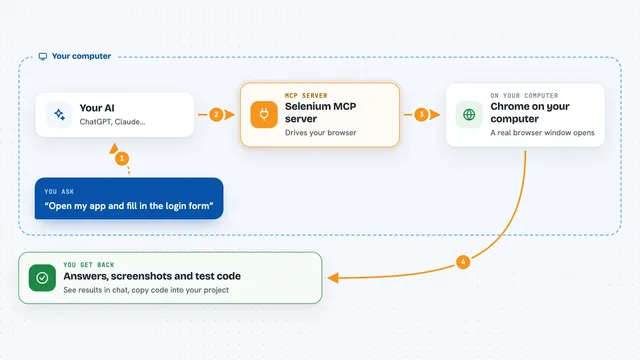
On its own, your AI can only chat. An MCP server is a small helper program that gives your AI a new skill or a connection to an app, and here it connects Claude to Selenix. So when you ask Claude to build or run a browser test, Claude passes that request to this helper, the helper talks to Selenix on your computer, and the answer comes back into your chat.
What this MCP server does
You type a request in Claude, like asking it to create a test or run the one you have open. Claude sends that request to this MCP server, which forwards it to a small bridge running inside Selenix on your own machine. Selenix then does the actual work, like adding steps to a test, running it in a browser, or taking a screenshot. The result, such as pass or fail details, page information, or the updated list of steps, comes back and Claude explains it to you in the chat.
 Click to zoom
What you can do with it
- List all the tests in your Selenix project
- Create a new test from a plain description
- Run a test and wait for the results
- Fix failing steps in an existing test
- Take a screenshot of the browser window
- Read the page HTML with clickable elements marked
- Look up what a Selenix command does
Try asking your AI
- “What tests are in my Selenix project?”
- “Create a test that opens google.com and searches for selenium automation”
- “Run the current test and fix any failures”
- “Take a screenshot of the browser”
What it gives back to you
You get answers in your Claude chat, not files to download. That might be a list of your tests, the steps inside one test, pass or fail results from the last run, or a screenshot Claude can look at. When Claude changes something, like adding or fixing steps, it tells you what it changed.
Before you start
What you need
- The Selenix desktop app installed
- The Claude Desktop app installed
- Node.js 18 or later
- The MCP Server turned on inside Selenix (System Settings, set Enable MCP Server to Yes)
Good to know
It can change your tests, so check what Claude changed before you rely on it, and remember it runs tests in a real browser on your machine.
Install it with your AI
Add Selenix MCP server to your AI, no technical skills needed
You don't install anything by hand. You copy one prompt, paste it into an AI that can work on your computer, and it checks, installs and connects the server for you, asking you when it needs something.
Sign in to get the install prompt
Members get a ready-made prompt that lets the Claude desktop app check Selenix MCP server, install it and connect it for them, step by step. You don't need any technical skills: you copy, paste and answer a few questions. Your connected AI can also find and install any of the 4,361 MCP servers here for you.
Who it's for
QA testers, developers, and anyone who builds or maintains browser automation tests in Selenix and wants to work faster by chatting.