MCP server · Browser automation
Ascended Browser MCP server
by AceAtDev
Let your AI open a real browser, click and fill forms, and check pages for errors and layout problems.
Ascended Browser is a small helper that gives your AI its own web browser. You ask your AI to check a page or walk through a sign-up form, and it actually does it in a real browser window behind the scenes. It is handy for anyone testing a website or wanting the AI to look something up online.
What is an MCP server? The 30-second version
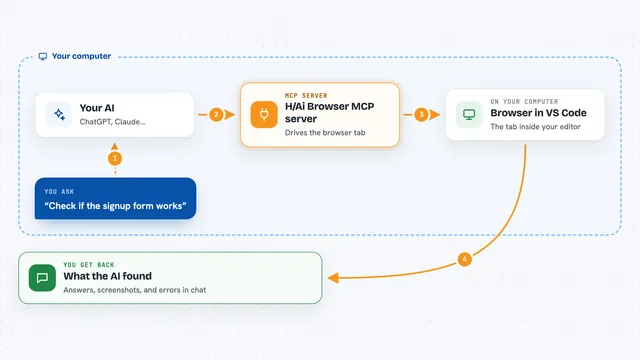
On its own, your AI can only chat. An MCP server is a small helper program that gives your AI a new skill or a connection to an app or service. This one connects your AI to a real web browser, so it can open pages, read what is on them, and click or type for you when you ask.
What this MCP server does
You tell your AI what to do, for example check the login page of your app. The AI uses this helper to open a real browser and load the page. The helper reads the page and lists every button, field and link it finds. The AI then clicks, types or fills a whole form in one go, and the helper reports back what changed on the page. You get a plain summary of what happened, plus screenshots and error logs if you asked for them.
What you can do with it
- Open a web page and list every button, link and form field on it
- Fill in a whole form in one step, including custom dropdowns and date pickers
- Read the browser console and failed network requests to spot errors
- Take screenshots and compare them before and after a change
- Resize the page to phone, tablet or desktop size to check the layout
- Sign in with a saved login without the AI ever seeing your password
- Record a task once and replay it on another page with new values
Try asking your AI
- “Open my local app at localhost:3000, go through the sign-up form, and tell me if any errors appear in the console.”
- “Check the checkout page on my site at phone width and take a screenshot before and after I fix the layout.”
- “Go to example.com, find the pricing section, and list every plan and its price.”
- “Sign in to my staging site with my saved login and take a screenshot of the dashboard.”
What it gives back to you
You get back a written summary of what the AI saw and did, such as a list of buttons and fields, the text of a page, or a note saying a click worked and what changed. Screenshots come back as pictures in the chat. Console errors and failed network requests are listed in plain text. If a page is very long, the result is shortened and the AI can ask for more.
Before you start
What you need
- Python 3.11 or newer, or Node.js if you use the npm version
- The uv tool (or pipx) to run the Python package
- About 700 MB of free disk space for the browser download
- An MCP client such as Claude Code or Codex
Good to know
The AI can click and type on real websites, so check what it is doing on important pages, and note that saved logins are stored in a file that other tools on your computer could read.
Install it with your AI
Add Ascended Browser MCP server to your AI, no technical skills needed
You don't install anything by hand. You copy one prompt, paste it into an AI that can work on your computer, and it checks, installs and connects the server for you, asking you when it needs something.
Sign in to get the install prompt
Members get a ready-made prompt that lets the Claude desktop app check Ascended Browser MCP server, install it and connect it for them, step by step. You don't need any technical skills: you copy, paste and answer a few questions. Your connected AI can also find and install any of the 4,609 MCP servers here for you.
Who it's for
Front-end developers and QA testers who want their AI to check web pages and forms in a real browser.